How to enable gzip compression in Nginx
Enabling gzip in Nginx reduces the size of HTML, CSS, JavaScript, JSON, and other text responses before they cross the network. That lowers bandwidth use and often improves page load time, especially when the same server handles many repetitive text assets or clients connect over slower links.
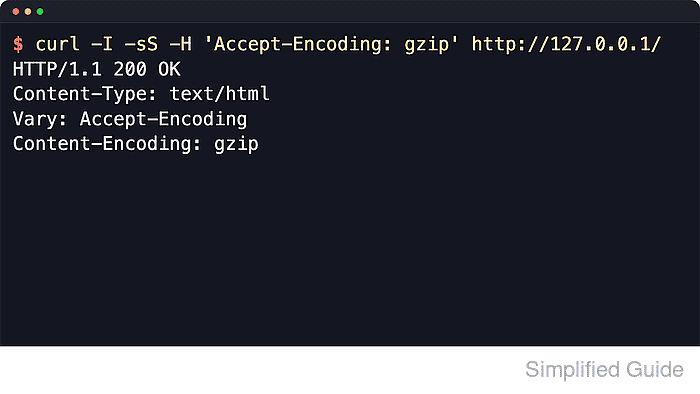
Nginx negotiates compression per response by reading the client's Accept-Encoding header. When gzip is applied, the response includes Content-Encoding: gzip, and enabling gzip_vary adds Vary: Accept-Encoding so caches keep compressed and uncompressed variants separate. Responses with text/html are always eligible, while gzip_types adds other MIME types such as CSS, JSON, XML, and SVG.
Examples below use the common packaged layout with /etc/nginx/nginx.conf as the main file and nginx.service for reloads. Some packaged configs already include gzip on;, so update existing gzip directives instead of adding duplicates in the same context. Compress only text-like responses, confirm which layer should handle compression if a CDN or reverse proxy is already in front of the site, and avoid blindly compressing secret-bearing TLS responses because the official Nginx docs still note the BREACH risk.
Related: How to improve Nginx performance
Related: How to enable Brotli compression in Nginx
Steps to enable gzip compression in Nginx:
- Open the main Nginx configuration file or a drop-in file that is loaded from the http block.
$ sudoedit /etc/nginx/nginx.conf
Packaged layouts often load additional files from /etc/nginx/conf.d/ or /etc/nginx/sites-enabled/, but compression directives belong in a context that applies to the responses you want to compress.
- Set the gzip directives once in the http block.
http {
    gzip on;
    gzip_comp_level 5;
    gzip_min_length 256;
    gzip_vary on;
    gzip_types text/plain text/css application/javascript application/json application/xml text/xml application/rss+xml application/atom+xml image/svg+xml;
    ##### snipped #####
}
Do not paste a second gzip on; into an included file when the same http context already has one. Current Ubuntu packages include that directive in /etc/nginx/nginx.conf, so either extend the existing section there or put only the missing tuning directives in the drop-in.
text/html is always compressed, so gzip_types only adds more MIME types. Add gzip_proxied any; only when Nginx should also compress eligible proxied responses, and leave already-compressed formats such as JPEG, PNG, MP4, ZIP, and PDF out of the list.
- Test the Nginx configuration before reloading the service.
$ sudo nginx -t
nginx: the configuration file /etc/nginx/nginx.conf syntax is ok
nginx: configuration file /etc/nginx/nginx.conf test is successful
Related: How to test Nginx configuration
- Reload Nginx to apply the updated compression settings.
$ sudo systemctl reload nginx
Use sudo nginx -s reload when the service is not managed by systemd.
Related: How to manage the Nginx service
- Request a text response with gzip accepted and inspect the returned headers.
$ curl -sSI -H 'Accept-Encoding: gzip' http://127.0.0.1/
HTTP/1.1 200 OK
Server: nginx/1.28.3 (Ubuntu)
Date: Sat, 06 Jun 2026 11:37:53 GMT
Content-Type: text/html
Last-Modified: Sat, 06 Jun 2026 11:37:51 GMT
Connection: keep-alive
Vary: Accept-Encoding
ETag: W/"6a24068f-267"
Content-Encoding: gzip
gzip_min_length is evaluated from the response Content-Length header, so test with a normal text endpoint that is large enough to exceed the threshold. If Content-Encoding is missing, confirm the response MIME type is covered by gzip_types and that a CDN or upstream proxy is not rewriting compression behavior.
Tool: Gzip Compression Checker