How to configure Let's Encrypt SSL in Nginx
Serving an Nginx site over HTTPS with a Let's Encrypt certificate protects logins, cookies, and API traffic from interception while removing the browser warnings that make a public site look untrusted or misconfigured.
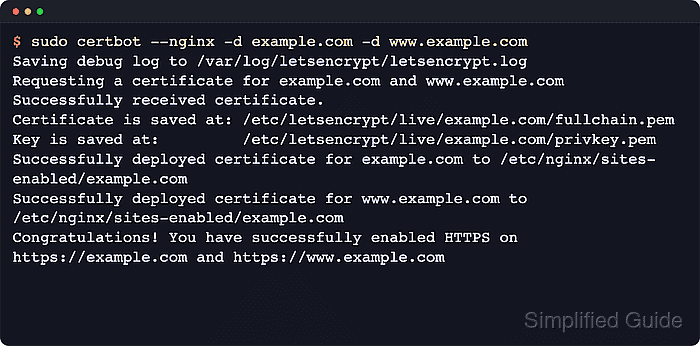
Let's Encrypt issues certificates through ACME, and the certbot Nginx installer can request the certificate, match the right server block by server_name, write the certificate files under /etc/letsencrypt/live/, and update the site configuration so Nginx serves the new certificate immediately.
Examples below use the Debian and Ubuntu package path with certbot, python3-certbot-nginx, the nginx systemd unit, and the standard /etc/nginx/ layout. Public DNS, inbound port 80, and a reachable site over HTTP still matter for HTTP-01 validation even when the finished site redirects to HTTPS, and CDNs, reverse proxies, or stale .AAAA records can make validation fail against the public path that Let's Encrypt sees.
Related: How to improve Nginx security
Related: How to redirect HTTP to HTTPS in Nginx
Related: How to enable HSTS in Nginx
Tool: SSL Checker
Steps to configure Let's Encrypt SSL in Nginx:
- Confirm that the primary hostname resolves to the server public IP address.
$ getent ahosts example.com
203.0.113.10   STREAM example.com
203.0.113.10   DGRAM
203.0.113.10   RAW
Repeat the check for every hostname passed with -d. If the name also has an .AAAA record, that IPv6 address must reach the same Nginx site or ACME validation can fail from validators that choose IPv6.
- Confirm that the site answers on port 80 before requesting the certificate.
$ curl -I http://example.com
HTTP/1.1 200 OK
Server: nginx
Content-Type: text/html
##### snipped #####
Let's Encrypt follows a limited redirect chain for HTTP-01 validation, so a redirect to HTTPS can still validate, but the hostname must still be reachable on port 80.
If port 80 is blocked by a host firewall, cloud firewall, CDN rule, or reverse proxy policy, HTTP-01 issuance will fail.
- Allow inbound TCP ports 80 and 443 through the host or cloud firewall.
$ sudo ufw allow 'Nginx Full'
Rule added
Rule added (v6)
Use equivalent rules in nftables, iptables, or your cloud firewall when ufw is not in use.
- Open the site configuration and make sure the HTTP server block names every hostname that should appear on the certificate.
$ sudoedit /etc/nginx/sites-available/example.com
server {
    listen 80;
    server_name example.com www.example.com;

    ##### snipped #####
}
The Nginx installer matches enabled server blocks by server_name. Missing or overlapping names can cause certbot to edit the wrong site or fail to choose one automatically.
Site configs are commonly stored under /etc/nginx/sites-available with symlinks in /etc/nginx/sites-enabled, or directly under /etc/nginx/conf.d.
- Test the Nginx configuration before requesting the certificate.
$ sudo nginx -t
nginx: the configuration file /etc/nginx/nginx.conf syntax is ok
nginx: configuration file /etc/nginx/nginx.conf test is successful
- Refresh the package index on Debian or Ubuntu.
$ sudo apt update
Get:1 http://archive.ubuntu.com/ubuntu resolute InRelease [136 kB]
Get:2 http://security.ubuntu.com/ubuntu resolute-security InRelease [137 kB]
##### snipped #####
Reading package lists... Done
- Install certbot and the Nginx plugin from the distro packages.
$ sudo apt install --assume-yes certbot python3-certbot-nginx
The following NEW packages will be installed:
  certbot python3-certbot-nginx
##### snipped #####
- Request and install the certificate with the Nginx plugin.
$ sudo certbot --nginx -d example.com -d www.example.com
Saving debug log to /var/log/letsencrypt/letsencrypt.log
Requesting a certificate for example.com and www.example.com
##### snipped #####
Successfully received certificate.
Certificate is saved at: /etc/letsencrypt/live/example.com/fullchain.pem
Key is saved at:         /etc/letsencrypt/live/example.com/privkey.pem
Successfully deployed certificate for example.com to /etc/nginx/sites-enabled/example.com
Successfully deployed certificate for www.example.com to /etc/nginx/sites-enabled/example.com
Congratulations! You have successfully enabled HTTPS on https://example.com and https://www.example.com
The Nginx plugin keeps configuration checkpoints, so sudo certbot rollback --checkpoints 1 can revert the most recent installer change when a deployment goes wrong.
On current distro-packaged certbot, the install and run flows default to HTTP to HTTPS redirection unless --no-redirect is supplied. Use --no-redirect when another layer already handles redirects or when plain HTTP must stay reachable.
Use --test-cert during troubleshooting so repeated failed attempts do not consume live issuance quota. Wildcard names require a DNS validation plugin instead of HTTP-01.
- Confirm that the deployed Nginx configuration still parses cleanly.
$ sudo nginx -t
nginx: the configuration file /etc/nginx/nginx.conf syntax is ok
nginx: configuration file /etc/nginx/nginx.conf test is successful
- Confirm that the nginx service stayed active after certificate deployment.
$ sudo systemctl is-active nginx
active
If the service does not return active, inspect sudo journalctl --unit=nginx --no-pager --lines=30 before retrying the deployment.
- Verify that the site now responds over HTTPS.
$ curl -I https://example.com
HTTP/2 200
server: nginx
content-type: text/html
##### snipped #####
- Verify that HTTP redirects to HTTPS when redirect mode is enabled.
$ curl -I http://example.com
HTTP/1.1 301 Moved Permanently
Server: nginx
Location: https://example.com/
##### snipped #####
- Verify the certificate subject, issuer, and expiry served by the site.
$ echo | openssl s_client -servername example.com -connect example.com:443 2>/dev/null | openssl x509 -noout -issuer -subject -dates
issuer=C=US,O=Let's Encrypt,CN=R12
subject=CN=example.com
notBefore=Apr  9 05:43:12 2026 GMT
notAfter=Jul  8 05:43:11 2026 GMT
The intermediate name can change over time, but the subject, issuer organization, and validity dates should match the deployed certificate lineage.
- Perform a renewal dry run to confirm the stored renewal configuration still works.
$ sudo certbot renew --dry-run
Saving debug log to /var/log/letsencrypt/letsencrypt.log
##### snipped #####
Simulating renewal of an existing certificate for example.com and www.example.com
##### snipped #####
Congratulations, all simulated renewals succeeded:
  /etc/letsencrypt/live/example.com/fullchain.pem (success)
--dry-run talks to the staging service and does not replace the active production certificate.
- Confirm that the packaged renewal timer is active.
$ sudo systemctl status certbot.timer --no-pager
● certbot.timer - Run certbot twice daily
     Loaded: loaded (/usr/lib/systemd/system/certbot.timer; enabled; preset: enabled)
     Active: active (waiting)
    Trigger: ##### snipped #####
##### snipped #####
Distro package installs usually ship certbot.timer. Other install methods such as snap can use different unit names or scheduled task paths.