How to check Nextcloud administration overview warnings
Nextcloud reports deployment warnings on the Administration overview page when background jobs, web headers, database choices, mail settings, or other server checks need attention. Reviewing that page before and after maintenance keeps setup warnings separate from user-facing incidents.
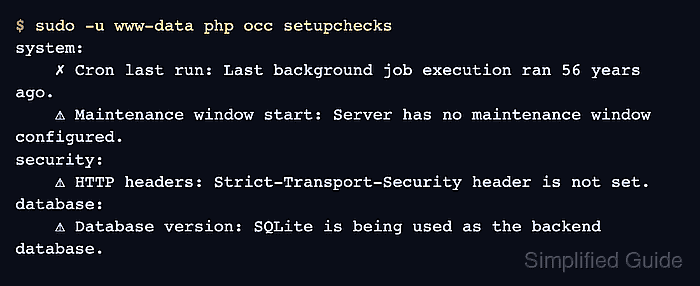
The web overview gives administrators the fastest view of visible warnings. The occ setupchecks command uses the same server-side setup-check system from the shell, which makes it easier to copy the result into a maintenance ticket or compare the output after a fix.
Treat red errors and yellow warnings as the action queue. Blue information lines often describe optional hardening or environment context, and green success lines can usually stay out of the remediation list unless they changed unexpectedly.
Related: How to run Nextcloud occ commands
Related: How to view Nextcloud logs
Related: How to run a Nextcloud security scan
Steps to check Nextcloud administration overview warnings:
- Sign in as a Nextcloud administrator and open Administration settings → Overview.
The overview page can include direct links to the admin section that owns a warning, such as background jobs, basic settings, or security-related server configuration.
- Open a server shell in the Nextcloud installation directory.
$ cd /var/www/nextcloud
Use the real web root for the instance. Common paths include /var/www/nextcloud and /var/www/html depending on the installation method.
Related: How to run Nextcloud occ commands - Run the setup checks as the web-server user.
$ sudo -u www-data php occ setupchecks
	system:
		ℹ AppAPI deploy daemon: AppAPI default deploy daemon is not set. Please register a default deploy daemon in the settings to install External Apps (Ex-Apps).
		✓ Cron errors: The last cron job ran without errors.
		✗ Cron last run: Last background job execution ran 56 years ago. Something seems wrong. Check the background job settings.
		⚠ Maintenance window start: Server has no maintenance window start time configured.
##### snipped #####
	security:
		ℹ HTTPS access and URLs: Your instance is generating insecure URLs.
		⚠ HTTP headers: Some headers are not set correctly on your instance
- The `Strict-Transport-Security` HTTP header is not set (should be at least `15552000` seconds).
##### snipped #####
	database:
		⚠ Database version: SQLite is currently being used as the backend database.
##### snipped #####
On Debian and Ubuntu web-server installs, the web-server user is usually www-data. Use the account that owns the Nextcloud files on other platforms.
- Classify each non-green item by severity before changing configuration.
A red ✗ item needs remediation or a clear exception. A yellow ⚠ item should be reviewed and either fixed or accepted with a reason. A blue ℹ item is informational and may still point to useful hardening, such as mail setup or reverse-proxy URL detection.
- Match each warning to the owning setting or service.
Cron last run belongs to background jobs, HTTP headers belongs to the web server or reverse proxy, Database version belongs to the database backend, and Errors in the log should be checked in the Nextcloud log before changing unrelated settings.
Related: How to configure Nextcloud background jobs with cron
Related: How to configure HTTPS for Nextcloud with Nginx and Let's Encrypt
Related: How to view Nextcloud logs
Tool: HTTP Header Checker - Save structured output when the warning list needs to be attached to a ticket.
$ sudo -u www-data php occ setupchecks --output=json_pretty > ~/nextcloud-setupchecks.json
Store exported setup-check output outside the web root when it contains hostnames, paths, app names, or deployment details that should not be public.
- Compare the web overview with the shell output before closing the check.
Every red or yellow item from Administration settings → Overview should have an owner, a next action, or a documented exception. Re-run occ setupchecks after remediation and verify that the same item changes severity or leaves the action queue.