How to create a Nagios Core service group
Service groups in Nagios Core collect related service checks into one status view without changing the checks themselves. They fit application tiers, customer-facing services, or ownership groups where operators need to compare HTTP, SSH, database, certificate, or queue checks across several hosts.
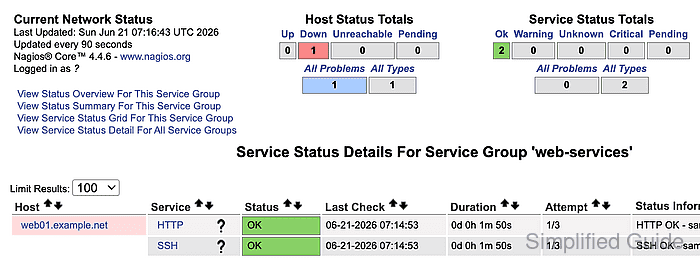
Nagios Core reads service group objects from files included by cfg_file and cfg_dir in nagios.cfg. The members directive uses comma-delimited host and service pairs, with each host_name immediately followed by the matching service_description.
Use a service group object when membership should be maintained in one file. The servicegroups directive inside a service definition is the alternate pattern; keep one pattern for the same group so later edits do not leave stale membership in another object file.
Steps to create a Nagios Core service group:
- Confirm that Nagios Core loads the local object directory.
$ grep '^cfg_dir=' /etc/nagios4/nagios.cfg
cfg_dir=/etc/nagios-plugins/config
cfg_dir=/etc/nagios4/conf.d
Debian and Ubuntu package installs commonly load /etc/nagios4/conf.d. Source installs often use /usr/local/nagios/etc/objects or another directory named by cfg_file or cfg_dir.
Related: How to add a Nagios Core object configuration directory - Identify the exact host_name and service_description values for the services that belong in the group.
The members list must use object names, not display aliases. A pair such as web01.example.net,HTTP means the HTTP service attached to web01.example.net.
Related: How to add a service check in Nagios Core - Open a service group object file in the loaded object directory.
$ sudoedit /etc/nagios4/conf.d/servicegroups.cfg
- Add the service group definition with one host and service pair for each member.
- servicegroups.cfg
define servicegroup {
    servicegroup_name       web-services
    alias                   Web Services
    members                 web01.example.net,HTTP,web01.example.net,SSH
}
Use commas between every host and service value. To include another service group inside this group, use servicegroup_members with the child service group names instead of adding those names to members.
- Validate the full Nagios Core configuration.
$ sudo nagios4 -v /etc/nagios4/nagios.cfg
Nagios Core 4.4.6
##### snipped #####
Reading configuration data...
   Read main config file okay...
   Read object config files okay...

Running pre-flight check on configuration data...

Checking objects...
	Checked 8 services.
	Checked 1 hosts.
	Checked 1 service groups.
##### snipped #####

Total Warnings: 0
Total Errors:   0

Things look okay - No serious problems were detected during the pre-flight check
Do not reload Nagios Core while Total Errors is greater than 0. Fix the first reported object or path error, then run the verifier again.
- Reload Nagios Core to apply the accepted object definition.
$ sudo systemctl reload nagios4
Ubuntu and Debian package installs use the nagios4 service name. Source installs may use a different service name, init script, or SIGHUP reload method.
Related: How to manage the Nagios Core system service - Confirm that the nagios4 service is active after the reload.
$ systemctl is-active nagios4
active
If the service is not active, read /var/log/nagios4/nagios.log or the service journal before relying on the new group.
Related: How to check Nagios Core logs - Confirm that the service group loaded into the runtime object cache.
$ sudo grep -A4 "servicegroup_name.*web-services" /var/lib/nagios4/objects.cache
        servicegroup_name   web-services
        alias   Web Services
        members web01.example.net,HTTP,web01.example.net,SSH
        }
Use the object_cache_file path from /etc/nagios4/nagios.cfg when your installation stores the runtime object cache somewhere else.
- Open the web-services detail view in the Nagios Core web UI.
http://monitor.example.net/nagios4/cgi-bin/status.cgi?servicegroup=web-services&style=detail
The service rows should show the host and service pairs from members. The Status column reflects current check results for those services, not whether the service group object parsed.
Related: How to view Nagios Core host groups and service groups