Host groups in Nagios Core collect related host objects into a named view for operators and service definitions. They are useful when the same team owns several hosts, when a status page needs to show one application tier, or when a service check should apply to every host in a group.
Nagios Core loads host group objects from the object files named by cfg_file and cfg_dir in nagios.cfg. On Debian and Ubuntu package installs, site-specific objects commonly belong under /etc/nagios4/conf.d; source installs often use object files below /usr/local/nagios/etc.
Create the group with existing host_name values, not aliases or display names. The members directive keeps membership inside the host group object, while the hostgroups directive inside a host object is an alternate way to add that host to one or more groups.
Steps to create a Nagios Core host group:
- Confirm that Nagios Core loads the local object directory.
$ grep '^cfg_dir=/etc/nagios4/conf.d' \
  /etc/nagios4/nagios.cfg
cfg_dir=/etc/nagios4/conf.d
Use the object directory configured on the monitoring server. Source installs commonly use paths below /usr/local/nagios/etc instead of /etc/nagios4.
Related: How to add a Nagios Core object configuration directory - Open a host group object file in the loaded directory.
$ sudoedit \
  /etc/nagios4/conf.d/web-servers.cfg
- Add the host group definition.
- web-servers.cfg
define hostgroup {
    hostgroup_name          web-servers
    alias                   Web Servers
    members                 localhost
}
Replace localhost with the exact host_name values that should belong to the group, separated by commas. Add the host objects first when the hosts do not exist yet.
Related: How to add a host in Nagios Core - Validate the full Nagios Core configuration.
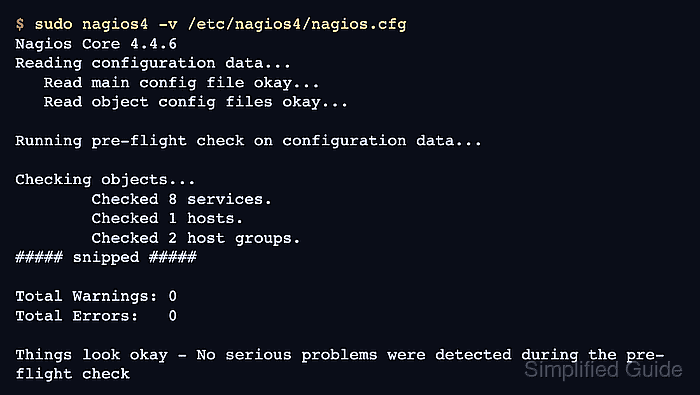
$ sudo nagios4 -v \
  /etc/nagios4/nagios.cfg
Nagios Core 4.4.6
##### snipped #####
Reading configuration data...
   Read main config file okay...
   Read object config files okay...

Running pre-flight check on configuration data...

Checking objects...
        Checked 8 services.
        Checked 1 hosts.
        Checked 2 host groups.
##### snipped #####

Total Warnings: 0
Total Errors:   0

Things look okay - No serious problems were detected during the pre-flight check
Do not reload Nagios Core while Total Errors is greater than 0. Fix the first reported object file and line before trying again.
- Reload Nagios Core to apply the accepted object definition.
$ sudo systemctl reload nagios4
Debian and Ubuntu package installs use the nagios4 service name. Source installs may use a different service name, init script, or SIGHUP reload method.
Related: How to manage the Nagios Core system service - Confirm that the nagios4 service is active after the reload.
$ systemctl is-active nagios4
active
If the service is not active, inspect /var/log/nagios4/nagios.log or the journal before relying on the new group.
Related: How to check Nagios Core logs - Confirm that the host group reached the runtime object cache.
$ sudo grep -A4 "hostgroup_name.*web-servers" \
  /var/lib/nagios4/objects.cache
        hostgroup_name  web-servers
        alias   Web Servers
        members localhost
        }
Use the object_cache_file path from nagios.cfg when the local installation stores the runtime object cache somewhere else.
- Open the Nagios Core web UI and select Current Status → Host Groups.
The web-servers group should list the hosts from members. Use the same hostgroup_name in later service definitions when one check should apply to every host in the group.
Related: How to add a service check in Nagios Core

Mohd Shakir Zakaria is a cloud architect with deep roots in software development and open-source advocacy. Certified in AWS, Red Hat, VMware, ITIL, and Linux, he specializes in designing and managing robust cloud and on-premises infrastructures.


