How to remove a service check from Nagios Core
Service checks in Nagios Core turn a host into a list of monitored applications, ports, resources, and metrics. When one of those checks is retired, removing its service object keeps status views and notifications from tracking something that should no longer exist.
Nagios Core identifies a service by the combination of host_name and service_description. The object can live in a host-specific file, a shared object file, or a directory included by cfg_file and cfg_dir entries from nagios.cfg, so find the source definition before deleting anything.
The removed check should disappear while the host and unrelated services remain loaded. A clean pre-flight check, a reload, and an absent service entry in the runtime object cache or web Services view confirm that the retired check is gone without breaking the rest of the host.
Steps to remove a Nagios Core service check:
- Find object files that mention the retired service description.
$ sudo grep --recursive --line-number "service_description.*HTTP" /etc/nagios4/conf.d /etc/nagios4/objects
/etc/nagios4/objects/localhost.cfg:156:    service_description     HTTP
Use the object paths loaded by the local nagios.cfg file. Source installs commonly use paths below /usr/local/nagios/etc instead of the packaged /etc/nagios4 layout.
Related: How to add a Nagios Core object configuration directory - Review the matched service block before changing the file.
define service {

    use                     local-service           ; Name of service template to use
    host_name               localhost
    service_description     HTTP
    check_command           check_http
    notifications_enabled   0
}
Do not delete the host object or a shared object file when only one service is retired. Remove only the matching define service block unless every definition in that file belongs to the retired service.
- Create a root-only backup directory for the affected object file.
$ sudo mkdir --parents /root/nagios-config-backups
- Back up the object file before editing it.
$ sudo cp --archive /etc/nagios4/objects/localhost.cfg /root/nagios-config-backups/
- Open the matched object file in an editor.
$ sudoedit /etc/nagios4/objects/localhost.cfg
- Delete only the retired service definition and leave other host services in place.
- Confirm that the object files no longer define the retired service.
$ sudo grep --recursive --line-number "service_description.*HTTP" /etc/nagios4/conf.d /etc/nagios4/objects
No output means the configured object files no longer contain that service_description value.
- Validate the Nagios Core configuration.
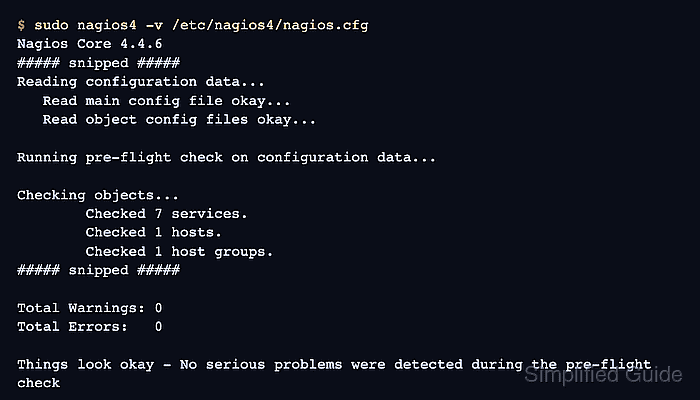
$ sudo nagios4 -v /etc/nagios4/nagios.cfg
Nagios Core 4.4.6
##### snipped #####
Reading configuration data...
   Read main config file okay...
   Read object config files okay...

Running pre-flight check on configuration data...

Checking objects...
	Checked 7 services.
	Checked 1 hosts.
	Checked 1 host groups.
##### snipped #####

Total Warnings: 0
Total Errors:   0

Things look okay - No serious problems were detected during the pre-flight check
Do not reload Nagios Core while Total Errors is greater than 0. Fix the first reported object, dependency, escalation, or command reference before applying the removal.
- Reload Nagios Core to rebuild the runtime object cache.
$ sudo systemctl reload nagios4
Ubuntu and Debian package installs use the nagios4 unit. Source installs may use another service name, an init script, or a direct SIGHUP reload.
Related: How to manage the Nagios Core system service - Confirm that the runtime object cache no longer contains the retired service.
$ sudo grep --line-number "service_description.*HTTP" /var/lib/nagios4/objects.cache
No output means the cache used by the Nagios Core CGIs no longer includes the HTTP service. Use the local object_cache_file path from nagios.cfg when it differs.
- Confirm that another service on the host still loaded.
$ sudo grep --line-number "service_description.*Current Load" /var/lib/nagios4/objects.cache
1031:	service_description	Current Load
Refresh the web Services view after the reload if operators use the UI for final confirmation. The retired service should be absent, while the host's remaining services should still appear.