Nagios Core keeps its monitoring model in text configuration files, so a damaged object file, failed maintenance change, or risky upgrade needs a recoverable copy of the configuration tree. A backup should be more than an archive on disk; it should list the expected files, restore into a staging path, and pass the Nagios pre-flight check after recovery.
The active configuration starts at the main nagios.cfg file and expands through its cfg_file, cfg_dir, and resource_file directives. On Ubuntu and Debian package installs, those paths usually include /etc/nagios4 plus plugin command fragments under /etc/nagios-plugins/config.
A restore belongs in a staging directory before it touches the live tree. After the live restore, run the Nagios pre-flight check before reloading the daemon, because the web interface reads objects from the running process and does not prove that restored source files are valid by itself.
Related: How to upgrade Nagios Core
Steps to back up and restore Nagios Core configuration:
- List the active Nagios Core configuration include paths.
$ sudo grep -E '^(cfg_file|cfg_dir|resource_file)=' /etc/nagios4/nagios.cfg
cfg_dir=/etc/nagios-plugins/config
cfg_dir=/etc/nagios4/conf.d
cfg_file=/etc/nagios4/objects/commands.cfg
cfg_file=/etc/nagios4/objects/contacts.cfg
cfg_file=/etc/nagios4/objects/timeperiods.cfg
cfg_file=/etc/nagios4/objects/templates.cfg
cfg_file=/etc/nagios4/objects/localhost.cfg
resource_file=/etc/nagios4/resource.cfg
Back up every file or directory named by these directives. Source installs often start from /usr/local/nagios/etc/nagios.cfg instead of /etc/nagios4/nagios.cfg.
- Create a private directory for the backup archive.
$ sudo install -d -m 700 /root/nagios-config-backups
- Create a compressed archive of the active configuration trees.
$ sudo tar --create --gzip --verbose \
  --file /root/nagios-config-backups/nagios-config-2026-06-22.tar.gz \
  /etc/nagios4 \
  /etc/nagios-plugins/config
tar: Removing leading `/' from member names
/etc/nagios4/
/etc/nagios4/resource.cfg
/etc/nagios4/apache2.conf
/etc/nagios4/objects/
/etc/nagios4/objects/localhost.cfg
/etc/nagios4/objects/printer.cfg
/etc/nagios4/objects/templates.cfg
tar: Removing leading `/' from hard link targets
##### snipped #####
/etc/nagios4/nagios.cfg
/etc/nagios4/cgi.cfg
/etc/nagios-plugins/config/
/etc/nagios-plugins/config/http.cfg
/etc/nagios-plugins/config/ssh.cfg
##### snipped #####
The archive can contain web credentials, resource macros, contact addresses, and command arguments. Store it with root-only permissions and move it only through trusted backup storage.
- List the archive contents before depending on it.
$ sudo tar --list --file /root/nagios-config-backups/nagios-config-2026-06-22.tar.gz
etc/nagios4/
etc/nagios4/resource.cfg
etc/nagios4/apache2.conf
etc/nagios4/objects/
etc/nagios4/objects/localhost.cfg
etc/nagios4/objects/printer.cfg
etc/nagios4/objects/templates.cfg
##### snipped #####
etc/nagios4/nagios.cfg
etc/nagios4/cgi.cfg
etc/nagios-plugins/config/
etc/nagios-plugins/config/http.cfg
etc/nagios-plugins/config/ssh.cfg
##### snipped #####
- Create a staging directory for a restore test.
$ sudo install -d -m 700 /root/nagios-restore-test
- Extract the archive into the staging directory.
$ sudo tar --extract --gzip \
  --file /root/nagios-config-backups/nagios-config-2026-06-22.tar.gz \
  --directory /root/nagios-restore-test
The extracted files appear under /root/nagios-restore-test/etc/nagios4 and /root/nagios-restore-test/etc/nagios-plugins/config because tar removed the leading slash when the archive was created.
- Compare the staged /etc/nagios4 restore with the live tree.
$ sudo diff -rq /etc/nagios4 /root/nagios-restore-test/etc/nagios4
No output means the staged /etc/nagios4 tree matches the current source tree.
- Compare the staged plugin command directory with the live tree.
$ sudo diff -rq /etc/nagios-plugins/config /root/nagios-restore-test/etc/nagios-plugins/config
No output means the packaged plugin command fragments were captured with the Nagios configuration.
- Restore the archive to the live filesystem during the maintenance window.
$ sudo tar --extract --gzip \
  --file /root/nagios-config-backups/nagios-config-2026-06-22.tar.gz \
  --directory /
This overwrites matching live configuration files but does not remove extra files that were created after the backup. Use a tested archive, keep console access available, and remove known bad leftovers before reload if the pre-flight check still sees them.
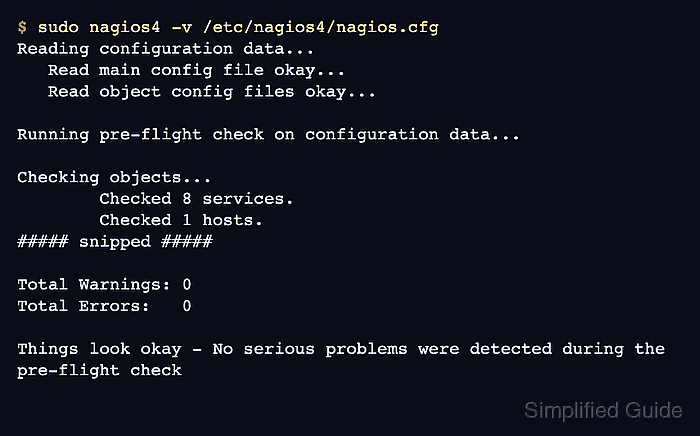
- Validate the restored Nagios Core configuration.
$ sudo nagios4 -v /etc/nagios4/nagios.cfg
Reading configuration data...
   Read main config file okay...
   Read object config files okay...

Running pre-flight check on configuration data...

Checking objects...
	Checked 8 services.
	Checked 1 hosts.
##### snipped #####

Total Warnings: 0
Total Errors:   0

Things look okay - No serious problems were detected during the pre-flight check
- Reload Nagios Core after validation reports zero errors.
$ sudo systemctl reload nagios4
Use the service control method for the host's installation path. Source installs may use an init script or a SIGHUP reload instead of the nagios4 systemd unit.
Related: How to manage the Nagios Core system service - Confirm that the Nagios Core service is active after the reload.
$ sudo systemctl is-active nagios4
active
- Refresh the Nagios Core web interface and confirm that the restored hosts, services, commands, and contacts appear as expected.
- Remove the staging restore directory after the live restore is validated.
$ sudo rm -r /root/nagios-restore-test

Mohd Shakir Zakaria is a cloud architect with deep roots in software development and open-source advocacy. Certified in AWS, Red Hat, VMware, ITIL, and Linux, he specializes in designing and managing robust cloud and on-premises infrastructures.


