Retired infrastructure should disappear from Nagios Core once its checks, alerts, and reports no longer describe a real system. A stale host object keeps the host visible in status views and can leave dependent service checks or notifications tied to equipment that has already been decommissioned.
Nagios Core loads host and service objects from the object files named by cfg_file and cfg_dir in the main configuration. On Ubuntu and Debian package installs, the active main config is usually /etc/nagios4/nagios.cfg and local object files often live under /etc/nagios4/conf.d.
A safe removal finds every reference first, backs up the affected object file, removes only the retired host's definitions, validates the configuration, and reloads the daemon. Host groups, service definitions, dependencies, and escalations can all reference a host name, so a clean pre-flight check and an absent host in the web UI are the proof that the removal took effect.
Steps to remove a host from Nagios Core:
- Find object files that reference the retired host.
$ sudo grep --recursive --line-number "web01.example.net" /etc/nagios4/conf.d /etc/nagios4/objects
/etc/nagios4/conf.d/web01.cfg:3:    host_name               web01.example.net
/etc/nagios4/conf.d/web01.cfg:10:    host_name               web01.example.net
Use the object paths from the local nagios.cfg file if the server does not use the packaged /etc/nagios4 layout. Source installs commonly use /usr/local/nagios/etc paths.
- Review the matched object file before deleting anything.
define host {
    use                     linux-server
    host_name               web01.example.net
    alias                   Web application server
    address                 192.0.2.10
}

define service {
    use                     generic-service
    host_name               web01.example.net
    service_description     HTTP
    check_command           check_http
}
Do not remove a shared object file unless every definition in it belongs to the retired host. For shared files, edit the file and remove only the matching host, service, host group member, dependency, or escalation entries.
- Create a root-only backup directory for the affected object file.
$ sudo mkdir --parents /root/nagios-config-backups
- Back up the object file before changing it.
$ sudo cp --archive /etc/nagios4/conf.d/web01.cfg /root/nagios-config-backups/
- Remove the object file when it contains only the retired host and its dependent service checks.
$ sudo rm /etc/nagios4/conf.d/web01.cfg
- Confirm that no object file still references the retired host name.
$ sudo grep --recursive --line-number "web01.example.net" /etc/nagios4/conf.d /etc/nagios4/objects
No output means the configured object files no longer contain that host name. If any line remains, remove or update that reference before validating.
- Validate the Nagios Core configuration before reloading the daemon.
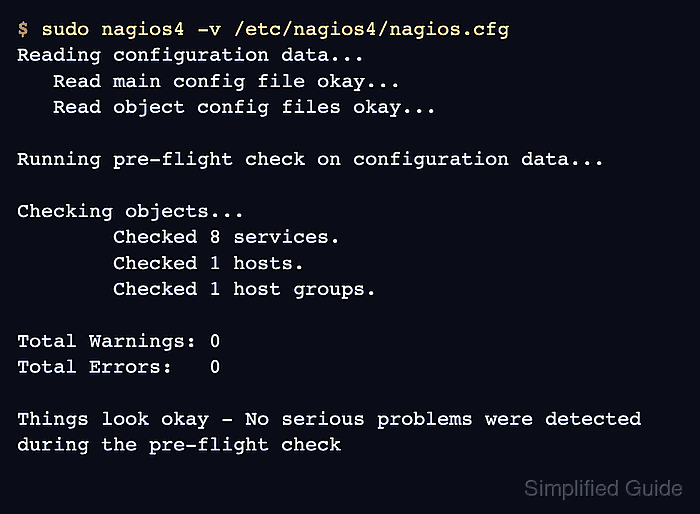
$ sudo nagios4 -v /etc/nagios4/nagios.cfg
Nagios Core 4.4.6
##### snipped #####
Reading configuration data...
   Read main config file okay...
   Read object config files okay...

Running pre-flight check on configuration data...

Checking objects...
	Checked 8 services.
	Checked 1 hosts.
	Checked 1 host groups.
##### snipped #####
Total Warnings: 0
Total Errors:   0

Things look okay - No serious problems were detected during the pre-flight check
Use sudo /usr/local/nagios/bin/nagios -v /usr/local/nagios/etc/nagios.cfg on source installs that follow the upstream default layout.
Related: How to validate the Nagios Core configuration - Reload Nagios Core after the validation reports zero errors.
$ sudo systemctl reload nagios4
The packaged nagios4.service unit supports reload. Use the service name and reload method for the local installation.
Related: How to manage the Nagios Core system service - Confirm that Nagios Core is active after the reload.
$ systemctl is-active nagios4
active
- Refresh the Nagios Core Hosts page and confirm that web01.example.net is absent from the host list.

Mohd Shakir Zakaria is a cloud architect with deep roots in software development and open-source advocacy. Certified in AWS, Red Hat, VMware, ITIL, and Linux, he specializes in designing and managing robust cloud and on-premises infrastructures.


