How to install Mastodon with Docker
A containerized Mastodon server still runs several moving parts: the Rails web application, the streaming service, Sidekiq background jobs, PostgreSQL, Redis, a public HTTPS reverse proxy, and outgoing mail. Docker Compose keeps the application containers in one project so the operator can review the exact service list, image tags, healthchecks, ports, and persistent paths before the instance joins the fediverse.
The official production Compose file for Mastodon publishes the web and streaming services only on localhost, which keeps direct container ports away from the public network. A separate Nginx, Caddy, Traefik, or load-balancer layer should terminate TLS for the server domain and proxy requests to those local ports.
Choose LOCAL_DOMAIN, mail delivery, secrets, and media storage before inviting users. LOCAL_DOMAIN becomes part of local account identities, generated secrets must remain unchanged after launch, and the /public/system bind mount holds local media unless object storage is configured.
Related: How to configure a Mastodon domain
Related: How to configure Mastodon SMTP email
Related: How to create a Mastodon admin user
Related: How to back up a Mastodon server
Steps to install Mastodon with Docker Compose:
- Confirm that the Docker Compose plugin is available on the server.
$ docker compose version
Docker Compose version v5.1.4
- Create the Mastodon Compose project directory.
$ sudo install -d -m 750 -o "$USER" -g "$USER" /opt/mastodon
- Change into the project directory.
$ cd /opt/mastodon
- Set the Mastodon release tag for the install.
$ export MASTODON_VERSION=v4.6.2
Use the current stable release tag from the official Mastodon releases page. Pinning the tag keeps the Compose file, application image, and streaming image on the same release.
- Download the official production Compose file.
$ curl --fail --silent --show-error --location --output compose.yaml "https://raw.githubusercontent.com/mastodon/mastodon/${MASTODON_VERSION}/docker-compose.yml" - Download the sample production environment file.
$ curl --fail --silent --show-error --location --output .env.production "https://raw.githubusercontent.com/mastodon/mastodon/${MASTODON_VERSION}/.env.production.sample" - Confirm the resolved service names.
$ docker compose config --services
db
redis
sidekiq
streaming
web
The production Compose file should resolve the PostgreSQL, Redis, Rails web, streaming, and Sidekiq services before any containers are started.
Tool: Docker Compose Healthchecks Checker - Confirm the resolved container images.
$ docker compose config --images
postgres:14-alpine
redis:7-alpine
ghcr.io/mastodon/mastodon:v4.6.2
ghcr.io/mastodon/mastodon-streaming:v4.6.2
ghcr.io/mastodon/mastodon:v4.6.2
- Generate the SECRET_KEY_BASE value.
$ docker compose run --rm web bundle exec rails secret
GENERATED_SECRET_KEY_BASE
Store generated secrets in the server's password manager or secret store before editing /opt/mastodon/.env.production. Changing them later can invalidate sessions, two-factor authentication, encrypted attributes, or push subscriptions.
- Generate the OTP_SECRET value.
$ docker compose run --rm web bundle exec rails secret
GENERATED_OTP_SECRET
- Generate the VAPID web-push keys.
$ docker compose run --rm web bundle exec rails mastodon:webpush:generate_vapid_key
VAPID_PRIVATE_KEY=GENERATED_VAPID_PRIVATE_KEY
VAPID_PUBLIC_KEY=GENERATED_VAPID_PUBLIC_KEY
- Generate the Active Record encryption keys.
$ docker compose run --rm web bundle exec rake db:encryption:init
ACTIVE_RECORD_ENCRYPTION_PRIMARY_KEY=GENERATED_PRIMARY_KEY
ACTIVE_RECORD_ENCRYPTION_DETERMINISTIC_KEY=GENERATED_DETERMINISTIC_KEY
ACTIVE_RECORD_ENCRYPTION_KEY_DERIVATION_SALT=GENERATED_KEY_DERIVATION_SALT
Mastodon 4.3 and later use these three variables for Rails database encryption support.
- Edit the production environment file.
$ vi .env.production
- Set the Docker service hosts, server domain, generated secrets, and mail settings.
LOCAL_DOMAIN=social.example.com

DB_HOST=db
DB_USER=postgres
DB_NAME=mastodon_production
DB_PASS=
DB_PORT=5432

REDIS_HOST=redis
REDIS_PORT=6379

SECRET_KEY_BASE=GENERATED_SECRET_KEY_BASE
OTP_SECRET=GENERATED_OTP_SECRET
VAPID_PRIVATE_KEY=GENERATED_VAPID_PRIVATE_KEY
VAPID_PUBLIC_KEY=GENERATED_VAPID_PUBLIC_KEY
ACTIVE_RECORD_ENCRYPTION_PRIMARY_KEY=GENERATED_PRIMARY_KEY
ACTIVE_RECORD_ENCRYPTION_DETERMINISTIC_KEY=GENERATED_DETERMINISTIC_KEY
ACTIVE_RECORD_ENCRYPTION_KEY_DERIVATION_SALT=GENERATED_KEY_DERIVATION_SALT

SMTP_SERVER=smtp.example.com
SMTP_PORT=587
SMTP_LOGIN=mastodon@example.com
SMTP_PASSWORD=replace-with-smtp-password
SMTP_FROM_ADDRESS=notifications@social.example.com
For split account and web domains, add WEB_DOMAIN only after the WebFinger and reverse-proxy plan is clear.
Related: How to configure a Mastodon domain
Related: How to configure Mastodon SMTP email - Start PostgreSQL and Redis.
$ docker compose up --detach db redis
[+] Running 2/2
Container mastodon-db-1     Started
Container mastodon-redis-1  Started
- Initialize the Mastodon database.
$ docker compose run --rm web bundle exec rails db:setup
Created database 'mastodon_production'
Database 'mastodon_production' schema loaded
Seed data loaded
Run the database setup once for a new instance. For later upgrades, run the release-specific migration commands instead of recreating the database.
Related: How to upgrade Mastodon - Start the full Mastodon stack and wait for healthchecks.
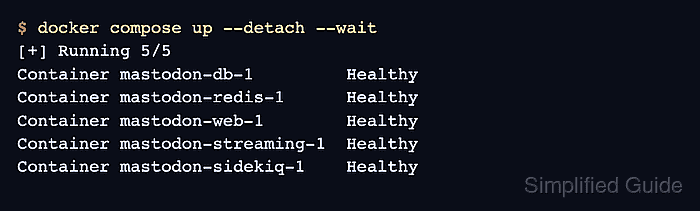
$ docker compose up --detach --wait
[+] Running 5/5
Container mastodon-db-1         Healthy
Container mastodon-redis-1      Healthy
Container mastodon-web-1        Healthy
Container mastodon-streaming-1  Healthy
Container mastodon-sidekiq-1    Healthy
- List the running services.
$ docker compose ps --services --status running
db
redis
sidekiq
streaming
web
- Check the local Rails health endpoint.
$ curl --silent --show-error http://127.0.0.1:3000/health
OK
- Connect the public HTTPS reverse proxy to the local Docker ports.
location / {
    proxy_set_header Host $host;
    proxy_set_header X-Forwarded-Proto https;
    proxy_set_header X-Forwarded-For $proxy_add_x_forwarded_for;
    proxy_pass http://127.0.0.1:3000;
}

location /api/v1/streaming {
    proxy_set_header Host $host;
    proxy_set_header X-Forwarded-Proto https;
    proxy_set_header X-Forwarded-For $proxy_add_x_forwarded_for;
    proxy_set_header Upgrade $http_upgrade;
    proxy_set_header Connection "upgrade";
    proxy_pass http://127.0.0.1:4000;
}
Merge these upstream targets into the host's existing TLS server block or use the official /dist/nginx.conf template from the same Mastodon release. Keep container ports bound to 127.0.0.1 unless another trusted proxy layer owns network isolation.
Related: How to configure a Mastodon domain - Verify the public instance API through HTTPS.
$ curl --head https://social.example.com/api/v2/instance
HTTP/2 200
server: nginx
content-type: application/json; charset=utf-8
##### snipped #####
- Create the first Owner account from the web container.
$ docker compose run --rm web bin/tootctl accounts create \
  alice \
  --email alice@example.com \
  --confirmed \
  --role Owner
OK
New password: GENERATED_PASSWORD_SHOWN_ONCE
The role name Owner is case-sensitive on current Mastodon releases. Save the generated password immediately and replace it after the first login.
Related: How to create a Mastodon admin user - Approve the Owner account.
$ docker compose run --rm web bin/tootctl accounts modify alice --approve
OK
- Sign in with the generated Owner account and open the administration area.
https://social.example.com/auth/sign_in
The Preferences → Administration menu confirms that the account can manage the new instance. Create a backup plan before opening registrations or inviting users.
Related: How to back up a Mastodon server