A Mastodon domain defines both where people open the server in a browser and how other fediverse servers address local accounts. The safest setup is decided before launch, because LOCAL_DOMAIN becomes part of every account identity and remote servers remember it.
Mastodon reads domain settings from /home/mastodon/live/.env.production in a source install, while Nginx handles public HTTPS traffic and the optional WebFinger redirect. A split setup uses example.com for handles such as @alice@example.com and social.example.com for the web application.
Changing LOCAL_DOMAIN or WEB_DOMAIN after federation has started can make existing accounts look like different people to remote servers. Use a maintenance window for an already-running instance, restart the mastodon-web, mastodon-sidekiq, and mastodon-streaming services after environment changes, and verify both the web host and WebFinger discovery before inviting users.
Related: How to install Mastodon from source
Related: How to install Mastodon with Docker
Related: How to troubleshoot Mastodon error pages
Steps to configure a Mastodon domain:
- Choose the account domain and the web domain.
Use one domain when handles and the web application should match, such as social.example.com. Use split domains only when the public handle should be shorter or already belongs to the organization, such as @alice@example.com with the web app on social.example.com.
- Confirm that the web domain resolves to the reverse proxy public address.
$ getent ahosts social.example.com
203.0.113.10   STREAM social.example.com
203.0.113.10   DGRAM
203.0.113.10   RAW
If the hostname has an .AAAA record, IPv6 traffic must reach the same reverse proxy and certificate path as IPv4 traffic.
Tool: DNS Record Lookup - Open the Mastodon environment file.
$ sudo -u mastodon vi /home/mastodon/live/.env.production
- Set the Mastodon account and web domains.
LOCAL_DOMAIN=example.com
WEB_DOMAIN=social.example.com
For a one-domain instance, set LOCAL_DOMAIN to the web hostname and leave WEB_DOMAIN unset. Do not change LOCAL_DOMAIN on a federated instance unless the migration plan explicitly handles broken remote identity references.
- Add a WebFinger redirect on the account domain when LOCAL_DOMAIN and WEB_DOMAIN differ.
server {
    listen 443 ssl;
    server_name example.com;

    location = /.well-known/webfinger {
        add_header Access-Control-Allow-Origin "*" always;
        return 301 https://social.example.com$request_uri;
    }
}
The account domain must serve the redirect over HTTPS and include Access-Control-Allow-Origin: * so Mastodon web clients can read the discovery response.
- Set the Mastodon Nginx virtual host to the web domain.
server_name social.example.com;

ssl_certificate     /etc/letsencrypt/live/social.example.com/fullchain.pem;
ssl_certificate_key /etc/letsencrypt/live/social.example.com/privkey.pem;
Keep the rest of the Mastodon reverse-proxy template aligned with the install method, including proxying the Rails web service and streaming service.
- Test the Nginx configuration.
$ sudo nginx -t
nginx: the configuration file /etc/nginx/nginx.conf syntax is ok
nginx: configuration file /etc/nginx/nginx.conf test is successful
- Reload Nginx to apply the domain and redirect changes.
$ sudo systemctl reload nginx
- Restart the Mastodon services to load the updated environment.
$ sudo systemctl restart mastodon-web mastodon-sidekiq mastodon-streaming
For a container install, recreate or restart the web, Sidekiq, and streaming containers with the same LOCAL_DOMAIN and WEB_DOMAIN values.
- Verify that the web domain answers over HTTPS.
$ curl -I https://social.example.com/api/v2/instance
HTTP/2 200
server: nginx
content-type: application/json; charset=utf-8
##### snipped #####
- Verify that the account domain redirects WebFinger requests to the web domain.
$ curl -I 'https://example.com/.well-known/webfinger?resource=acct:alice@example.com'
HTTP/2 301
server: nginx
location: https://social.example.com/.well-known/webfinger?resource=acct:alice@example.com
access-control-allow-origin: *
##### snipped #####
A missing CORS header can make browser-side Mastodon discovery fail even when the redirect works in a basic HTTP client.
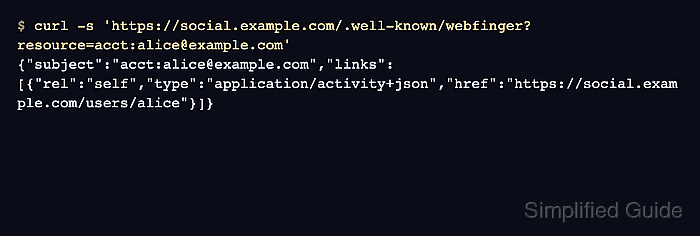
- Verify that the WebFinger response resolves the local account on the web domain.
$ curl -s 'https://social.example.com/.well-known/webfinger?resource=acct:alice@example.com'
{"subject":"acct:alice@example.com","links":[{"rel":"self","type":"application/activity+json","href":"https://social.example.com/users/alice"}]}
The subject should keep the account domain, while the self link may point to the Mastodon web domain that serves the actor.

Mohd Shakir Zakaria is a cloud architect with deep roots in software development and open-source advocacy. Certified in AWS, Red Hat, VMware, ITIL, and Linux, he specializes in designing and managing robust cloud and on-premises infrastructures.


