How to check disk errors in Linux
Disk errors in Linux often show up as I/O error messages, read-only remounts, stalled applications, or backups that fail partway through a read. Checking the affected device before running repairs helps separate hardware trouble from filesystem metadata damage while the data is still readable.
Storage faults can appear at more than one layer. Kernel messages show read and write failures seen by the operating system, smartctl reports firmware health when the disk or controller exposes S.M.A.R.T. data, lsblk maps whole disks such as /dev/sdb to filesystem devices such as /dev/sdb1, and a read-only fsck run checks the filesystem metadata on the affected volume.
Whole-disk checks and filesystem checks do not use the same device node. Run smartctl against the whole disk, run fsck against the affected filesystem device, and keep that filesystem unmounted during the metadata check. The read-only filesystem check below assumes an ext4 volume, because XFS and Btrfs use separate checkers, and USB bridges, RAID controllers, or guest-visible virtual disks may hide usable S.M.A.R.T. data from the running system.
Steps to check disk errors in Linux:
- List the whole disk and filesystem device names.
$ lsblk -f
NAME   FSTYPE FSVER LABEL UUID                                 FSAVAIL FSUSE% MOUNTPOINTS
sdb
`-sdb1 ext4   1.0   data  064e84d3-b7e4-45d0-89ba-6b28df345687   72G    54% /srv/data
Use the whole disk such as /dev/sdb or /dev/nvme0n1 for smartctl, and use the filesystem device such as /dev/sdb1 for fsck and the optional surface scan.
- Review recent kernel warning and error messages before checking the filesystem metadata.
$ sudo dmesg -T --level=err,warn
[Sun Apr 13 09:21:07 2026] blk_update_request: I/O error, dev sdb, sector 4128760 op 0x0:(READ) flags 0x80700 phys_seg 1 prio class 0
[Sun Apr 13 09:21:07 2026] Buffer I/O error on dev sdb1, logical block 515840, async page read
Look for lines that mention the affected disk or filesystem, especially I/O error, Buffer I/O error, and filesystem-specific errors such as EXT4-fs. On systemd hosts, journalctl -k -p warning..alert -b shows the same class of kernel messages for the current boot.
- Check the disk firmware health summary on the whole disk device.
$ sudo smartctl -H -A /dev/sdb
=== START OF READ SMART DATA SECTION ===
SMART overall-health self-assessment test result: PASSED

ID# ATTRIBUTE_NAME          VALUE WORST THRESH TYPE      UPDATED  WHEN_FAILED RAW_VALUE
  5 Reallocated_Sector_Ct  100   100   010    Pre-fail  Always       -       0
197 Current_Pending_Sector 100   100   000    Old_age   Always       -       0
198 Offline_Uncorrectable  100   100   000    Old_age   Offline      -       0
Run this against the whole disk, not the partition. If an adapter or controller hides the disk type, smartctl can often identify the usable device form with
$ sudo smartctl --scan-open
and then retry with a type such as -d sat.
USB bridges, RAID controllers, cloud volumes, and guest-visible virtual disks may expose no usable S.M.A.R.T. data from inside the running system, so move the hardware check to the host or controller layer when the health summary is unavailable.
- Unmount the affected filesystem before checking its metadata.
$ sudo umount /srv/data
If the filesystem cannot be unmounted because it is the root filesystem, a boot volume, or a busy production mount, stop here and continue from rescue or live media instead of forcing the check on a mounted filesystem.
Related: How to unmount a disk in Linux
- Run a read-only metadata check against the affected ext4 filesystem.
$ sudo fsck -f -n /dev/sdb1
fsck from util-linux 2.41.3
e2fsck 1.47.2 (1-Jan-2025)
Pass 1: Checking inodes, blocks, and sizes
Pass 2: Checking directory structure
Pass 3: Checking directory connectivity
Pass 4: Checking reference counts
Pass 5: Checking group summary information
/dev/sdb1: 12/16384 files (8.3% non-contiguous), 2097/16384 blocks
-n keeps the check read-only so the command reports problems without repairing them. This sample flow assumes ext4. For XFS, use xfs_repair -n, and for Btrfs, use btrfs check --readonly instead of forcing a generic fsck run.
Related: How to fix disk errors in Linux
- Run an optional read-only surface scan when the filesystem is unmounted and the media is still readable.
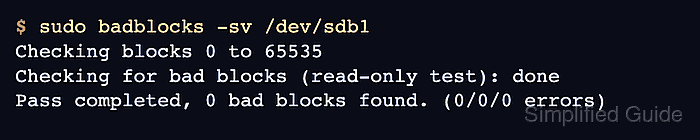
$ sudo badblocks -sv /dev/sdb1
Checking blocks 0 to 65535
Checking for bad blocks (read-only test): done
Pass completed, 0 bad blocks found. (0/0/0 errors)
Read-only mode does not overwrite data, but the scan can still take hours on large volumes. Never use -w on a device that contains live data because it writes test patterns across the target and destroys existing contents.
- Decide the next action from the check results.
Repeated kernel I/O error lines, non-zero bad blocks, or growing S.M.A.R.T. error counters point to data copy and disk replacement, not another metadata-only check.
A clean fsck result plus no bad blocks means this pass did not find obvious filesystem or surface-read problems. Use the repair flow when fsck reports metadata problems, and mount the volume only after the checks match the risk you are willing to return to service.
Related: How to fix disk errors in Linux
Related: How to mount a disk or partition in Linux