Disk health checks in Linux help catch failing media, worn flash, and firmware-recorded read errors before they become filesystem damage, failed backups, or an unplanned replacement. smartctl reads the drive's S.M.A.R.T. health data while the disk is online, so it is the first check to run when a physical disk starts looking suspicious.
Most ATA, SATA, SAS, and NVMe devices store health counters, error logs, and self-test history in firmware. A quick --health check reports whether the drive has crossed its own failure threshold, while --xall exposes counters such as reallocated sectors, pending sectors, media errors, and spare capacity that usually matter before the single health line changes.
These checks usually require sudo and only work when the running system can address the physical disk or a controller that passes the data through. USB bridges, hardware RAID controllers, cloud volumes, and guest-visible virtual disks can hide S.M.A.R.T. data, so treat an unavailable result as a storage-path limitation until smartctl with --scan-open or the host/controller layer confirms what can be checked.
Related: How to check disk errors in Linux
Related: How to check disk temperature in Linux
Steps to check disk health in Linux:
- List the whole-disk device nodes.
$ lsblk -d -e 7,11 -o NAME,PATH,SIZE,MODEL,TRAN
NAME    PATH             SIZE MODEL                TRAN
sda     /dev/sda         477G Samsung SSD 870 EVO  sata
nvme0n1 /dev/nvme0n1     1.8T Samsung SSD 980     nvme
Use a whole disk such as /dev/sda or /dev/nvme0n1 in the next commands. Do not use a partition such as /dev/sda1 because S.M.A.R.T. data belongs to the physical disk or controller-visible disk.
- Read the device identity and health summary.
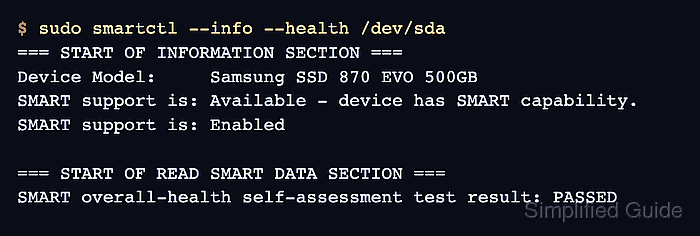
$ sudo smartctl --info --health /dev/sda
=== START OF INFORMATION SECTION ===
Device Model:     Samsung SSD 870 EVO 500GB
SMART support is: Available - device has SMART capability.
SMART support is: Enabled

=== START OF READ SMART DATA SECTION ===
SMART overall-health self-assessment test result: PASSED
PASSED means the drive firmware is not reporting a current threshold failure. It does not rule out growing error counters, so continue with the full report before deciding the disk is safe to keep in service.
- Review the full S.M.A.R.T. report.
$ sudo smartctl --xall /dev/sda
=== START OF READ SMART DATA SECTION ===
SMART overall-health self-assessment test result: PASSED

SMART Attributes Data Structure revision number: 16
ID# ATTRIBUTE_NAME          VALUE WORST THRESH TYPE      UPDATED  WHEN_FAILED RAW_VALUE
  5 Reallocated_Sector_Ct  100   100   010    Pre-fail  Always       -       0
194 Temperature_Celsius     069   058   000    Old_age   Always       -       31
197 Current_Pending_Sector 100   100   000    Old_age   Always       -       0
198 Offline_Uncorrectable  100   100   000    Old_age   Offline      -       0
##### snipped #####
SMART Error Log Version: 1
No Errors Logged
Growing Reallocated_Sector_Ct, Current_Pending_Sector, Offline_Uncorrectable, Media and Data Integrity Errors, or Available Spare dropping to its threshold points toward data copy and disk replacement instead of repeated checks.
- Start a short self-test when the disk supports it.
$ sudo smartctl --test=short /dev/sda
=== START OF OFFLINE IMMEDIATE AND SELF-TEST SECTION ===
Sending command: "Execute SMART Short self-test routine immediately in off-line mode".
Drive command "Execute SMART Short self-test routine immediately in off-line mode" successful.
Testing has begun.
Please wait 2 minutes for test to complete.
A short self-test is non-destructive, but it still reads the device in the background and can add latency on a busy disk. Run it during a maintenance window when storage latency matters.
- Read the self-test log after the reported wait time.
$ sudo smartctl --log=selftest /dev/sda
SMART Self-test log structure revision number 1
Num  Test_Description    Status                  Remaining  LifeTime(hours)  LBA_of_first_error
# 1  Short offline       Completed without error       00%          18423         -
Completed without error confirms that the latest built-in diagnostic finished without recording a failing block. If the status shows a read failure or an LBA_of_first_error value, copy data off the disk and plan replacement.
- Discover the usable device type when smartctl cannot open the disk normally.
$ sudo smartctl --scan-open
/dev/sda -d sat # /dev/sda [SAT], ATA device
/dev/nvme0 -d nvme # /dev/nvme0, NVMe device
--scan-open opens detected devices and prints the type smartctl can use. Common examples include --device=sat for many USB-to-SATA bridges, --device=nvme for NVMe devices, and controller-specific forms such as --device=megaraid,N.
- Rerun the report with the detected device type.
$ sudo smartctl --xall --device=sat /dev/sda
=== START OF INFORMATION SECTION ===
Device Model:     Samsung SSD 870 EVO 500GB

=== START OF READ SMART DATA SECTION ===
SMART overall-health self-assessment test result: PASSED
##### snipped #####
If a guest-visible VM disk, cloud volume, or hardware controller still reports unavailable S.M.A.R.T. support, run the health check on the host, storage controller, or provider surface that owns the physical disk.

Mohd Shakir Zakaria is a cloud architect with deep roots in software development and open-source advocacy. Certified in AWS, Red Hat, VMware, ITIL, and Linux, he specializes in designing and managing robust cloud and on-premises infrastructures.


