How to reset test data before Espresso tests
Espresso tests can fail when one method leaves a signed-in session, database row, SharedPreferences value, file cache, or mock server response for the next method. Resetting test data before each test keeps the first screen on a known starting state and exposes order-dependent failures as fixture problems instead of random UI failures.
A complete reset has two layers. Android Test Orchestrator can run every test method in a separate Instrumentation invocation and clear the app package data between invocations, while test code still seeds the rows, preferences, accounts, and mock responses that the screen expects before the activity launches.
For tests where launch-time data matters, clear app-owned storage, seed the deterministic fixture, launch the activity manually, and prove that two methods in the class both start from the same empty state.
Related: How to enable Android Test Orchestrator for Espresso
Related: network-response-mock
Related: How to run Espresso tests locally
Steps to reset test data before Espresso tests:
- Open the app module Gradle file.
$ $EDITOR app/build.gradle.kts
- Enable Android Test Orchestrator and package-data clearing for connected tests.
- build.gradle.kts
android {
    defaultConfig {
        testInstrumentationRunner = "androidx.test.runner.AndroidJUnitRunner"
        testInstrumentationRunnerArguments["clearPackageData"] = "true"
    }

    testOptions {
        execution = "ANDROIDX_TEST_ORCHESTRATOR"
    }
}
clearPackageData makes Orchestrator run pm clear after each test invocation. That clears package storage between methods, but it does not create the fixture data the next method needs.
Related: How to enable Android Test Orchestrator for Espresso - Confirm the AndroidX Test dependencies used by the reset and launch code.
- build.gradle.kts
dependencies {
    androidTestImplementation(
        "androidx.test:core:1.7.0"
    )
    androidTestImplementation(
        "androidx.test.ext:junit:1.3.0"
    )
    androidTestImplementation(
        "androidx.test.espresso:espresso-core:3.7.0"
    )
    androidTestImplementation(
        "androidx.test:runner:1.7.0"
    )
    androidTestUtil(
        "androidx.test:orchestrator:1.6.1"
    )
}
Use the project's version catalog or dependency convention if it already manages AndroidX Test versions. Keep espresso-core, runner, and orchestrator on the same current release train.
Related: How to configure an Android project for Espresso - Create a reset helper in the androidTest source set.
- TestDataReset.kt
object TestDataReset {
    fun clearLocalState() {
        val context =
            ApplicationProvider.getApplicationContext<Context>()

        context.deleteDatabase("checkout.db")
        context.getSharedPreferences(
            "session",
            Context.MODE_PRIVATE
        )
            .edit()
            .clear()
            .commit()
        context.cacheDir.listFiles()?.forEach {
            it.deleteRecursively()
        }
    }
}
Replace the database name, preferences file, and cache reset with the state that changes the first screen in the app under test.
- Reset and seed the fixture before launching the activity.
- CartResetTest.kt
@RunWith(AndroidJUnit4::class)
class CartResetTest {
    @Before
    fun resetFixtures() {
        TestDataReset.clearLocalState()
        FakeCheckoutServer.reset()
        FakeCheckoutServer.enqueueCart(emptyList())
    }

    @Test
    fun emptyCartStartsAtZero() {
        launchCartScreen()
    }

    @Test
    fun emptyCartStartsAtZeroAgain() {
        launchCartScreen()
    }

    private fun launchCartScreen() {
        ActivityScenario.launch(MainActivity::class.java).use {
            onView(withId(R.id.cartCount)).check(matches(withText("0")))
        }
    }
}
Do not use an auto-launching ActivityScenarioRule in tests where onCreate() reads seeded data. Launch the activity after resetFixtures() so the screen opens against the reset fixture.
Seed fake servers, repositories, feature flags, and account fixtures in the same setup block when the screen reads them during launch.
Related: network-response-mock - Run the connected reset tests on an emulator or device.
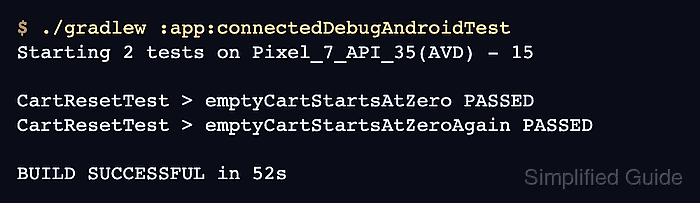
$ ./gradlew :app:connectedDebugAndroidTest
Starting 2 tests on Pixel_7_API_35(AVD) - 15

CartResetTest > emptyCartStartsAtZero PASSED
CartResetTest > emptyCartStartsAtZeroAgain PASSED

Test execution completed. See the report at:
file:///repo/app/build/reports/androidTests/connected/debug/index.html

BUILD SUCCESSFUL in 52s
Use the task name that matches the app module and variant, such as :mobile:connectedFreeDebugAndroidTest. Passing sibling methods with the same empty-state assertion show that the reset does not depend on method order.
Related: How to run Espresso tests locally