How to enable accessibility checks in Espresso
Espresso can run Android accessibility rules while instrumentation tests interact with app screens. Enabling those checks helps a test fail when a view has issues such as a too-small touch target, missing spoken text, or weak contrast around the screen under test.
AndroidX Test provides this behavior through the espresso-accessibility artifact, and instrumentation test code enables it outside the app's production source set. Calling AccessibilityChecks.enable() registers the Android Accessibility Test Framework integration before Espresso performs view actions.
A focused screen that already has an Espresso test is the safest first target. Running checks from the root view catches problems outside the clicked view on the same screen, so begin with one screen before rolling the setting across a larger suite.
Steps to enable Espresso accessibility checks:
- Add the espresso-accessibility dependency to the Android app module.
dependencies {
    androidTestImplementation("androidx.test.espresso:espresso-core:3.7.0")
    androidTestImplementation("androidx.test.espresso:espresso-accessibility:3.7.0")
    androidTestImplementation("androidx.test.ext:junit:1.3.0")
    androidTestImplementation("androidx.test:runner:1.7.0")
}
Keep espresso-core and espresso-accessibility on the same AndroidX Test release. Google Maven lists 3.7.0 as the current release for both artifacts.
- Update an Espresso test class so the accessibility validator is registered before a real view action.
package com.example.app

import androidx.test.espresso.Espresso.onView
import androidx.test.espresso.action.ViewActions.click
import androidx.test.espresso.accessibility.AccessibilityChecks
import androidx.test.espresso.matcher.ViewMatchers.withId
import androidx.test.ext.junit.rules.ActivityScenarioRule
import androidx.test.ext.junit.runners.AndroidJUnit4
import androidx.test.filters.LargeTest
import org.junit.Rule
import org.junit.Test
import org.junit.runner.RunWith

@RunWith(AndroidJUnit4::class)
@LargeTest
class LoginAccessibilityTest {

    @get:Rule
    val activityRule = ActivityScenarioRule(LoginActivity::class.java)

    init {
        AccessibilityChecks.enable()
            .setRunChecksFromRootView(true)
    }

    @Test
    fun loginButtonMeetsAccessibilityChecks() {
        onView(withId(R.id.sign_in)).perform(click())
    }
}
setRunChecksFromRootView(true) checks the full active view hierarchy instead of only the view touched by the current Espresso action. Accessibility checks run when Espresso performs a ViewAction.
Related: How to write a first Espresso test
- Run the instrumented test on a connected emulator or device.
$ ./gradlew connectedDebugAndroidTest
Related: How to run Espresso tests locally
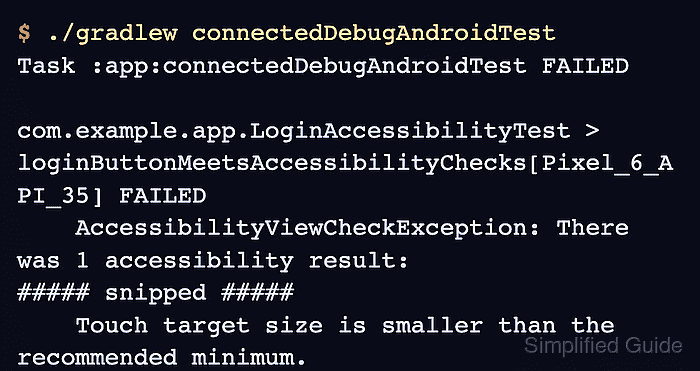
- Read the accessibility failure when the test fails.
> Task :app:connectedDebugAndroidTest FAILED

com.example.app.LoginAccessibilityTest > loginButtonMeetsAccessibilityChecks[Pixel_6_API_35] FAILED
    com.google.android.apps.common.testing.accessibility.framework.integrations.espresso.AccessibilityViewCheckException:
    There was 1 accessibility result:
##### snipped #####
    Touch target size is smaller than the recommended minimum.
##### snipped #####
The exact checker name and message can vary with the AndroidX Test release and the widget that failed. Treat the view ID, checker message, and screen state as the issue to fix.
- Fix the reported view in the app layout or view binding code.
<Button
    android:id="@+id/sign_in"
    android:layout_width="wrap_content"
    android:layout_height="wrap_content"
    android:minWidth="48dp"
    android:minHeight="48dp"
    android:text="@string/sign_in" />
For touch controls, Android accessibility guidance expects a target area of at least 48dp by 48dp. The concrete fix should match the checker message; not every failure is a touch-target issue.
- Rerun the same instrumented test.
$ ./gradlew connectedDebugAndroidTest
> Task :app:connectedDebugAndroidTest

BUILD SUCCESSFUL in 24s
A passing rerun after the layout change confirms the Espresso accessibility check is enabled and the reported screen no longer triggers that failure.