How to inspect container details in Docker
Inspecting a container in Docker exposes the low-level runtime record behind a container name, which is the fastest way to confirm what image was started, which ports are published, which volumes are attached, and which networks the container joined. That record is useful during deployment review, incident response, and day-to-day troubleshooting because it reflects the container as the daemon sees it now.
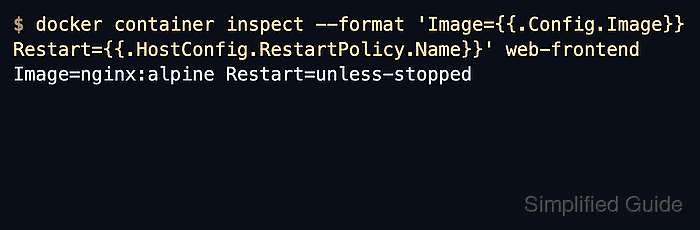
The primary command is docker container inspect, which returns a JSON array even when only one container is requested. Adding --format turns the same inspect data into focused checks for fields such as Config.Image, HostConfig.RestartPolicy, NetworkSettings.Ports, NetworkSettings.Networks, and Mounts so the needed detail can be read without scanning the full object each time.
Some values in the inspect output are environment-specific, including bridge IP addresses, log paths, and host-side volume locations, so the exact numbers and paths differ across Linux hosts, Docker Desktop, and remote daemons. When a name is ambiguous because the same label exists on a container and another Docker object, use docker inspect --type container <name> to force a container-only lookup before acting on the result.
Steps to inspect container details in Docker:
- List running containers and note the exact container name or ID that needs inspection.
$ docker container ls
CONTAINER ID   IMAGE          COMMAND                  CREATED         STATUS         PORTS                                     NAMES
8a7b0b4d2b6f   nginx:alpine   "/docker-entrypoint.…"   2 minutes ago   Up 2 minutes   0.0.0.0:8080->80/tcp, [::]:8080->80/tcp   web-frontend
Use the full container name when the short ID may rotate between recreations.
When the same name exists on a container and another Docker object, use docker inspect --type container web-frontend instead of a generic docker inspect call.
- Print the full inspect record for the target container.
$ docker container inspect web-frontend
[
    {
        "Id": "8a7b0b4d2b6f4b0a9d4d7f1b9a7f3b6c1d2e3f4a5b6c7d8e9f0a1b2c3d4e5f6",
        "Name": "/web-frontend",
        "RestartCount": 0,
##### snipped #####
        "HostConfig": {
            "RestartPolicy": {
                "Name": "unless-stopped",
                "MaximumRetryCount": 0
            }
        },
        "Mounts": [
            {
                "Type": "volume",
                "Name": "web-content",
                "Destination": "/usr/share/nginx/html",
                "Driver": "local",
                "RW": true
            }
        ],
##### snipped #####
        "Config": {
            "Image": "nginx:alpine"
        },
        "NetworkSettings": {
            "Ports": {
                "80/tcp": [
                    {
                        "HostIp": "0.0.0.0",
                        "HostPort": "8080"
                    },
                    {
                        "HostIp": "::",
                        "HostPort": "8080"
                    }
                ]
            }
        }
##### snipped #####
    }
]
docker container inspect returns a JSON array, so square brackets appear even when only one container is requested.
Tool: JSON Validator - Print the image reference and restart policy when checking how the container was started.
$ docker container inspect --format 'Image={{.Config.Image}} Restart={{.HostConfig.RestartPolicy.Name}}' web-frontend Image=nginx:alpine Restart=unless-stopped - Print the published port bindings when checking how traffic reaches the container.
$ docker container inspect --format '{{json .NetworkSettings.Ports}}' web-frontend
{"80/tcp":[{"HostIp":"0.0.0.0","HostPort":"8080"},{"HostIp":"::","HostPort":"8080"}]}
The keys are container-side ports, and the objects below them show the host-side bind address and published port.
- Print the attached networks and container IP addresses when checking which Docker network the container actually joined.
$ docker container inspect --format '{{range $name, $network := .NetworkSettings.Networks}}{{$name}} {{$network.IPAddress}}{{println}}{{end}}' web-frontend
bridge 172.17.0.4
Multiple lines appear when the container is attached to more than one Docker network.
- Print the mount list when checking which data paths are backed by a named volume or bind mount.
$ docker container inspect --format '{{json .Mounts}}' web-frontend
[{"Type":"volume","Name":"web-content","Destination":"/usr/share/nginx/html","Driver":"local","RW":true}]
Bind mounts show a host path in the Source field instead of a volume name, so that part of the output varies with the deployment layout.
- Add the size fields when the writable layer may be growing unexpectedly.
$ docker container inspect --size --format 'SizeRw={{.SizeRw}} SizeRootFs={{.SizeRootFs}}' web-frontend
SizeRw=1095 SizeRootFs=61554688
SizeRw is the amount of data created or changed in the container compared with the image, while SizeRootFs is the total size of the container filesystem in bytes.
The size values come from the current host and change as files are created, modified, or removed inside the container.