Following a container log stream is one of the fastest ways to confirm whether an application has started cleanly, is accepting work, or is failing during runtime. It is especially useful during deployment checks, restart verification, and incident response because the output appears from the same workload that Docker is actually supervising.
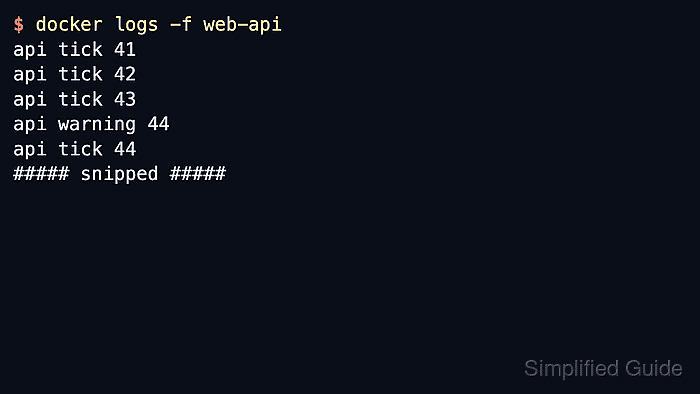
Docker reads container log output from the process streams connected to STDOUT and STDERR. The docker logs command prints the saved output, and adding -f or –follow keeps the client attached so new log lines appear as the container writes them.
This workflow stays the same on a local engine, a remote Docker host, or Docker Desktop, but it only helps when the application writes useful output to the container streams or when the selected logging driver still exposes logs through Docker. Keep the exact container name from docker container ls, and leave the stream with Ctrl+C when the needed output has appeared.
Steps to follow logs from a Docker container:
- List the running containers and note the exact target name before attaching to its logs.
$ docker container ls
CONTAINER ID   IMAGE            COMMAND                CREATED         STATUS         PORTS                    NAMES
8b1d4bb7d6a1   web-api:latest   "/usr/local/bin/api"   2 minutes ago   Up 2 minutes   0.0.0.0:8080->8080/tcp   web-api
Prefer the value in the NAMES column because it is easier to read and usually survives longer in day-to-day operations than a short container ID copied from memory.
- Follow the live log stream from that container.
$ docker logs -f web-api
api tick 41
api tick 42
api tick 43
api warning 44
api tick 44
docker logs -f keeps printing new lines until the session is interrupted, so it is useful for watching a startup sequence, request flow, or crash loop in real time.
If the command stays blank while the application is clearly active, the workload may be writing to files inside the container or using a logging driver that does not make those entries available through docker logs.
- Start from the most recent lines when the container already has a long log history.
$ docker logs --tail 5 -f web-api
api tick 38
api tick 39
api warning 40
api tick 40
api tick 41
##### snipped #####
–tail 5 prints the latest five log lines first and then continues following new output, which is often easier to read than replaying the entire log backlog.
- Add timestamps when event order matters across several services or hosts.
$ docker logs --timestamps --tail 5 -f web-api
2026-04-16T09:14:18.202729210Z api tick 38
2026-04-16T09:14:19.206417544Z api tick 39
2026-04-16T09:14:20.207689503Z api warning 40
2026-04-16T09:14:20.207808836Z api tick 40
##### snipped #####
Current Docker prints RFC3339Nano timestamps, which makes it easier to line up application events with reverse-proxy logs, health checks, or deployment timestamps.
- Confirm that the stream belongs to the intended container when the log lines do not match the expected service.
$ docker container inspect --format '{{.Name}} {{.Config.Image}} {{.State.Status}}' web-api
/web-api web-api:latest running
This quick check verifies the container name, image reference, and runtime state before more time is spent debugging the wrong workload.
- Leave the follow session after the needed output has appeared.
Ctrl+C
Interrupting the client detaches the log stream without stopping, restarting, or pausing the container itself.
Notes
- docker logs shows the container's STDOUT and STDERR streams, not arbitrary log files stored elsewhere inside the filesystem.
- Busy containers can produce output faster than it can be read comfortably, so combining –tail with –follow is often the most practical default during troubleshooting.
- Docker Swarm services use docker service logs instead of docker logs because the log stream can span several task containers.

Mohd Shakir Zakaria is a cloud architect with deep roots in software development and open-source advocacy. Certified in AWS, Red Hat, VMware, ITIL, and Linux, he specializes in designing and managing robust cloud and on-premises infrastructures.


