How to respect reduced motion with CSS
Motion can clarify state changes, but large movement, parallax, and long transitions can make an interface harder to use for people who ask their system for less motion. CSS can read that preference with prefers-reduced-motion and adjust only the motion layer without removing the component's content or layout.
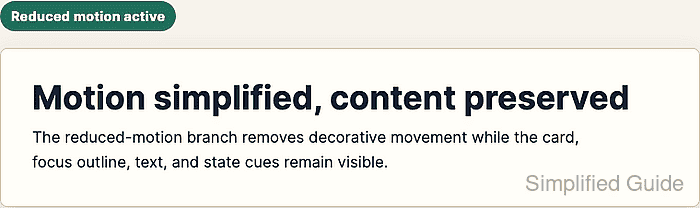
The prefers-reduced-motion media feature exposes a reduce state when the browser or operating system reports that the user wants less motion. Keep normal animation and transition rules as the default, then place reduced-motion overrides later in the cascade so matching users receive shorter, simpler, or no motion.
Reduced motion still needs visible feedback. Preserve text, focus outlines, color changes, and non-moving state cues while removing decorative movement, long-running animations, smooth scrolling, or interaction effects that shift content across the screen.
Related: How to add a CSS animation
Related: How to add a CSS transition
Related: How to create a scroll-driven CSS animation
Steps to respect reduced motion with CSS:
- Add the normal motion styles to the component.
- styles.css
html {
  scroll-behavior: smooth;
}

.motion-card {
  opacity: 1;
  transform: translateY(0);
  animation: motion-card-enter 700ms ease-out both;
  transition: transform 240ms ease;
}

.motion-card:hover,
.motion-card:focus-visible {
  transform: translateY(-0.4rem);
  box-shadow: 0 18px 36px rgb(56 45 27 / 18%);
}

.motion-card:focus-visible {
  outline: 3px solid #2563eb;
  outline-offset: 4px;
}

@keyframes motion-card-enter {
  from {
    opacity: 0;
    transform: translateY(0.75rem);
  }

  to {
    opacity: 1;
    transform: translateY(0);
  }
}
Set the final visual values on the base rule before the animation runs. The component then remains complete when the reduced-motion branch removes the animation.
- Add the reduced-motion media query after the normal motion rules.
- styles.css
@media (prefers-reduced-motion: reduce) {
  html {
    scroll-behavior: auto;
  }

  .motion-card {
    animation: none;
    transition-duration: 1ms;
  }

  .motion-card:hover,
  .motion-card:focus-visible {
    transform: none;
  }
}
The explicit reduce value makes the branch easier to review than a bare prefers-reduced-motion query. Use very short durations only when an instant state change would create a rendering or event-order problem.
- Keep non-motion state cues outside the reduced-motion override.
- styles.css
.motion-card:hover,
.motion-card:focus-visible {
  box-shadow: 0 18px 36px rgb(56 45 27 / 18%);
}

.motion-card:focus-visible {
  outline: 3px solid #2563eb;
  outline-offset: 4px;
}
Focus outlines, shadows, color, text, and icons can still show state when movement is removed. Do not hide important feedback just because the transform or animation is disabled.
- Open the page with the browser using its normal motion preference.
If the operating system already requests reduced motion, use browser developer tools or a local test browser profile to emulate no-preference for the default-branch check.
- Check the default computed styles in the browser console.
matchMedia("(prefers-reduced-motion: reduce)").matches
false
getComputedStyle(document.querySelector(".motion-card")).animationName
"motion-card-enter"
getComputedStyle(document.querySelector(".motion-card")).transitionDuration
"0.24s"
getComputedStyle(document.documentElement).scrollBehavior
"smooth"
- Emulate reduced motion in browser developer tools or through the operating-system accessibility setting.
The page should continue to show the same content and visible focus state after the media query matches.
- Check the reduced-motion computed styles in the browser console.
matchMedia("(prefers-reduced-motion: reduce)").matches
true
getComputedStyle(document.querySelector(".motion-card")).animationName
"none"
getComputedStyle(document.querySelector(".motion-card")).transitionDuration
"0.001s"
getComputedStyle(document.documentElement).scrollBehavior
"auto"