How to install AWS CLI on CentOS Stream or Red Hat Enterprise Linux
CentOS Stream and Red Hat Enterprise Linux (RHEL) servers often need AWS CLI before automation jobs can call S3, STS, or deployment APIs from the shell. Installing AWS CLI version 2 from the AWS Linux ZIP installer gives the host the current aws command without relying on RHEL-family repositories that can trail the upstream release.
AWS publishes separate Linux installers for x86_64 and aarch64 systems. The bundled install script copies the CLI under /usr/local/aws-cli and creates /usr/local/bin/aws by default, so the shell can find the command through the normal system PATH.
Minimal CentOS Stream and RHEL images usually already include curl through curl-minimal, but they may not include unzip, groff, or less. Use the installer archive that matches the CPU architecture, and use the installer --update option when replacing an existing manual AWS CLI v2 install in the same directory.
Related: How to check AWS CLI version
Related: How to configure AWS CLI on Linux and macOS
Related: How to install AWS CLI on Ubuntu
Related: Install AWS CLI version 1 using pip
Steps to install AWS CLI on CentOS Stream or Red Hat Enterprise Linux:
- Install the RHEL-family prerequisites.
$ sudo dnf install --assumeyes unzip groff less
unzip extracts the installer archive. groff and less support built-in AWS CLI help output on minimal hosts. If curl is missing on a stripped-down image, install the distribution's curl package before downloading the archive.
- Check the CPU architecture.
$ uname -m
x86_64
x86_64 uses the default download URL in the next step. Use the aarch64 archive on ARM64 systems.
- Download the current AWS CLI version 2 installer archive.
$ curl "https://awscli.amazonaws.com/awscli-exe-linux-x86_64.zip" -o "awscliv2.zip"
For aarch64 hosts, replace the URL with https://awscli.amazonaws.com/awscli-exe-linux-aarch64.zip.
- Extract the installer archive.
$ unzip awscliv2.zip
Archive:  awscliv2.zip
   creating: aws/
  inflating: aws/install
##### snipped #####
- Run the bundled installer with sudo.
$ sudo ./aws/install
You can now run: /usr/local/bin/aws --version
The default install directory is /usr/local/aws-cli and the default symlink path is /usr/local/bin/aws. For an existing manual AWS CLI v2 install, use sudo ./aws/install --bin-dir /usr/local/bin --install-dir /usr/local/aws-cli --update.
- Confirm that the shell resolves the bundled aws command.
$ command -v aws
/usr/local/bin/aws
If the shell still resolves /usr/bin/aws, an older distro package is taking precedence over the bundled install.
- Confirm that the active command reports AWS CLI v2.
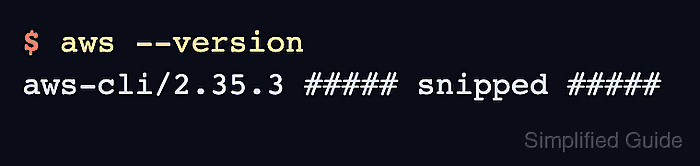
$ aws --version
aws-cli/2.35.3 ##### snipped #####
The exact version, bundled runtime, and platform string change over time. The decisive result is that the line starts with aws-cli/2.
Related: How to check AWS CLI version - Remove the downloaded installer files.
$ rm -r aws awscliv2.zip
Removing these temporary files does not uninstall AWS CLI from /usr/local/aws-cli.
- Run a signed identity check after credentials are configured.
$ aws sts get-caller-identity --query Account --output text
123456789012
Use aws configure, aws configure sso, or aws login before this step on a new host.
Related: How to configure AWS CLI on Linux and macOS
Related: How to log in to AWS CLI with IAM Identity Center
Related: How to check the current caller identity in AWS CLI