How to configure Appium capabilities
Appium sessions fail before any locator code runs when capabilities point at the wrong driver, device, or application. A small capability file keeps those session-start choices visible so the same values can be reused by a client script, Appium Inspector, or a CI job.
Capabilities are sent with the new-session request. Standard WebDriver keys such as platformName stay unprefixed, while Appium-specific keys such as appium:automationName, appium:udid, appium:appPackage, and appium:noReset use the appium: vendor prefix in raw JSON payloads.
An Android Settings target through UiAutomator2 keeps the first capability check independent of a project APK. Replace the serial, package, activity, or app path for the target under test; for iOS, switch the automation engine to XCUITest and use appium:bundleId or appium:app instead of Android package and activity values.
Steps to configure Appium capabilities:
- Check that the Appium server is ready.
$ curl --silent http://127.0.0.1:4723/status
{"value":{"ready":true,"message":"Appium is ready"}}
Start the server before creating the session if the status endpoint does not respond.
Related: How to start the Appium server - Confirm the target Android device or emulator serial.
$ adb devices
List of devices attached
emulator-5554	device
Use a specific appium:udid when more than one Android target is connected so Appium does not select the wrong device.
- Create the capability file for the session.
$ vi capabilities.json
- Add the Android Settings session capabilities.
- capabilities.json
{
  "platformName": "Android",
  "appium:automationName": "UiAutomator2",
  "appium:deviceName": "Android Emulator",
  "appium:udid": "emulator-5554",
  "appium:appPackage": "com.android.settings",
  "appium:appActivity": ".Settings",
  "appium:language": "en",
  "appium:locale": "US"
}
platformName is a standard WebDriver capability, so it stays unprefixed. The other keys are Appium extension capabilities and keep the appium: prefix when stored as raw JSON.
Use appium:app for an APK or app bundle path when Appium should install the app. Use appium:bundleId with appium:automationName set to XCUITest for an installed iOS app.
Related: How to install an app for an Appium session - Validate that the JSON parses before loading it in the client.
$ python3 -m json.tool capabilities.json
{
    "platformName": "Android",
    "appium:automationName": "UiAutomator2",
    "appium:deviceName": "Android Emulator",
    "appium:udid": "emulator-5554",
    "appium:appPackage": "com.android.settings",
    "appium:appActivity": ".Settings",
    "appium:language": "en",
    "appium:locale": "US"
}
- Create a Python smoke test that loads the capability file.
$ vi run_appium_session.py
- Add the session smoke test.
- run_appium_session.py
import json
from appium import webdriver
from appium.options.common import AppiumOptions

APPIUM_SERVER = "http://127.0.0.1:4723"

with open("capabilities.json", encoding="utf-8") as source:
    capabilities = json.load(source)

driver = webdriver.Remote(
    APPIUM_SERVER,
    options=AppiumOptions().load_capabilities(capabilities),
)

try:
    print(f"session={driver.session_id}")
    print(f"platform={driver.capabilities.get('platformName')}")
    print(f"automation={driver.capabilities.get('appium:automationName') or capabilities.get('appium:automationName')}")
    print(f"package={driver.current_package}")
finally:
    driver.quit()
Install the official Python client first if this import fails: python3 -m pip install Appium-Python-Client. Use a project virtual environment instead of a system Python install when the test suite already has dependencies.
- Run the smoke test.
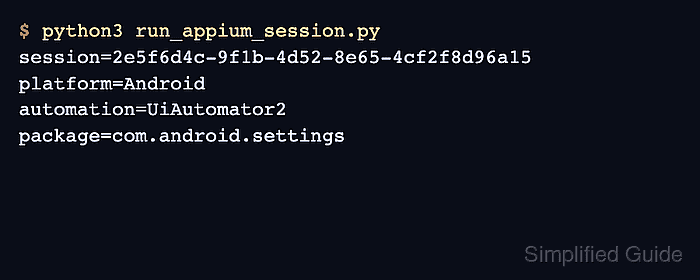
$ python3 run_appium_session.py
session=2e5f6d4c-9f1b-4d52-8e65-4cf2f8d96a15
platform=Android
automation=UiAutomator2
package=com.android.settings
The session ID shows that Appium accepted the capabilities and created a driver session. The package line confirms the Android Settings app opened on the selected target.
- Reuse the capability file in Appium Inspector or the test runner.
Appium Inspector accepts a raw JSON capability object, so keep the appium: prefixes there. Some client libraries add prefixes through their option classes; avoid defining the same key both inside and outside appium:options because the grouped value wins.
- Remove the temporary smoke test when the capability values are moved into the project test suite.
$ rm run_appium_session.py