Locator work starts faster when Appium Inspector opens a real session instead of only saving a capability file. A failed launch usually means the server URL, remote path, driver, target device, or capability payload is wrong, so the first successful Inspector screen should show both the live app image and its source tree.
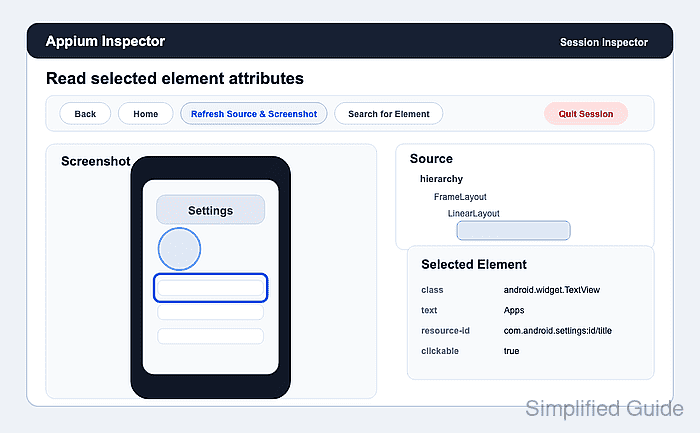
The Session Builder connects to a standalone Appium server from the Appium Server tab. A local server with default settings uses Remote Host 127.0.0.1, Remote Port 4723, Remote Path /, and SSL off; older Appium 1 servers may need /wd/hub, but Appium 2 and Appium 3 default to the server root.
The Capability Builder sends the same W3C capability object that a client library would use. Keep Appium extension keys prefixed with appium: in raw JSON, start with a known target such as Android Settings through UiAutomator2, and treat the Session Inspector screen as ready only when the screenshot panel, source tree, and selected-element attributes update.
Steps to open an Appium Inspector session:
- Check that the Appium server answers the status endpoint.
$ curl --silent http://127.0.0.1:4723/status
{"value":{"ready":true,"message":"The server is ready to accept new connections","build":{"version":"3.5.0"}}}
Start the server first if this request fails.
Related: How to start the Appium server - Launch Appium Inspector and confirm the local server details on the Appium Server tab.
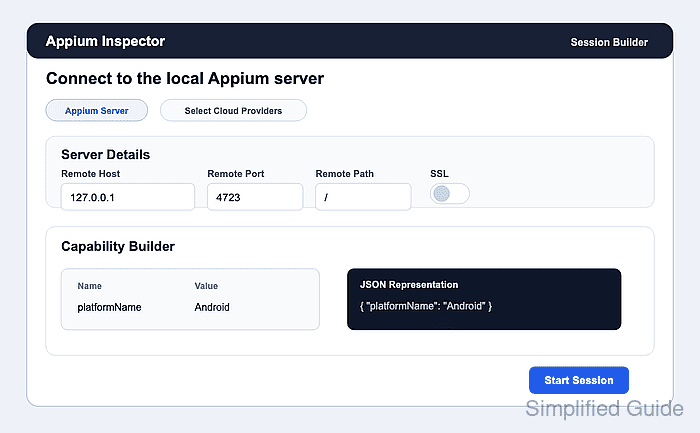
Use Remote Host 127.0.0.1, Remote Port 4723, Remote Path /, and leave SSL off for a default local server. Use /wd/hub only for an Appium 1 server started with that base path.
- Open the Capability Builder tab and click Edit in JSON Representation.
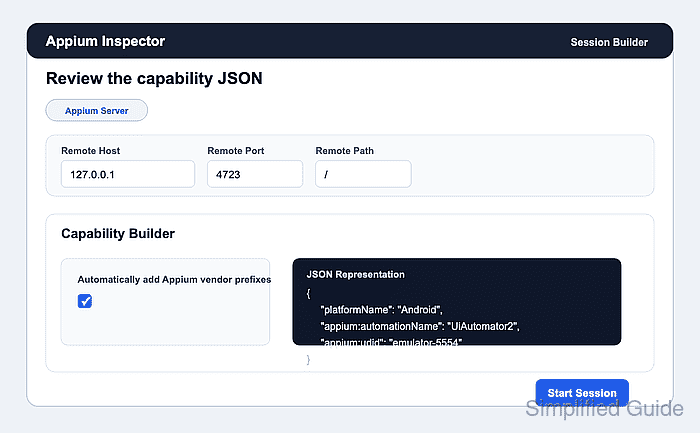
- Paste the Android Settings capability payload and save the JSON.
{
  "platformName": "Android",
  "appium:automationName": "UiAutomator2",
  "appium:deviceName": "Android Emulator",
  "appium:udid": "emulator-5554",
  "appium:appPackage": "com.android.settings",
  "appium:appActivity": ".Settings"
}
Replace emulator-5554 with the target serial. Use appium:app for an APK path, or switch to XCUITest and appium:bundleId for an iOS app.
Related: How to configure Appium capabilities - Click Start Session.
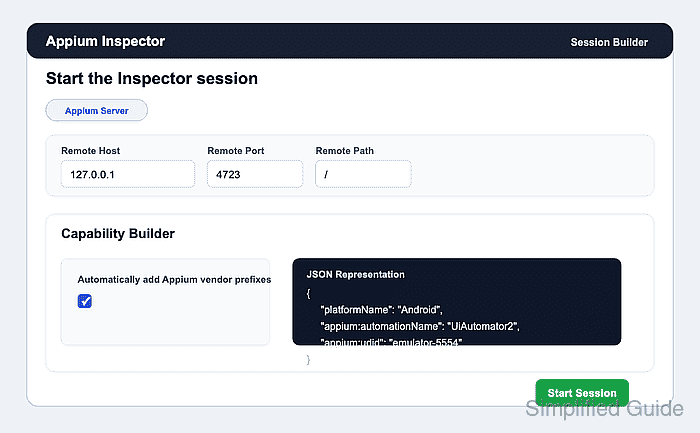
The target device, emulator, or simulator must be unlocked and reachable; otherwise the Inspector reports a session creation error from the Appium server or driver.
- Confirm that the Session Inspector screen opens.
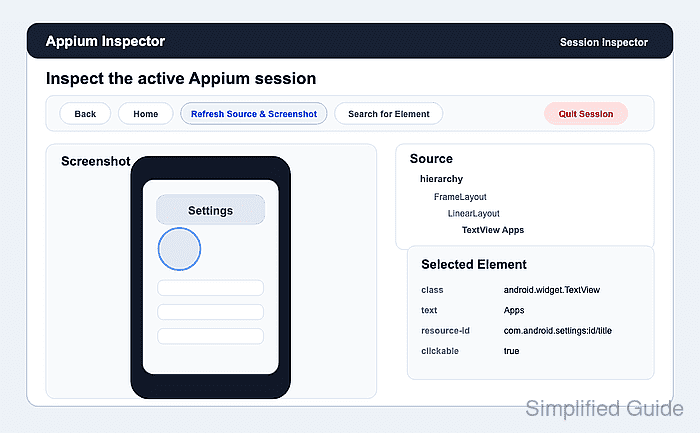
The screenshot panel and source tab prove that the Inspector has an active session, not just saved capabilities.
- Select a visible element in the screenshot or source tree.
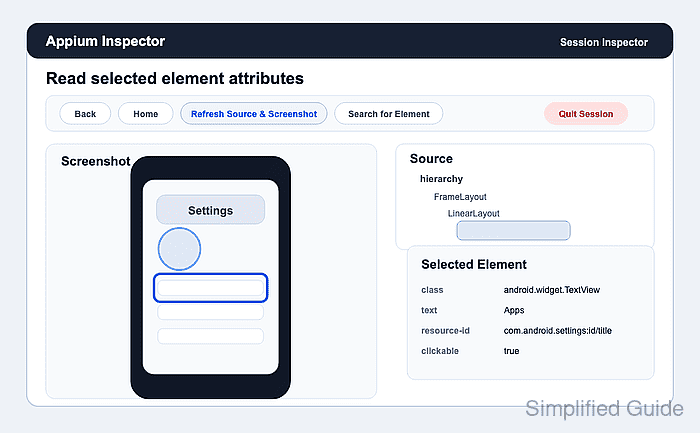
- Check the selected-element attributes before copying a locator into a test.
Prefer stable values such as resource-id, accessibility id, label, name, or text over screen coordinates when the app exposes them.
- Quit the Inspector session when locator inspection is complete.
Ending the session releases the device for the next Inspector or client-library run.

Mohd Shakir Zakaria is a cloud architect with deep roots in software development and open-source advocacy. Certified in AWS, Red Hat, VMware, ITIL, and Linux, he specializes in designing and managing robust cloud and on-premises infrastructures.


