How to install Apache on CentOS or RHEL
A RHEL-family Apache install is not finished when the httpd package is merely present. The service must be started, enabled for boot, allowed through the active firewall, and able to return an HTTP response before the host is ready for static content, virtual hosts, or reverse-proxy work.
On CentOS Stream and Red Hat Enterprise Linux, Apache is packaged as httpd and managed by the httpd systemd unit. The packaged layout keeps the main configuration in /etc/httpd/conf/httpd.conf, drop-in configuration under /etc/httpd/conf.d/, module load files under /etc/httpd/conf.modules.d/, and the default document root under /var/www/html/.
The base install path uses dnf, systemctl, and an HTTP firewall rule when firewalld manages the host. Content under /var/www/ receives the httpd_sys_content_t SELinux context by default, while custom document roots, extra listen ports, and HTTPS need separate configuration after the stock service has been proven to respond.
Steps to install Apache on CentOS or RHEL:
- Open a terminal with sudo privileges.
- Install the Apache package from the system repositories.
$ sudo dnf install httpd
Dependencies resolved.
##### snipped #####
Installed:
  httpd-2.4.63-13.el10
Complete!
On older CentOS or RHEL releases that still use yum, replace dnf with yum.
- Test the packaged Apache configuration.
$ sudo apachectl configtest
AH00558: httpd: Could not reliably determine the server's fully qualified domain name, using 192.0.2.10. Set the 'ServerName' directive globally to suppress this message
Syntax OK
The AH00558 message is a warning, not a syntax failure. apachectl configtest is equivalent to apachectl -t.
Related: How to test Apache configuration
- Enable and start the httpd service.
$ sudo systemctl enable --now httpd
Created symlink /etc/systemd/system/multi-user.target.wants/httpd.service → /usr/lib/systemd/system/httpd.service.
systemctl enable --now httpd starts Apache immediately and also enables it at boot.
- Confirm that the httpd service is running.
$ sudo systemctl is-active httpd
active
If this command does not return active, inspect sudo journalctl --unit=httpd --no-pager --lines=20 before retrying the start.
- If firewalld manages the host firewall, allow inbound HTTP traffic.
$ sudo firewall-cmd --permanent --add-service=http
success
$ sudo firewall-cmd --reload
success
Add the https service later after TLS is configured. If the host uses nftables, iptables, a cloud firewall, or another firewall stack instead of firewalld, allow TCP port 80 there.
- Create a simple test page in the default document root.
$ printf '<h1>Apache is working on CentOS or RHEL</h1>\n' | sudo tee /var/www/html/index.html
<h1>Apache is working on CentOS or RHEL</h1>
Files created under /var/www/html/ receive the default /var/www/ SELinux context. If you serve content from another path, label that path before expecting Apache to read it.
- Request the local site to verify that Apache answers on port 80.
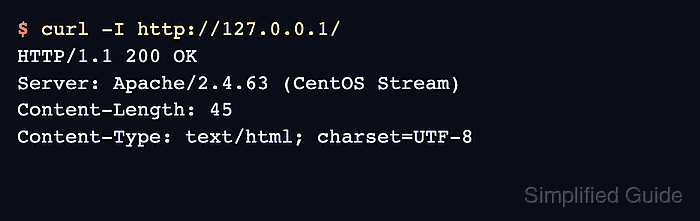
$ curl -I http://127.0.0.1/
HTTP/1.1 200 OK
Server: Apache/2.4.63 (CentOS Stream)
##### snipped #####
Content-Type: text/html; charset=UTF-8
On RHEL, an empty /var/www/html/ directory shows the default test page instead of your own content. Creating index.html first makes the verification result predictable.
Use http://server_ip_or_host_name/ from another machine after DNS and firewall access are ready.