How to open the Apache Spark web UI
Apache Spark exposes different web UIs depending on which process owns the state being inspected. A live driver UI shows jobs, stages, executors, SQL plans, storage, and environment values for one running application, while standalone and history-server pages answer different cluster or replay questions.
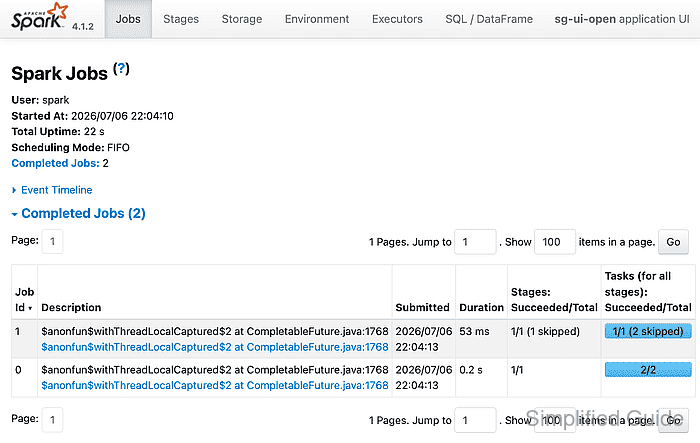
A live SparkContext starts its application UI on port 4040 by default. When another Spark application is already using that port on the same driver host, Spark tries the next ports, such as 4041 and 4042. The live UI disappears when the application exits unless event logging and the Spark History Server are configured before the run.
Open Spark UI ports only through a trusted network path, SSH tunnel, reverse proxy, or cluster console that matches the deployment security model. Standalone master, worker, and application UIs can reveal job names, environment values, executor hosts, storage paths, and logs, so the URL source matters as much as the port number.
Related: How to check Spark application status
Related: How to enable the Spark History Server
Related: How to run an Apache Spark standalone cluster
Related: How to view Apache Spark logs
Steps to open the Apache Spark web UI:
- Choose the UI source for the Spark state being checked.
Live application driver: http://<driver-host>:4040
Next live application on the same host: http://<driver-host>:4041
Completed application replay: http://<history-server-host>:18080
Standalone master: http://<master-host>:8080
Standalone worker: http://<worker-host>:8081
The driver host is the machine or container where the driver process runs. Cluster managers, notebooks, and managed platforms may proxy the same UI through a different URL.
- Copy the live driver UI URL from the running application output when Spark prints one.
application_id=local-1783375451272
ui_web_url=http://127.0.0.1:4040
If no URL appears, try the driver host on port 4040 first, then check 4041 or later ports when multiple applications run on the same host.
- Open the live driver UI in a browser.
http://127.0.0.1:4040/jobs/
The Jobs page should show the application name, Spark version, user, uptime, job counts, and tabs for Stages, Storage, Environment, Executors, and SQL / DataFrame when those views have data.
- Use the history server URL only for completed or replayed applications.
http://history.example.net:18080
The history server can show completed applications only when event logging was enabled before the application started and the server can read the same event-log directory.
Related: How to enable Spark event logging
Related: How to enable the Spark History Server - Use the standalone master or worker UI when the question is cluster membership instead of application internals.
Master UI: http://spark-master.example.net:8080
Worker UI: http://spark-worker-01.example.net:8081
The master UI lists workers and applications. Worker pages are better for executor work directories and per-application stdout or stderr files.
Related: How to run an Apache Spark standalone cluster
Related: How to view Apache Spark logs - Confirm the selected application UI through the matching REST API base.
$ curl --silent http://127.0.0.1:4040/api/v1/applications
[ {
  "id" : "local-1783375451272",
  "name" : "sg-ui-open",
  "attempts" : [ {
    "completed" : false,
    "sparkUser" : "spark",
    "appSparkVersion" : "4.1.2"
  } ]
} ]
Use the same base URL that the browser opened. A live driver normally reports completed: false for the running attempt, while a history-server replay of a finished application normally reports completed: true.
Related: How to check Spark application status