Apache Spark event logging saves scheduler and UI events after an application exits. Enable it when completed jobs need to be replayed in the Spark History Server or inspected after the driver terminal, live UI, or cluster container has gone away.
Event logging is a Spark property that must be present before the driver starts. Put spark.eventLog.enabled and spark.eventLog.dir in the loaded spark-defaults.conf file for recurring jobs, or pass the same settings with spark-submit --conf for one submission.
Use a directory that the Spark application can write and the history server can read. A local file:///tmp/sg-spark-events directory is enough for a single-machine check, while YARN, Kubernetes, or standalone clusters usually need shared storage such as HDFS or an object-store connector URI.
Related: How to configure Spark defaults
Related: How to enable the Spark History Server
Related: How to view Apache Spark logs
Steps to enable Spark event logging:
- Choose the event-log location for completed applications.
Single-machine check: file:///tmp/sg-spark-events
Cluster history replay: hdfs:///spark-events or another shared URI
The same URI should be visible to the submitted application and to the Spark History Server. Local file:// paths work only when both processes read the same filesystem.
- Create the local event-log directory when using a file:// path.
$ mkdir -p /tmp/sg-spark-events
On shared storage, create the target directory with permissions that let Spark applications write event logs and let the history server read them.
- Open the Spark defaults file loaded by the submit client.
$ vi "$SPARK_HOME/conf/spark-defaults.conf"
If the submit environment uses SPARK_CONF_DIR or spark-submit --properties-file, edit that active defaults file instead. Spark properties passed with --conf override values from spark-defaults.conf.
Related: How to configure Spark defaults - Add the event logging settings.
- spark-defaults.conf
spark.eventLog.enabled true
spark.eventLog.dir file:///tmp/sg-spark-events
Leave spark.eventLog.compress at its current default unless the history-server storage policy requires another compression setting.
- Save a small Spark job to confirm the loaded settings.
- sg_event_log_check.py
from pyspark.sql import SparkSession

spark = SparkSession.builder.getOrCreate()
spark.sparkContext.setLogLevel("ERROR")

count = spark.range(0, 10).count()
app_id = spark.sparkContext.applicationId
event_log_enabled = spark.conf.get("spark.eventLog.enabled")
event_log_dir = spark.conf.get("spark.eventLog.dir")

spark.stop()

print(f"event_log_enabled={event_log_enabled}")
print(f"event_log_dir={event_log_dir}")
print(f"application_id={app_id}")
print(f"range_count={count}")
print("spark_stopped=true")
The call to spark.stop() closes the application cleanly so Spark can finish the event log and mark the application complete.
- Submit the check job through the same Spark client.
$ spark-submit \
  --master local[2] \
  --name sg-event-log-check \
  --conf spark.ui.showConsoleProgress=false \
  sg_event_log_check.py
##### snipped #####
event_log_enabled=true
event_log_dir=file:///tmp/sg-spark-events
application_id=local-1783373195854
range_count=10
spark_stopped=true
The printed configuration values confirm that the driver loaded event logging before running the Spark action.
Related: How to submit an Apache Spark job
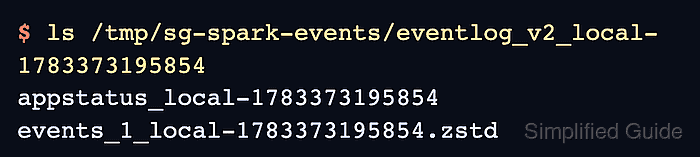
- List the event-log directory for the printed application ID.
$ ls /tmp/sg-spark-events/eventlog_v2_local-1783373195854
appstatus_local-1783373195854
events_1_local-1783373195854.zstd
The appstatus_ file and events_1_ file show that Spark wrote replayable event data for the completed application. A history server pointed at the same directory can load this application after its next scan interval.
Related: How to enable the Spark History Server - Remove the temporary check job.
$ rm sg_event_log_check.py

Mohd Shakir Zakaria is a cloud architect with deep roots in software development and open-source advocacy. Certified in AWS, Red Hat, VMware, ITIL, and Linux, he specializes in designing and managing robust cloud and on-premises infrastructures.


