How to update a Conda environment from YAML
Project dependency changes should land in the existing Conda environment from the same environment.yml file that teammates, notebooks, or automation use. Updating from YAML keeps the environment aligned with the repository definition without deleting the environment directory and rebuilding every package from scratch.
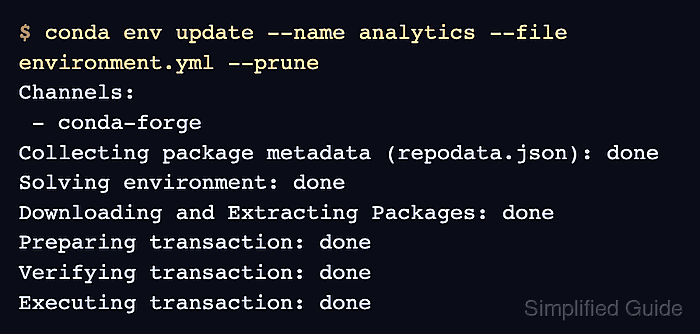
conda env update reads an environment definition, resolves the channels and dependencies in that file, and applies the changes to a named environment or prefix. The file name defaults to environment.yml, but passing --file keeps the command explicit when several YAML files exist in a project.
The --prune option removes packages that are no longer required by the YAML file. Export or note any local-only packages before using it, and make sure channel access is ready because current Conda builds can stop on channel Terms of Service or authentication gates before solving packages.
Steps to update a Conda environment from YAML:
- Review the YAML file that should define the target environment.
- environment.yml
name: analytics
channels:
  - conda-forge
  - nodefaults
dependencies:
  - python=3.13
  - click
The name field should match the environment being updated unless the command intentionally targets another environment. Keep nodefaults only when the project should exclude configured default channels.
- Confirm that the target environment exists before applying the file.
$ conda env list
# conda environments:
#
base                  /opt/conda
analytics             /opt/conda/envs/analytics
- Apply the YAML file to the named environment.
$ conda env update --name analytics --file environment.yml --prune
Channels:
 - conda-forge
Collecting package metadata (repodata.json): done
Solving environment: done
Downloading and Extracting Packages: done
Preparing transaction: done
Verifying transaction: done
Executing transaction: done
Use the --prefix option with an absolute path such as /srv/project/.conda-env instead of --name when the environment is stored at a path.
--prune can remove packages that were installed by hand and are not needed by the YAML dependencies. Omit it when temporary local packages must remain.
- Check that a package declared in the YAML file is installed.
$ conda list --name analytics click
# packages in environment at /opt/conda/envs/analytics:
#
# Name                     Version          Build            Channel
click                      8.4.1            pyhc90fa1f_0     conda-forge
- Check that a removed package was pruned when removal was intended.
$ conda list --name analytics colorama
CondaValueError: No packages match 'colorama'.
A no-match message is expected only for packages that should be absent after the YAML update.
- Run a smoke test inside the updated environment.
$ conda run --name analytics python -c "import importlib.metadata as md; print(md.version('click'))"
8.4.1
Replace the sample import with the package, notebook kernel, or project command that proves the updated environment can run its real workload.
Related: How to run a command in a Conda environment without activating it