A shared environment.yml file prevents project setup from becoming a series of hand-entered package installs. Creating a Conda environment from that file gives a developer, notebook user, or release job the same interpreter and package set declared by the repository.
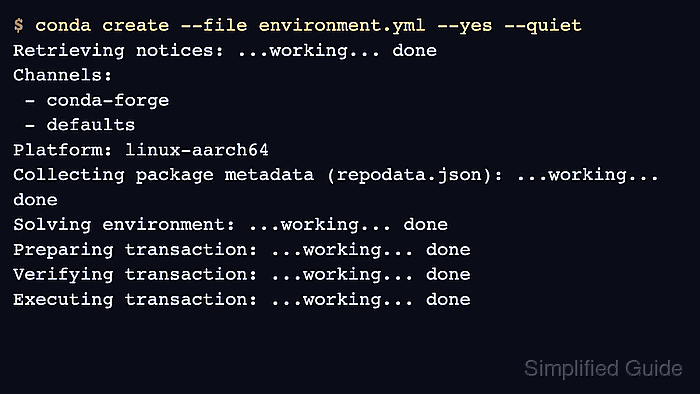
conda create –file reads the YAML environment definition, creates the named environment, resolves the listed channels and dependencies, and installs the requested packages. The name field in the YAML file becomes the environment name, so check it before importing a file from another machine or repository.
Channel configuration affects the solve even when the YAML file lists a channel. Current Conda builds can stop on Anaconda channel Terms of Service or organization policy checks before packages are installed, so review the channel list printed by the create command before treating the imported environment as ready.
Related: How to export a Conda environment to YAML
Related: How to update a Conda environment from YAML
Related: How to list Anaconda environments
Tool: YAML Validator
Steps to create a Conda environment from YAML:
- Review the YAML file that should define the new environment.
- environment.yml
name: imported-analytics
channels:
  - conda-forge
dependencies:
  - python=3.13
  - click
The name value becomes the environment name when using conda create –file. Validate hand-edited YAML before importing it because a syntax error stops the create command before package solving begins.
- Create the environment from the YAML file.
$ conda create --file environment.yml --yes --quiet
Retrieving notices: ...working... done
Channels:
 - conda-forge
 - defaults
Platform: linux-aarch64
Collecting package metadata (repodata.json): ...working... done
Solving environment: ...working... done

## Package Plan ##

  environment location: /opt/conda/envs/imported-analytics

  added / updated specs:
    - click
    - python=3.13

The following NEW packages will be INSTALLED:

  click              conda-forge/noarch::click-8.4.1-pyhc90fa1f_0
  python             conda-forge/linux-aarch64::python-3.13.14-h6185564_100_cp313
##### snipped #####
Preparing transaction: ...working... done
Verifying transaction: ...working... done
Executing transaction: ...working... done
Leave off --yes when you want to review the package plan interactively. Use --prefix instead of a YAML name only when the environment must live at a specific path.
If Conda stops on channel Terms of Service, accept only channels approved for your organization or remove those channels from the active configuration before rerunning the import.
- List environments to confirm the imported name exists.
$ conda env list

# conda environments:
#
# * -> active
# + -> frozen
base                     /opt/conda
imported-analytics       /opt/conda/envs/imported-analytics
Related: How to list Anaconda environments
- Check that a package declared in the YAML file is installed.
$ conda list --name imported-analytics click
# packages in environment at /opt/conda/envs/imported-analytics:
#
# Name                     Version          Build            Channel
click                      8.4.1            pyhc90fa1f_0     conda-forge
- Run a smoke test inside the imported environment.
$ conda run --name imported-analytics python -c 'import importlib.metadata as md; print(md.version("click"))'
8.4.1
Replace the sample import with the notebook, CLI command, or package import that proves the environment can run the project workload.
Related: How to run a command in a Conda environment without activating it

Mohd Shakir Zakaria is a cloud architect with deep roots in software development and open-source advocacy. Certified in AWS, Red Hat, VMware, ITIL, and Linux, he specializes in designing and managing robust cloud and on-premises infrastructures.


