An environment handoff can fail when the YAML file contains the wrong package set, a local prefix, or channels the next machine cannot use. Exporting a Conda environment to YAML turns the selected environment into an environment.yml file that can be reviewed before another user, project, or automation job recreates it.
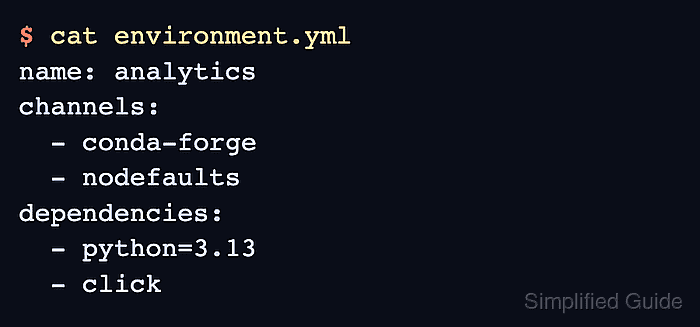
The conda export command writes the environment-yaml format directly to a file. The --from-history option keeps the file centered on packages that were explicitly requested in the environment history instead of every solved dependency; omit it when the handoff needs a fuller dependency snapshot.
Review the exported file before sharing it because Conda can include a local prefix path and channels from the current configuration. Remove host-specific paths, keep only channels the destination should use, and add nodefaults when the recreated environment must not search default channels. Current Anaconda default channels may require Terms of Service acceptance before later create or update checks can solve packages.
Steps to export a Conda environment to YAML:
- List the available Conda environments and identify the source name.
$ conda env list

# conda environments:
#
# * -> active
# + -> frozen
base                     /opt/conda
analytics                /opt/conda/envs/analytics
- Export the source environment to YAML.
$ conda export --name analytics --from-history --format=environment-yaml --file environment.yml
Replace analytics with the environment being shared. The --file option overwrites an existing file of the same name, so choose a project path deliberately before running the command.
- Review the exported file before sharing it.
- environment.yml
name: analytics
channels:
  - conda-forge
  - nodefaults
dependencies:
  - python=3.13
  - click
Remove the exported prefix line when it contains a local path such as /opt/conda/envs/analytics. Keep nodefaults only when default channels should be excluded during recreate or update operations.
- Check that Conda can parse and solve the reviewed YAML file.
$ conda env create --name analytics-check --file environment.yml --dry-run --quiet
Channels:
 - conda-forge
Platform: linux-64
Collecting package metadata (repodata.json): ...working... done
Solving environment: ...working... done
name: analytics
channels:
  - conda-forge
  - nodefaults
dependencies:
  - conda-forge/noarch::ca-certificates==2026.5.20=hbd8a1cb_0
  - conda-forge/linux-64::libgcc==15.2.0=h69a1729_19
  - conda-forge/noarch::python_abi==3.13=8_cp313
  - conda-forge/noarch::tzdata==2025c=hc9c84f9_1
##### snipped #####
  - conda-forge/linux-64::python==3.13.14=h624b32d_100_cp313
  - conda-forge/noarch::click==8.4.1=pyhc90fa1f_0
The --dry-run option checks the file without creating analytics-check. A solve failure usually points to an unavailable channel, incompatible package pin, missing Terms of Service acceptance, or a platform-specific package that should be exported as an explicit spec instead.
- Use the YAML file as the handoff artifact after the dry run succeeds.
Create the real destination environment with a separate import step when the file is ready.
Related: How to create an Anaconda environment from YAML

Mohd Shakir Zakaria is a cloud architect with deep roots in software development and open-source advocacy. Certified in AWS, Red Hat, VMware, ITIL, and Linux, he specializes in designing and managing robust cloud and on-premises infrastructures.


