Logging wget output to a file leaves a transfer record after terminal scrollback is gone. It fits scheduled downloads, background runs, and repeat checks against the same endpoint because the saved log can be reviewed after the shell exits.
GNU wget writes status messages to standard error by default. --output-file writes those messages to a fresh log file, while --append-output adds later runs to the same file or creates it if missing. Neither option changes the payload filename chosen by -O or by the remote server.
Those logs can expose URLs, redirected locations, and extra troubleshooting detail. Keep them in a private path, rotate append-mode logs before they grow noisy, and use --debug only for short diagnostic captures because it records much more connection data. If --show-progress is added, GNU wget keeps the progress bar on standard error even when --output-file is set.
Related: How to run wget downloads in the background
Related: How to debug wget connections
Related: How to show download progress in wget
Steps to log wget output to a file:
- Create a private directory for saved wget logs before writing transfer output there.
$ install -d -m 700 "$HOME/wget-logs"
Restricted permissions keep saved URLs and troubleshooting detail out of shared locations.
- Write one download to a fresh log file with --output-file.
$ wget --output-file="$HOME/wget-logs/transfer.log" --no-verbose https://downloads.example.net/exports/inventory-2026-04-22.csv.gz -O inventory-2026-04-22.csv.gz
--output-file replaces the previous file contents, which is the cleaner choice for one run or one short troubleshooting pass.
- Append a later run to the same log file with --append-output when both transfers belong in one history.
$ wget --append-output="$HOME/wget-logs/transfer.log" --no-verbose https://downloads.example.net/exports/pricing-2026-04-22.csv.gz -O pricing-2026-04-22.csv.gz
--append-output keeps the earlier log lines and adds the new transfer underneath them.
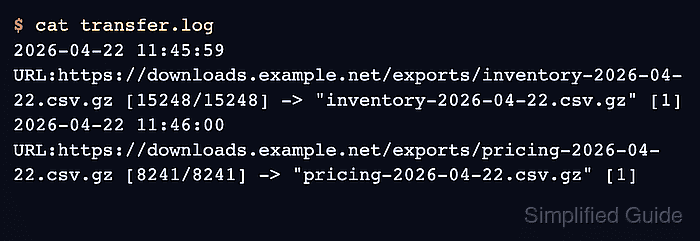
- Open the saved log file and confirm that wget recorded both transfer results there.
$ cat "$HOME/wget-logs/transfer.log"
2026-04-22 11:45:59 URL:https://downloads.example.net/exports/inventory-2026-04-22.csv.gz [15248/15248] -> "inventory-2026-04-22.csv.gz" [1]
2026-04-22 11:46:00 URL:https://downloads.example.net/exports/pricing-2026-04-22.csv.gz [8241/8241] -> "pricing-2026-04-22.csv.gz" [1]
The same status lines normally go to standard error when no log file is configured.
- Confirm that the payload files were saved separately from the log text.
$ ls -lh inventory-2026-04-22.csv.gz pricing-2026-04-22.csv.gz
-rw-r--r-- 1 user user 15K Apr 22 11:45 inventory-2026-04-22.csv.gz
-rw-r--r-- 1 user user 8.1K Apr 22 11:46 pricing-2026-04-22.csv.gz
The log stays plain text while the downloaded payload still lands in the filename selected by -O or the remote server.
- Capture a troubleshooting log with --debug when the normal saved lines are not detailed enough.
$ wget --debug --output-file="$HOME/wget-logs/wget-debug.log" --spider https://downloads.example.net/exports/restricted-inventory-2026-04-22.csv.gz
Setting --output-file (logfile) to /home/user/wget-logs/wget-debug.log
Setting --spider (spider) to 1
Debug logs can expose headers, redirects, and other connection details, so keep them only as long as the investigation needs them.
- Review the saved debug file and confirm that it contains request and response detail instead of only the short transfer summary.
$ cat "$HOME/wget-logs/wget-debug.log"
DEBUG output created by Wget 1.25.0 on linux-gnu.

Spider mode enabled. Check if remote file exists.
##### snipped #####
HTTP request sent, awaiting response...
200 OK
Remote file exists.
Use --spider with debug logging when the goal is to inspect the request path without writing a new payload file.

Mohd Shakir Zakaria is a cloud architect with deep roots in software development and open-source advocacy. Certified in AWS, Red Hat, VMware, ITIL, and Linux, he specializes in designing and managing robust cloud and on-premises infrastructures.


