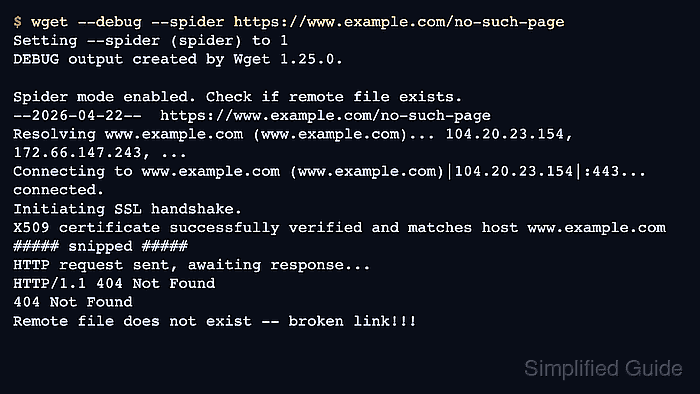
HTTP and HTTPS transfers performed by wget underpin configuration management, package retrieval, and scripted backups on unattended Linux systems. Connection failures, hangs, or corrupt downloads in these flows can derail deployments and quietly damage archived data.
The wget client passes each request through DNS resolution, TCP connection setup, optional TLS negotiation, and HTTP or HTTPS exchanges, using options from the command line, environment variables, and configuration files such as /etc/wgetrc. The –debug flag expands the usual progress display into a trace of lookups, socket operations, TLS details, HTTP headers, proxy use, and retries, making it possible to pinpoint the exact phase where failures occur.
Verbose logging can expose full URLs, cookies, and authentication headers, so debug output requires careful handling and storage with restricted permissions. The procedure below assumes wget 1.21 or later on Ubuntu or a similar Linux distribution with a working resolver and certificate store; wording and library versions may differ slightly on other platforms. Debugging should focus on short, representative downloads rather than large production transfers to avoid unnecessary load while troubleshooting.
Steps to debug wget connections:
- Capture a full connection trace from wget in a log file using the –debug flag.
$ http_proxy=http://proxy.example.net:3128 https_proxy=http://proxy.example.net:3128 wget --debug https://www.example.com/data.tar.gz 2>&1 | tee wget-debug.log DEBUG output created by Wget 1.21.4 on linux-gnu. Reading HSTS entries from /home/user/.wget-hsts URI encoding = 'ANSI_X3.4-1968' converted 'https://www.example.com/data.tar.gz' (ANSI_X3.4-1968) -> 'https://www.example.com/data.tar.gz' (UTF-8) URI encoding = 'ANSI_X3.4-1968' --2026-01-10 04:57:27-- https://www.example.com/data.tar.gz Host 'www.example.com' has not issued a general basic challenge. Resolving proxy.example.net (proxy.example.net)... 203.0.113.50 Caching proxy.example.net => 203.0.113.50 Connecting to proxy.example.net (proxy.example.net)|203.0.113.50|:3128... connected. Created socket 3. Releasing 0x0000aaaae5c6db50 (new refcount 1). ---request begin--- CONNECT www.example.com:443 HTTP/1.1 User-Agent: WgetCustom/1.0 (+https://www.example.com) Host: www.example.com:443 ---request end--- proxy responded with: [HTTP/1.0 200 Connection established Proxy-agent: tinyproxy/1.11.1 ] Initiating SSL handshake. Handshake successful; connected socket 3 to SSL handle 0x0000aaaae5c730b0 certificate: subject: CN=files.example.net issuer: CN=SG Test CA X509 certificate successfully verified and matches host www.example.com ---request begin--- GET /data.tar.gz HTTP/1.1 Host: www.example.com User-Agent: WgetCustom/1.0 (+https://www.example.com) Accept: */* Accept-Encoding: identity Connection: Keep-Alive Proxy-Connection: Keep-Alive ---request end--- Proxy request sent, awaiting response... ---response begin--- HTTP/1.0 200 OK Server: sg-http/1.0 Python/3.12.3 Date: Sat, 10 Jan 2026 04:57:27 GMT Content-type: application/gzip Content-Length: 1048576 Last-Modified: Sat, 10 Jan 2026 04:05:33 GMT ---response end--- 200 OK Registered socket 3 for persistent reuse. Converted file name 'data.tar.gz' (UTF-8) -> 'data.tar.gz' (ANSI_X3.4-1968) Length: 1048576 (1.0M) [application/gzip] Saving to: 'data.tar.gz.2' 0K .......... .......... .......... .......... .......... 4% 296M 0s 50K .......... .......... .......... .......... .......... 9% 563M 0s 100K .......... .......... .......... .......... .......... 14% 60.0M 0s 150K .......... .......... .......... .......... .......... 19% 447M 0s 200K .......... .......... .......... .......... .......... 24% 480M 0s 250K .......... .......... .......... .......... .......... 29% 605M 0s 300K .......... .......... .......... .......... .......... 34% 484M 0s 350K .......... .......... .......... .......... .......... 39% 622M 0s 400K .......... .......... .......... .......... .......... 43% 471M 0s 450K .......... .......... .......... .......... .......... 48% 490M 0s 500K .......... .......... .......... .......... .......... 53% 617M 0s 550K .......... .......... .......... .......... .......... 58% 439M 0s 600K .......... .......... .......... .......... .......... 63% 566M 0s 650K .......... .......... .......... .......... .......... 68% 433M 0s 700K .......... .......... .......... .......... .......... 73% 545M 0s 750K .......... .......... .......... .......... .......... 78% 800M 0s 800K .......... .......... .......... .......... .......... 83% 369M 0s 850K .......... .......... .......... .......... .......... 87% 645M 0s 900K .......... .......... .......... .......... .......... 92% 716M 0s 950K .......... .......... .......... .......... .......... 97% 667M 0s 1000K .......... .......... .... 100% 410M=0.003s 2026-01-10 04:57:27 (372 MB/s) - 'data.tar.gz.2' saved [1048576/1048576]Using tee keeps output visible while preserving a complete trace in wget-debug.log for later inspection.
Debug logs can reveal full URLs, tokens, and cookies, so logs should be stored with restricted permissions and redacted before sharing.
- Search the debug log for hostname resolution and TCP handshake entries to confirm DNS and reachability.
$ grep -E 'Resolving|Connecting to|failed' wget-debug.log Resolving proxy.example.net (proxy.example.net)... 203.0.113.50 Connecting to proxy.example.net (proxy.example.net)|203.0.113.50|:3128... connected.
Failures at the Resolving stage suggest issues with DNS servers or resolver configuration, whereas failures at Connecting to usually point to routing, firewall, or proxy problems.
- Inspect proxy-related lines in the debug log to determine whether traffic is traversing an HTTP proxy.
$ grep -i 'proxy\|CONNECT' wget-debug.log Resolving proxy.example.net (proxy.example.net)... 203.0.113.50 Caching proxy.example.net => 203.0.113.50 Connecting to proxy.example.net (proxy.example.net)|203.0.113.50|:3128... connected. CONNECT www.example.com:443 HTTP/1.1 proxy responded with: [HTTP/1.0 200 Connection established Proxy-agent: tinyproxy/1.11.1 Handshake successful; connected socket 3 to SSL handle 0x0000aaaae5c730b0 Connection: Keep-Alive Proxy-Connection: Keep-Alive Proxy request sent, awaiting response...
Unexpected proxy entries often originate from environment variables such as http_proxy or settings in /etc/wgetrc and can cause policies like HTTPS interception, authentication prompts, or blocked destinations.
- Scan the log for TLS and certificate messages to detect failures during HTTPS negotiation.
$ grep -i 'certificate\|tls\|ssl' wget-debug.log Initiating SSL handshake. Handshake successful; connected socket 3 to SSL handle 0x0000aaaae5c730b0 certificate: X509 certificate successfully verified and matches host www.example.com
Disabling certificate checks with options such as –no-check-certificate removes verification of the server identity and enables man-in-the-middle attacks, so it should only be used briefly on trusted networks for diagnostics.
- Review HTTP request and response lines to understand redirects, authentication challenges, and final status codes.
$ grep -E 'HTTP/' wget-debug.log CONNECT www.example.com:443 HTTP/1.1 proxy responded with: [HTTP/1.0 200 Connection established GET /data.tar.gz HTTP/1.1 HTTP/1.0 200 OK
Repeated 3xx redirects, loops between hosts, or persistent 401 Unauthorized responses usually indicate outdated URLs, missing custom headers, or incorrect credentials that must be adjusted with appropriate wget options.
- Repeat the download with corrected URL, proxy, or authentication options to confirm that wget completes the transfer cleanly.
$ wget --header='Authorization: Bearer TOKEN' https://downloads.example.net/data.tar.gz --2026-01-10 05:03:07-- https://downloads.example.net/data.tar.gz Resolving downloads.example.net (downloads.example.net)... 203.0.113.50 Connecting to downloads.example.net (downloads.example.net)|203.0.113.50|:443... connected. HTTP request sent, awaiting response... 200 OK Length: 1048576 (1.0M) [application/gzip] Saving to: 'data.tar.gz' 0K .......... .......... .......... .......... .......... 4% 288M 0s 50K .......... .......... .......... .......... .......... 9% 338M 0s 100K .......... .......... .......... .......... .......... 14% 139M 0s 150K .......... .......... .......... .......... .......... 19% 409M 0s 200K .......... .......... .......... .......... .......... 24% 472M 0s 250K .......... .......... .......... .......... .......... 29% 451M 0s 300K .......... .......... .......... .......... .......... 34% 336M 0s 350K .......... .......... .......... .......... .......... 39% 152M 0s 400K .......... .......... .......... .......... .......... 43% 373M 0s 450K .......... .......... .......... .......... .......... 48% 257M 0s 500K .......... .......... .......... .......... .......... 53% 222M 0s 550K .......... .......... .......... .......... .......... 58% 172M 0s 600K .......... .......... .......... .......... .......... 63% 644M 0s 650K .......... .......... .......... .......... .......... 68% 362M 0s 700K .......... .......... .......... .......... .......... 73% 245M 0s 750K .......... .......... .......... .......... .......... 78% 195M 0s 800K .......... .......... .......... .......... .......... 83% 290M 0s 850K .......... .......... .......... .......... .......... 87% 617M 0s 900K .......... .......... .......... .......... .......... 92% 117M 0s 950K .......... .......... .......... .......... .......... 97% 196M 0s 1000K .......... .......... .... 100% 491M=0.004s 2026-01-10 05:03:07 (256 MB/s) - 'data.tar.gz' saved [1048576/1048576]Successful troubleshooting is indicated by stable connection stages, a final 2xx status code, and a closing line showing the file saved with the expected size and path.
Mohd Shakir Zakaria is a cloud architect with deep roots in software development and open-source advocacy. Certified in AWS, Red Hat, VMware, ITIL, and Linux, he specializes in designing and managing robust cloud and on-premises infrastructures.