Large transfers should not depend on an open terminal window or a live SSH session. Background mode lets wget detach after startup so the shell prompt returns while the download continues and writes status to a log.
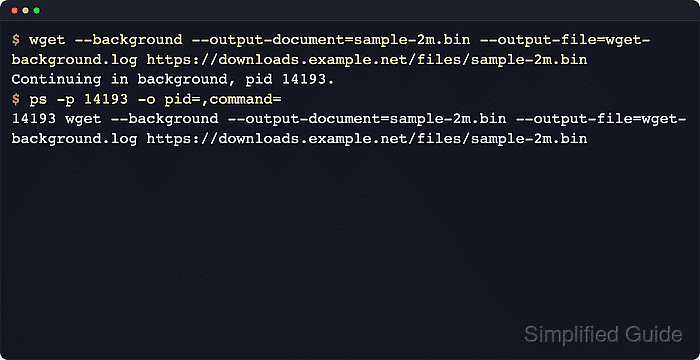
GNU wget detaches with --background or -b immediately after startup. GNU Wget documentation also notes that, if no log path is specified with -o or --output-file, the detached run writes its status to wget-log by default, so an explicit log file keeps progress and errors easy to find.
Detached transfers still need normal operational checks. A background job can still stop early because of a network failure or a full filesystem, so keep the payload in a dedicated directory, preserve the log, and confirm the finished file before another process uses it.
Related: How to resume interrupted downloads using wget
Related: How to log wget output to a file
Tool: Wget Command Generator
Steps to run wget downloads in the background:
- Create a dedicated working directory for the detached transfer and its log file.
$ mkdir -p ~/downloads/wget-background
Keeping the payload and log together makes review and cleanup easier if the transfer fails or needs to be retried later.
- Change into that directory before starting the transfer.
$ cd ~/downloads/wget-background
- Start the download in background mode with an explicit destination file and log path.
$ wget --background --output-file=wget-download.log --output-document=release-2026-06.tar.gz https://downloads.example.net/releases/release-2026-06.tar.gz
Continuing in background, pid 45698.
If --output-file is omitted, background mode writes to wget-log in the current directory.
- Check that the reported PID is still the detached wget process.
$ ps -p 45698 -o pid=,command=
45698 wget --background --output-file=wget-download.log --output-document=release-2026-06.tar.gz https://downloads.example.net/releases/release-2026-06.tar.gz
If ps returns no rows, the transfer has already finished or exited, so the saved log is the next place to check.
- Read the saved log after the transfer finishes.
$ cat wget-download.log
--2026-06-06 10:08:23--  https://downloads.example.net/releases/release-2026-06.tar.gz
Connecting to downloads.example.net (downloads.example.net)|203.0.113.50|:443... connected.
HTTP request sent, awaiting response... 200 OK
Length: 8388608 (8.0M) [application/gzip]
Saving to: 'release-2026-06.tar.gz'

##### snipped #####
2026-06-06 10:08:28 (308 KB/s) - 'release-2026-06.tar.gz' saved [8388608/8388608]
The final saved line confirms that the detached transfer reached the end of the file cleanly.
- Confirm the finished file exists at the expected size.
$ ls -lh release-2026-06.tar.gz
-rw-r--r-- 1 user user 8.0M Jun  6 10:08 release-2026-06.tar.gz
A complete saved line in the log plus a non-zero file at the expected path is the clean success state for a background download.

Mohd Shakir Zakaria is a cloud architect with deep roots in software development and open-source advocacy. Certified in AWS, Red Hat, VMware, ITIL, and Linux, he specializes in designing and managing robust cloud and on-premises infrastructures.


