When direct outbound access is blocked, logged, or required to pass through a policy gateway, wget needs to contact the approved HTTP proxy instead of opening the target URL directly. A fixed proxy path also keeps scheduled downloads and support handoffs on the same reviewed network route.
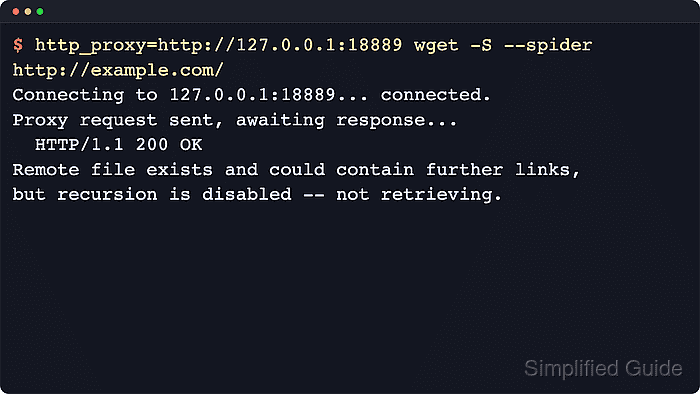
wget reads proxy settings from the documented lowercase environment variables http_proxy, https_proxy, and no_proxy, or from /$HOME/.wgetrc/ for a saved per-account default. Once those settings are in place, wget opens the proxy connection first and lets that proxy retrieve the target URL on its behalf.
Proxy credentials and bypass lists should be treated as execution policy rather than convenience defaults. Keep proxy passwords out of shell history, use no_proxy only for approved direct destinations, and remember that wget currently implements Basic proxy authentication rather than browser-style single sign-on proxy flows.
Related: How to use a SOCKS proxy with wget
Steps to use an HTTP proxy with wget:
- Export the HTTP proxy URL for the current shell.
$ export http_proxy=http://egress-proxy.ops.example.test:8080
Use the lowercase variable name, because wget documents http_proxy for HTTP target URLs.
- Export the HTTPS proxy URL when HTTPS target URLs should use the same gateway.
$ export https_proxy=http://egress-proxy.ops.example.test:8080
The https_proxy value still names the proxy URL. Many environments use an http:// proxy URL for both HTTP and HTTPS target requests.
- Run a short HTTP spider request and confirm that wget connects to the proxy port before it reaches the remote URL.
$ wget -S --spider http://mirror.example.test/releases/asset-index.xml
Spider mode enabled. Check if remote file exists.
--2026-06-06 10:02:37--  http://mirror.example.test/releases/asset-index.xml
Connecting to egress-proxy.ops.example.test:8080... connected.
Proxy request sent, awaiting response...
  HTTP/1.1 200 OK
  Content-Type: application/xml
  Content-Length: 46
Length: 46 [application/xml]
Remote file exists.
Start with an HTTP URL when possible, because it proves the proxy path without mixing in TLS tunnel troubleshooting.
- Add a bypass list when specific local or internal destinations should stay on the direct route.
$ export no_proxy=localhost,127.0.0.1,.corp.example,.svc.cluster.local
no_proxy takes a comma-separated list of hostnames or domain suffixes that wget should contact directly.
- Add proxy credentials only when the proxy requires authenticated access.
$ wget --proxy-user='svc-artifact-sync' --proxy-password='MASKED_EGRESS_PROXY_PASSWORD' -S --spider http://mirror.example.test/releases/private-index.xml
Spider mode enabled. Check if remote file exists.
--2026-06-06 10:02:37--  http://mirror.example.test/releases/private-index.xml
Connecting to egress-proxy.ops.example.test:8080... connected.
Proxy request sent, awaiting response...
  HTTP/1.1 200 OK
  Content-Type: application/xml
  Content-Length: 49
Length: 49 [application/xml]
Remote file exists.
Prefer runtime secret injection or a restricted config file over reusable shell history or shared scripts, because command-line passwords are easy to expose in shell history and process listings.
- Persist the proxy policy in /$HOME/.wgetrc/ when the same account should use it by default.
~/.wgetrc
use_proxy = on
http_proxy = http://egress-proxy.ops.example.test:8080/
https_proxy = http://egress-proxy.ops.example.test:8080/
no_proxy = localhost,127.0.0.1,.corp.example,.svc.cluster.local
Use --config=FILE instead when only one job or automation run should inherit the proxy policy. Related: How to configure default options in ~/.wgetrc
- Override the proxy for one request when a specific URL should bypass both the shell variables and /$HOME/.wgetrc/.
$ wget --no-proxy -S --spider http://repo-mirror.corp.example/health
Spider mode enabled. Check if remote file exists.
--2026-06-06 10:02:37--  http://repo-mirror.corp.example/health
Resolving repo-mirror.corp.example (repo-mirror.corp.example)... 192.0.2.40
Connecting to repo-mirror.corp.example (repo-mirror.corp.example)|192.0.2.40|:80... connected.
HTTP request sent, awaiting response...
  HTTP/1.1 200 OK
  Content-Type: text/plain
  Content-Length: 3
Length: 3 [text/plain]
Remote file exists.
Use --no-proxy for one-off exceptions, and keep the longer-lived internal bypass list in no_proxy.
- Unset the shell variables and repeat the short request to confirm that the saved /$HOME/.wgetrc/ policy is active on its own.
$ env -u http_proxy -u https_proxy -u no_proxy wget -S --spider http://mirror.example.test/releases/asset-index.xml
Spider mode enabled. Check if remote file exists.
--2026-06-06 10:02:37--  http://mirror.example.test/releases/asset-index.xml
Connecting to egress-proxy.ops.example.test:8080... connected.
Proxy request sent, awaiting response...
  HTTP/1.1 200 OK
  Content-Type: application/xml
  Content-Length: 46
Length: 46 [application/xml]
Remote file exists.
If the connection still reaches the proxy after the environment variables are removed, the saved /$HOME/.wgetrc/ policy is in effect. Related: How to debug wget connections

Mohd Shakir Zakaria is a cloud architect with deep roots in software development and open-source advocacy. Certified in AWS, Red Hat, VMware, ITIL, and Linux, he specializes in designing and managing robust cloud and on-premises infrastructures.


