Large wget transfers can fill a shared connection and make SSH sessions, browser traffic, or API calls feel slow. A rate cap keeps the download moving while leaving predictable headroom for everything else on the same link.
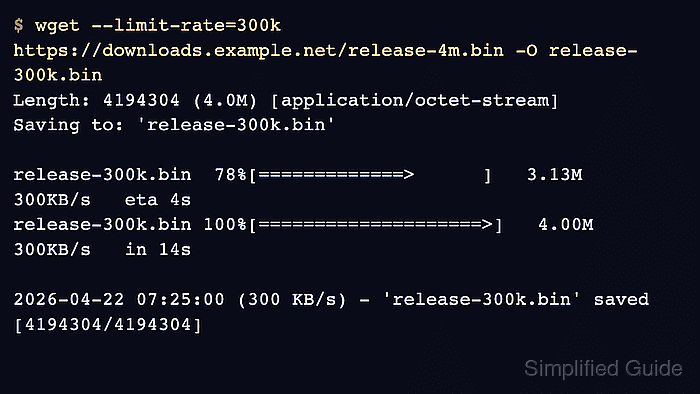
GNU wget throttles transfer speed with --limit-rate. The value is in bytes per second, accepts k and m suffixes, and allows decimal values when a whole kilobyte or megabyte step is too coarse.
Wget enforces the cap by sleeping after fast network reads, so the average rate settles near the requested value during a longer transfer instead of staying exact on every progress line. Small files can finish before the limiter stabilizes, and each parallel wget process applies its own ceiling independently.
Steps to throttle download speed with wget:
- Run wget with --limit-rate and watch the completed transfer line settle near the chosen ceiling.
$ wget --limit-rate=300k https://downloads.example.net/release-4m.bin -O release-300k.bin
--2026-06-06 02:18:02--  https://downloads.example.net/release-4m.bin
Connecting to downloads.example.net... connected.
HTTP request sent, awaiting response... 200 OK
Length: 4194304 (4.0M) [application/octet-stream]
Saving to: 'release-300k.bin'
##### snipped #####
2026-06-06 02:18:16 (302 KB/s) - 'release-300k.bin' saved [4194304/4194304]
Use a file large enough to run for several seconds, otherwise the final average can finish before the limiter has time to settle.
- Raise or lower the same cap and repeat against the same file until the background transfer stops crowding out other traffic.
$ wget --limit-rate=1m https://downloads.example.net/release-4m.bin -O release-1m.bin
--2026-06-06 02:18:16--  https://downloads.example.net/release-4m.bin
Connecting to downloads.example.net... connected.
HTTP request sent, awaiting response... 200 OK
Length: 4194304 (4.0M) [application/octet-stream]
Saving to: 'release-1m.bin'
##### snipped #####
2026-06-06 02:18:20 (1.00 MB/s) - 'release-1m.bin' saved [4194304/4194304]
Decimal values such as --limit-rate=2.5m remain valid when 300k or 1m is too coarse for the link.
- Set a default cap in /$HOME/.wgetrc when the same account should reuse it automatically.
~/.wgetrc
limit_rate = 300k
Each command-line --limit-rate value overrides the startup-file default. Related: How to configure default options in ~/.wgetrc
- Run a download without --limit-rate to confirm the startup-file cap applies.
$ wget https://downloads.example.net/release-4m.bin -O release-wgetrc.bin
--2026-06-06 02:18:20--  https://downloads.example.net/release-4m.bin
Connecting to downloads.example.net... connected.
HTTP request sent, awaiting response... 200 OK
Length: 4194304 (4.0M) [application/octet-stream]
Saving to: 'release-wgetrc.bin'
##### snipped #####
2026-06-06 02:18:34 (301 KB/s) - 'release-wgetrc.bin' saved [4194304/4194304]
- Check the finished files before reusing the same command in another job or script.
$ ls -lh release-300k.bin release-1m.bin release-wgetrc.bin
-rw-r--r-- 1 user user 4.0M Jun  6 02:18 release-1m.bin
-rw-r--r-- 1 user user 4.0M Jun  6 02:18 release-300k.bin
-rw-r--r-- 1 user user 4.0M Jun  6 02:18 release-wgetrc.bin
--limit-rate controls transfer speed only; it does not verify checksums or file integrity after the download finishes.

Mohd Shakir Zakaria is a cloud architect with deep roots in software development and open-source advocacy. Certified in AWS, Red Hat, VMware, ITIL, and Linux, he specializes in designing and managing robust cloud and on-premises infrastructures.


