Online performance checks let a webmaster measure a public page from the outside before slow rendering turns into abandoned visits, weaker conversions, or search visibility problems. Running a URL through PageSpeed Insights shows whether the page reaches its main content quickly, responds promptly after taps and clicks, and keeps the layout stable while loading.
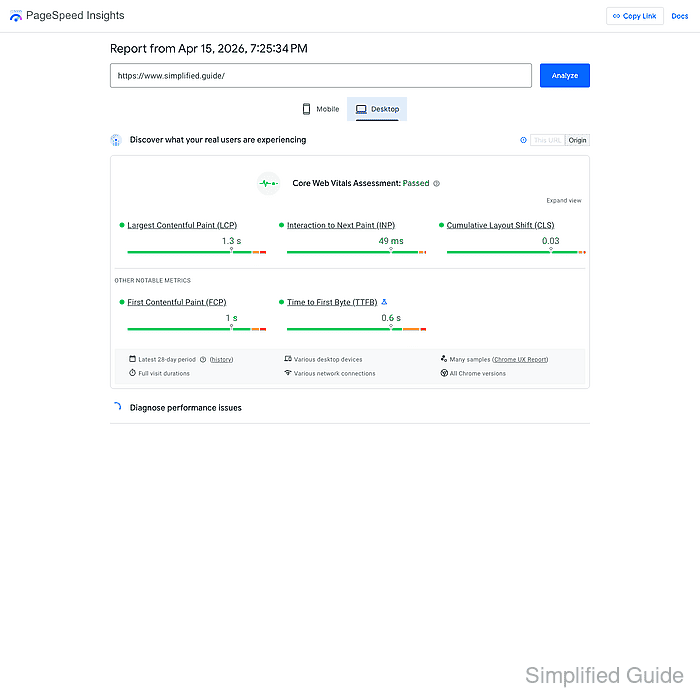
For this job, PageSpeed Insights is useful because it combines two different views of the same page. The top report panel uses real-user Chrome User Experience Report (CrUX) data collected over the previous 28 days, while the lower Lighthouse section runs a controlled test that helps trace the technical reason a page is slow.
The useful reading order is to check the Core Web Vitals result first, compare Mobile and Desktop, and note whether the report is showing data for This URL or only for the wider Origin. Public pages with low traffic may not have enough page-level samples, so an origin-level failure can still point to a recurring template or platform problem across the site.
Steps to check website performance online in PageSpeed Insights:
- Open PageSpeed Insights and enter the full public page URL that should be measured.
https://pagespeed.web.dev/
Use the canonical public URL for the exact page, because redirects, alternate paths, and campaign URLs can change the report.
- Click Analyze and wait for the first report to finish.
- Read the Discover what your real users are experiencing panel before the lab score and note whether the field data is coming from This URL or falling back to Origin.
Field data comes from CrUX and reflects the latest 28-day period, so it is the best signal for recurring user-facing problems rather than one isolated test run.
- Check the Core Web Vitals Assessment and the 75th-percentile values for Largest Contentful Paint (LCP), Interaction to Next Paint (INP), and Cumulative Layout Shift (CLS).
Good targets are LCP at 2.5 seconds or less, INP at 200 milliseconds or less, and CLS at 0.1 or less.
- Switch between Mobile and Desktop and compare whether the problem appears on both device types or only on one.
Mobile reports often expose slow images, third-party scripts, or heavy layouts that stay hidden on a fast desktop connection.
- Open the Diagnose performance issues section and use the Performance metrics, Insights, and failing audits to identify the page element or request that is creating the slowdown.
Lighthouse lab data is the debugging view, so use it to find the specific image, script, layout shift, or response delay that needs to be fixed instead of chasing only the top score.
- Repeat the same check for the homepage and every important page template instead of testing only one URL.
Homepage, main landing page, article template, category page, product page, and checkout or lead form usually expose most site-wide performance patterns.
- Re-run the affected URLs after each change and keep the comparison until both device views improve and the recurring issue is no longer the dominant bottleneck.
Lighthouse results can change immediately, but the field-data panel and overall Core Web Vitals assessment may take time to reflect improvements because CrUX uses a rolling 28-day dataset.
Related: How to speed up page load time


Mohd Shakir Zakaria is a cloud architect with deep roots in software development and open-source advocacy. Certified in AWS, Red Hat, VMware, ITIL, and Linux, he specializes in designing and managing robust cloud and on-premises infrastructures.


