Network route problems often appear as slow applications, intermittent access, or reports that one network can reach a service while another cannot. traceroute exposes the visible hops that answer hop-limited probes, which helps separate a local gateway issue, a transit-path symptom, and a destination-side response problem.
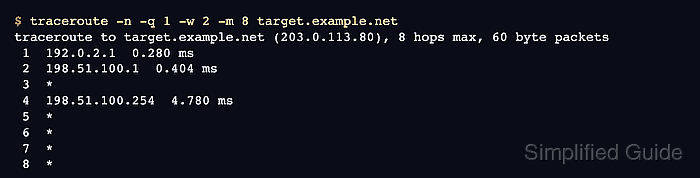
Linux traceroute sends UDP probes by default and raises the TTL value one hop at a time. Numeric output with -n avoids DNS lookup delays, while -q 1 and -w 2 keep an initial incident capture short enough to compare with a reachability check.
A route sample is evidence for the path from the source host at that time, not a universal map of the network. Middle-hop timeouts and high RTT on one router matter only when later rows and the destination confirm the same pattern, so compare the final row with a separate check before assigning fault.
Steps to diagnose a network route with traceroute:
- Choose the target that matches the user-visible symptom.
Run route probes only against networks, hosts, or services where diagnostic testing is allowed.
- Run a compact numeric trace from the affected source network.
$ traceroute -n -q 1 -w 2 -m 8 target.example.net
traceroute to target.example.net (203.0.113.80), 8 hops max, 60 byte packets
 1  192.0.2.1  0.280 ms
 2  198.51.100.1  0.404 ms
 3  *
 4  198.51.100.254  4.780 ms
 5  *
 6  *
 7  *
 8  *
-n keeps addresses numeric, -q 1 sends one probe per hop, -w 2 waits two seconds per probe, and -m 8 limits the first pass to eight hops.
- Check whether the trace reached the destination row.
8 *
A final asterisk at the hop limit means this trace did not receive a destination reply. It can indicate a short hop limit, diagnostic filtering, probe loss, or a true reachability stop, so do not assign fault from this row alone.
- Test destination reachability from the same source.
$ ping -c 2 target.example.net
PING target.example.net (203.0.113.80) 56(84) bytes of data.
64 bytes from 203.0.113.80: icmp_seq=1 ttl=63 time=13.7 ms
64 bytes from 203.0.113.80: icmp_seq=2 ttl=63 time=13.5 ms

--- target.example.net ping statistics ---
2 packets transmitted, 2 received, 0% packet loss, time 1007ms
rtt min/avg/max/mdev = 13.494/13.618/13.742/0.124 ms
If the target blocks ICMP echo, test the affected application protocol instead, such as HTTPS, SSH, or the service users report as failing.
- Repeat the trace with a service-matching probe when the default probe stops.
$ traceroute -n -T -p 443 -q 1 -w 2 -m 8 target.example.net
traceroute to target.example.net (203.0.113.80), 8 hops max, 60 byte packets
 1  192.0.2.1  0.074 ms
 2  203.0.113.80  15.747 ms
-T selects TCP probes and -p 443 tests the path toward the HTTPS service port. Use the port that matches the reported service.
Related: How to use TCP probes with traceroute - Compare destination behavior across probe methods.
default UDP trace: stopped at hop 8 without a destination reply
ping check: destination answered
TCP 443 trace: destination answered at hop 2
diagnosis: default UDP traceroute replies are filtered or incomplete on this path; test the affected service before opening a routing-failure ticket
Paste the trace rows into the Traceroute Hops Analyzer when an incident note or provider ticket needs row-by-row evidence.
Tool: Traceroute Hops Analyzer - Record the route evidence while the symptom window is still current.
source: affected office VPN exit
target: target.example.net (203.0.113.80)
probe method: default UDP incomplete; TCP/443 reached destination
destination reachability: ping answered
next check: application or service-layer test from the same source

Mohd Shakir Zakaria is a cloud architect with deep roots in software development and open-source advocacy. Certified in AWS, Red Hat, VMware, ITIL, and Linux, he specializes in designing and managing robust cloud and on-premises infrastructures.


