Container packet captures miss the fault when the capture point is chosen from the host interface list without checking the container's own network namespace. A request can cross a Docker bridge, veth pair, overlay, published port, or namespace boundary, and each capture point can show a different part of the same connection.
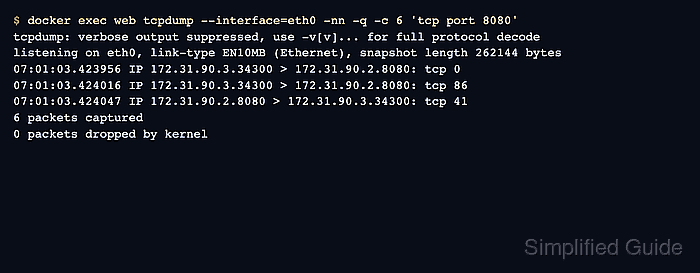
Running tcpdump through docker exec inside the target container shows what the workload receives and sends on its eth0 interface. That view proves whether another container, sidecar, or published-port path reaches the application after Docker networking has delivered the packet.
Keep the filter narrow on shared hosts because container traffic can include HTTP headers, service tokens, database packets, and traffic from workloads that are not part of the check. Use a peer container on the same Docker network when the host cannot route directly to the container IP, and move to the host bridge only when the question is Docker forwarding rather than the workload's packet view.
Steps to capture container traffic with tcpdump:
- Identify the container interface and address.
$ docker exec web ip -brief address show eth0
eth0@if2378      UP             172.31.90.2/24
Use the container name that owns the workload. The address may be different on each Docker network, so confirm it from the container namespace before choosing the test target.
- Start a bounded capture inside the container in one terminal.
$ docker exec web tcpdump --interface=eth0 -nn -q -c 6 'tcp port 8080'
Leave this command waiting while the next step sends a controlled request. The -q option keeps each packet line short enough to scan while still showing packet direction and payload length.
- Send a controlled request from a peer container on the same network.
$ docker exec client curl --silent --show-error http://172.31.90.2:8080/health
ok
If normal users reach the service through a published host port, send the test through that route and keep the capture running inside the target container.
- Confirm the packet flow in the capture terminal.
tcpdump: verbose output suppressed, use -v[v]... for full protocol decode
listening on eth0, link-type EN10MB (Ethernet), snapshot length 262144 bytes
07:01:03.423956 IP 172.31.90.3.34300 > 172.31.90.2.8080: tcp 0
07:01:03.423968 IP 172.31.90.2.8080 > 172.31.90.3.34300: tcp 0
07:01:03.423978 IP 172.31.90.3.34300 > 172.31.90.2.8080: tcp 0
07:01:03.424016 IP 172.31.90.3.34300 > 172.31.90.2.8080: tcp 86
07:01:03.424019 IP 172.31.90.2.8080 > 172.31.90.3.34300: tcp 0
07:01:03.424047 IP 172.31.90.2.8080 > 172.31.90.3.34300: tcp 41
6 packets captured
10 packets received by filter
0 packets dropped by kernel
The rows from 172.31.90.3 to 172.31.90.2.8080 show the peer request path. The rows from 172.31.90.2.8080 back to 172.31.90.3 show the container response path.
- Narrow the filter to the peer address when the container handles several flows.
$ docker exec web tcpdump --interface=eth0 -nn -q -c 3 'host 172.31.90.3 and tcp port 8080'
Use a host-side bridge capture only when the problem is Docker forwarding, NAT, or published-port behavior. The bridge interface name can differ across default bridge, user-defined bridge, rootless Docker, and Docker Desktop environments.
Do not leave broad bridge captures running on shared hosts. They can collect traffic from unrelated containers and expose secrets that are not needed for the service check.

Mohd Shakir Zakaria is a cloud architect with deep roots in software development and open-source advocacy. Certified in AWS, Red Hat, VMware, ITIL, and Linux, he specializes in designing and managing robust cloud and on-premises infrastructures.


