A custom systemd target defines a named operating state that can pull several units in together. That is useful when a local stack, maintenance bundle, or repeatable workflow should start as one checkpoint instead of starting each unit by hand.
In systemd, a target unit does not run commands itself. Current systemd.target rules say target units use only the generic [Unit] and [Install] sections, while administrator-managed system units belong under /etc/systemd/system ahead of the vendor unit paths.
The example below creates demo-stack.target, pulls in a one-shot service named demo-stack-ready.service, and writes a line to /var/log/demo-stack.log as proof that the target reached its member. Use root privileges for /etc/systemd/system and /usr/local/bin, keep the target file non-empty, and add AllowIsolate=yes only when the target will later be used with How to isolate a systemd target or systemctl isolate.
Related: How to create a systemd service unit
Related: How to reload the systemd manager configuration
Related: How to isolate a systemd target
Steps to create a systemd target unit:
- Create the helper script that the member service will run when the target is reached.
#!/usr/bin/env bash
printf 'demo-stack target reached\n' >> /var/log/demo-stack.log
A target unit only coordinates other units. It does not have an ExecStart= of its own, so a service, socket, mount, or similar unit must do the real work.
Related: How to create a systemd service unit
- Make the helper script executable.
$ sudo chmod 0755 /usr/local/bin/demo-stack-ready.sh
Use sudo install -m 0755 source-file /usr/local/bin/demo-stack-ready.sh if you want to copy the script into place and set the mode in one command.
- Create the member service that the target should pull in.
[Unit]
Description=Demo stack member service

[Service]
Type=oneshot
ExecStart=/usr/local/bin/demo-stack-ready.sh
RemainAfterExit=yes
Type=oneshot fits a short action that exits after success, and RemainAfterExit=yes keeps the unit in active (exited) state so it is easy to confirm the target reached it.
Tool: systemd Unit Generator - Create the target unit file itself.
[Unit]
Description=Demo application stack target
Documentation=man:systemd.target(5)
Wants=demo-stack-ready.service

[Install]
WantedBy=multi-user.target
Current systemd.target rules say target units use only [Unit] and [Install] sections. There is no [Target] section and no target-specific option set.
With the default dependency model, systemd adds matching ordering for Wants= and Requires= entries defined in the target, so the listed member units are started before the target is reached.
WantedBy=multi-user.target makes the custom target part of a normal non-graphical boot when it is enabled. Omit the [Install] section when the target should be started manually only.
- Verify both unit files before reloading the manager.
$ sudo systemd-analyze verify /etc/systemd/system/demo-stack-ready.service /etc/systemd/system/demo-stack.target
No output is the ideal result. systemd-analyze verify can also report dependency or documentation problems that are discovered while it loads the referenced units.
- Reload the systemd manager so the new unit names and dependencies are visible from the live unit graph.
$ sudo systemctl daemon-reload
Current systemctl documentation states that daemon-reload reruns generators, reloads unit files, and recreates the dependency tree.
- Enable the target for future multi-user boots and start it immediately.
$ sudo systemctl enable --now demo-stack.target
Created symlink /etc/systemd/system/multi-user.target.wants/demo-stack.target → /etc/systemd/system/demo-stack.target.
enable –now installs the target into multi-user.target for later boots and reaches it in the current session. Use sudo systemctl start demo-stack.target instead when the target should stay manual at boot.
- Confirm that the target is active and that it pulls in the expected member service.
$ systemctl show demo-stack.target -p FragmentPath -p LoadState -p ActiveState -p UnitFileState -p Wants
Wants=demo-stack-ready.service
LoadState=loaded
ActiveState=active
FragmentPath=/etc/systemd/system/demo-stack.target
UnitFileState=enabled
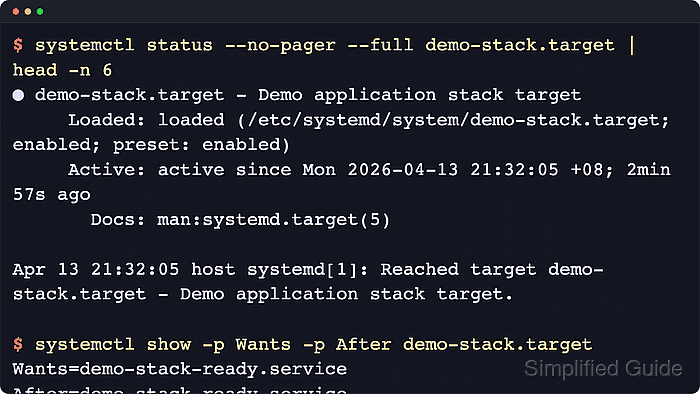
Look for FragmentPath=/etc/systemd/system/demo-stack.target together with ActiveState=active and Wants=demo-stack-ready.service. Use systemctl status –no-pager –full demo-stack.target when a human-readable summary is more useful than the normalized property view.
- Confirm that the member service finished successfully when the target was reached.
$ systemctl show demo-stack-ready.service -p Result -p ActiveState -p SubState
Result=success
ActiveState=active
SubState=exited
For a one-shot member with RemainAfterExit=yes, Result=success together with ActiveState=active and SubState=exited confirms the job ran and stayed recorded as reached.
- Confirm that the target member performed its real work.
$ sudo cat /var/log/demo-stack.log
demo-stack target reached
An application-specific output file, socket, mount, or API response is a stronger proof than target state alone because it shows the units behind the target really did their job.
If the target reaches active but the file stays empty, inspect sudo journalctl -u demo-stack-ready.service -n 20 –no-pager and confirm the target still lists the service under systemctl show demo-stack.target -p Wants.

Mohd Shakir Zakaria is a cloud architect with deep roots in software development and open-source advocacy. Certified in AWS, Red Hat, VMware, ITIL, and Linux, he specializes in designing and managing robust cloud and on-premises infrastructures.


