Home directory shares let a Samba file server expose each authenticated user's Linux home directory without maintaining one static share section per account. They fit small file servers where users need SMB access to their own server-side files, and where one user's home path should not become a shared team folder.
The special [homes] section works as a template. When smbd receives a valid login for a local account, it can create a dynamic share named after that user and use the account's home directory as the share path when no explicit path directive is set.
A working setup needs each account in both the Linux user database and the Samba password database before the dynamic share can authenticate. Keep the template non-browseable, restrict it with valid users, and test with a named account because guest access on home shares can expose personal directories.
Related: How to add a Samba user
Related: How to validate Samba configuration with testparm
Related: How to check Samba service status
Steps to create Samba home directory shares:
- Confirm the Linux account and home directory path.
$ getent passwd sguser
sguser:x:1001:1001::/home/sguser:/bin/bash
Replace sguser with the account that should receive an SMB home share. The home directory in this row is the path Samba uses when the [homes] section has no path directive.
- Confirm the account exists in the Samba password database.
$ sudo pdbedit -L -u sguser
sguser:1001:
If no row appears, add the user to Samba before enabling home shares.
Related: How to add a Samba user - Back up the Samba configuration file.
$ sudo cp --archive /etc/samba/smb.conf /etc/samba/smb.conf.before-homes
A broken /etc/samba/smb.conf can block new client connections after reload. Keep the backup until the home share test succeeds.
- Open the Samba configuration file.
$ sudoedit /etc/samba/smb.conf
- Add the [homes] template section.
[homes]
    comment = Home Directories
    browseable = no
    read only = no
    valid users = %S
    create mask = 0600
    directory mask = 0700
browseable = no hides the literal homes template. Dynamic shares named after authenticated users can still appear in share listings when the global browse policy allows them.
- Test the parsed [homes] section.
$ sudo testparm -s --section-name=homes Load smb config files from /etc/samba/smb.conf Loaded services file OK. [homes] browseable = No comment = Home Directories create mask = 0600 directory mask = 0700 read only = No valid users = %S - Reload the running smbd configuration.
$ sudo smbcontrol smbd reload-config
Existing client sessions keep their current share state until they reconnect. New logins use the reloaded [homes] template.
- List shares as the Samba user.
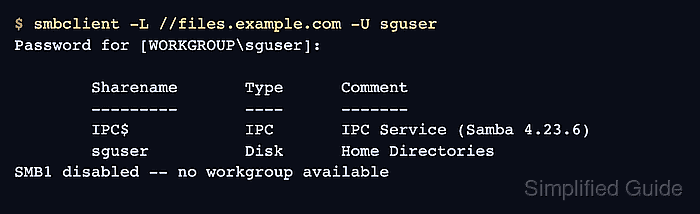
$ smbclient -L //files.example.com -U sguser
Password for [WORKGROUP\sguser]:

        Sharename       Type      Comment
        ---------       ----      -------
        IPC$            IPC       IPC Service (Samba 4.23.6)
        sguser          Disk      Home Directories
SMB1 disabled -- no workgroup available
Use the server name clients normally use. The share named sguser proves Samba created the dynamic home share for that authenticated account.
- Run an SMB write smoke test in the home share.
$ smbclient //files.example.com/sguser -U sguser -c 'mkdir smb-home-test; ls; rmdir smb-home-test'
Password for [WORKGROUP\sguser]:
  .                                   D        0  Tue Jun 16 02:26:58 2026
  ..                                  D        0  Tue Jun 16 02:26:58 2026
  .profile                            H      807  Fri Feb 13 12:16:08 2026
  .bash_logout                        H      220  Fri Feb 13 12:16:08 2026
  .bashrc                             H     3771  Fri Feb 13 12:16:08 2026
  smb-home-test                       D        0  Tue Jun 16 02:26:58 2026

                123530212 blocks of size 1024. 107924884 blocks available
The temporary directory appears in the listing before the same smbclient command removes it. If this fails, check the Linux home directory ownership, local account state, and Samba password entry before widening permissions on the home directory.

Mohd Shakir Zakaria is a cloud architect with deep roots in software development and open-source advocacy. Certified in AWS, Red Hat, VMware, ITIL, and Linux, he specializes in designing and managing robust cloud and on-premises infrastructures.


