Custom Screen key bindings put a repeated session command behind the Screen prefix instead of the command prompt. Test a new binding in one named session first, because an accidental replacement can hide a default shortcut or make the wrong command run whenever that key is pressed.
The bind command maps a key that is typed after the Screen command character, which is Ctrl-a unless the session uses a custom prefix. Screen reads those commands from ~/.screenrc at startup, and the source command can load the edited file into an already running session.
The example below binds Ctrl-a Y to title key-bound because the title can be queried from outside the session after the key is pressed. Use the same pattern for another Screen command after confirming the chosen key does not replace a shortcut you still need; bindkey is for raw terminal input sequences such as function keys rather than normal Screen prefix commands.
Steps to customize a Screen key binding:
- Start a named test session when no suitable Screen session is already running.
$ screen -dmS work
The later examples target work. Use an existing session name instead when the binding should be tested against a session that is already running.
- Open the Screen config file that the target session reads.
$ vi ~/.screenrc
Most personal sessions read ~/.screenrc unless $SCREENRC or screen -c points to a different file.
- Add a safe test binding that changes the current window title.
bind Y title key-bound
Y is the key typed after the Screen prefix, and title key-bound is the Screen command that runs when the binding is used.
Do not test with k unless you mean to replace the default kill-window shortcut.
- Set the current Screen window title to a known value before testing the new binding.
$ screen -S work -X title before
The -S work option targets the named session, and -X title sends the title command to that session.
- Reload the updated config into the running test session.
$ screen -S work -X source ~/.screenrc
No shell output usually means the command was accepted. If Screen shows an error in the session message line, fix the first reported screenrc line and source the file again.
- Attach to the test session if it is detached.
$ screen -r work
- Press the Screen prefix and the new key in the attached session.
C-a Y
Use your custom prefix instead of C-a if the session has changed the Screen command character.
- Detach from the test session so the parent shell can query the result.
C-a d
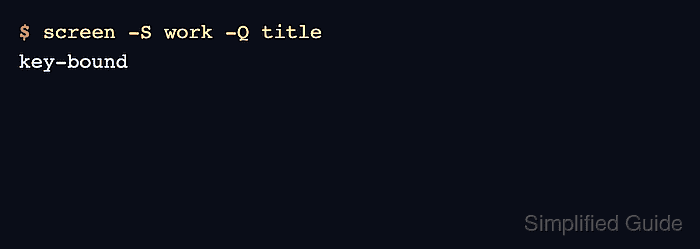
- Confirm the binding ran the expected Screen command.
$ screen -S work -Q title
key-bound
The changed title proves the sourced binding ran after C-a Y was pressed.
- Replace the proof command with the Screen command you actually want to keep.
bind Y windows
The windows command is a visible example because it opens the Screen window list.
- Source the file again after changing the final binding.
$ screen -S work -X source ~/.screenrc
For the example above, C-a Y opens the window list after the reload.