Scraping an HTML table with Scrapy turns rows that are easy to read in a browser into structured items that can be exported, filtered, or reused in later crawls. That works well for price lists, inventory pages, schedules, and other pages that publish data as a table instead of an API response.
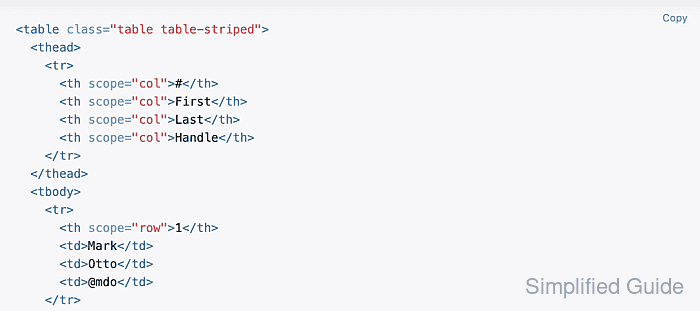
Scrapy exposes the downloaded response through XPath and CSS selectors, which makes it practical to test one table selector in scrapy shell before the same extraction is moved into a spider. The cleanest flow is to identify one stable <table> element, confirm the header and row selectors, and only then map each cell into item fields.
The approach only works when the server response already contains the table markup. JavaScript-rendered tables, login-protected pages, anti-bot responses, and layouts that rely on rowspan, colspan, or irregular missing cells usually need a different endpoint or more explicit field handling than a simple fixed-column loop.
Related: How to use CSS selectors in Scrapy
Related: How to export Scrapy items to CSV
Tool: Table Data Converter
Steps to scrape an HTML table with Scrapy:
- Open the target page and confirm the table already contains the rows and columns that should become exported items.
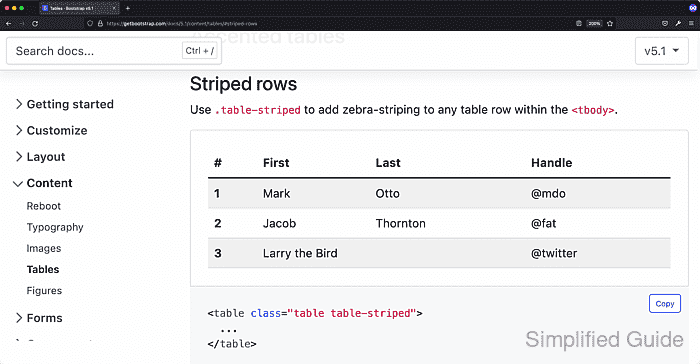
- Inspect the table element in browser developer tools and note a selector that stays stable across reloads.
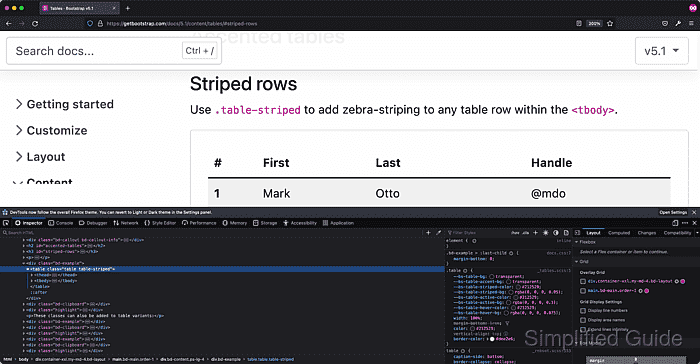
Prefer an explicit id such as pricing when the table provides one, because it keeps the selector shorter and less likely to drift than a long class or ancestor match.
- Start scrapy shell against the target page and suppress crawler log noise while testing selectors.
$ scrapy shell 'https://catalog.example.com/pricing/' --nolog
[s] Available Scrapy objects:
[s]   response   <200 https://catalog.example.com/pricing/>
[s] Useful shortcuts:
[s]   fetch(url[, redirect=True]) Fetch URL and update local objects (by default, redirects are followed)
##### snipped #####
>>>
Related: How to use Scrapy shell
- Check the header cells before mapping column positions into field names.
>>> response.xpath('//table[@id="pricing"]/thead/tr/th/text()').getall()
['Plan', 'Price']
A quick header check catches the wrong table or the wrong selector before the row loop is written. Related: How to use XPath selectors in Scrapy
- Select the data rows into a variable and confirm how many rows matched.
>>> rows = response.xpath('//table[@id="pricing"]/tbody/tr')
>>> len(rows)
3
Selecting tbody/tr keeps the loop focused on data rows instead of mixing the header row into the item output.
- Extract the cells from each matched row with relative XPath expressions.
>>> for row in rows:
...     print({
...         "plan": row.xpath('normalize-space(./td[1])').get(),
...         "price": row.xpath('normalize-space(./td[2])').get(),
...     })
...
{'plan': 'Starter Plan', 'price': '$29'}
{'plan': 'Team Plan', 'price': '$79'}
{'plan': 'Enterprise Plan', 'price': '$199'}
Keep the field XPath relative to the current row. Starting a nested selector with // or / jumps back to the document root and can duplicate or misalign values.
- Save the verified table selector in a spider file.
- table_spider.py
import scrapy


class PricingTableSpider(scrapy.Spider):
    name = "pricing_table"
    start_urls = ["https://catalog.example.com/pricing/"]

    def parse(self, response):
        for row in response.xpath('//table[@id="pricing"]/tbody/tr'):
            yield {
                "plan": row.xpath("normalize-space(./td[1])").get(),
                "price": row.xpath("normalize-space(./td[2])").get(),
            }
Related: How to create a Scrapy spider
- Run the spider and overwrite the current JSON export with the latest table rows.
$ scrapy runspider table_spider.py -O table_rows.json
[scrapy.extensions.feedexport] INFO: Stored json feed (3 items) in: table_rows.json
[scrapy.core.engine] INFO: Spider closed (finished)
runspider works outside a full Scrapy project, while -O replaces the existing output file with the current crawl result.
- Open the exported file and confirm that each table row became one JSON item.
$ cat table_rows.json
[
{"plan": "Starter Plan", "price": "$29"},
{"plan": "Team Plan", "price": "$79"},
{"plan": "Enterprise Plan", "price": "$199"}
]

Mohd Shakir Zakaria is a cloud architect with deep roots in software development and open-source advocacy. Certified in AWS, Red Hat, VMware, ITIL, and Linux, he specializes in designing and managing robust cloud and on-premises infrastructures.


