Scientific Python projects often need SciPy without changing the operating system's base Python packages. A project-local venv gives pip a private site-packages directory for SciPy, NumPy, and any later analysis dependencies.
The official SciPy install page lists pip as an environment-based workflow after creating and activating a venv environment. Running pip through the active python interpreter keeps the install tied to that environment instead of a different pip executable on PATH.
A POSIX shell with python3 already installed is assumed here, and .venv is created in the current project directory. On Windows, use py -m venv .venv and the activation script under .venv\Scripts, and install missing venv support through the platform package manager before using pip.
Steps to install SciPy in a Python virtual environment with pip:
- Change to the project directory that should own the environment.
$ cd ~/scipy-demo
Keeping .venv beside the project files makes the interpreter and installed packages easy to pair with that project.
- Create the virtual environment.
$ python3 -m venv .venv
On success, venv normally prints no output and bootstraps pip into the environment unless --without-pip is used.
If Debian or Ubuntu reports that ensurepip is unavailable, install the matching python3-venv package and rerun the command.
- Activate the virtual environment in the current shell.
$ source .venv/bin/activate
Use .\.venv\Scripts\Activate.ps1 in Windows PowerShell or .venv\Scripts\activate.bat in Command Prompt.
- Confirm that pip belongs to the virtual environment.
$ python -m pip --version
pip 26.1.2 from /home/user/scipy-demo/.venv/lib/python3.14/site-packages/pip (python 3.14)
The path after from should point inside the project .venv directory before installing SciPy.
- Install SciPy into the active environment.
$ python -m pip install scipy
Collecting scipy
Collecting numpy<2.8,>=2.0.0 (from scipy)
##### snipped #####
Installing collected packages: numpy, scipy

Successfully installed numpy-2.5.0 scipy-1.18.0
pip installs a compatible SciPy wheel and the required NumPy dependency when wheels are available for the active Python and platform. Exact versions and wheel tags vary over time.
- Show the installed SciPy metadata.
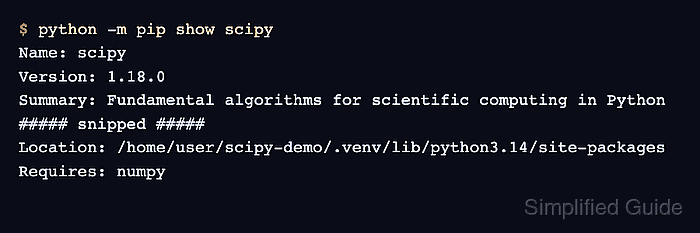
$ python -m pip show scipy
Name: scipy
Version: 1.18.0
Summary: Fundamental algorithms for scientific computing in Python
##### snipped #####
Location: /home/user/scipy-demo/.venv/lib/python3.14/site-packages
Requires: numpy
The Location field should point inside the active virtual environment.
- Run a SciPy import and function smoke test.
$ python -c "import scipy; from scipy import special; print(scipy.__version__); print(special.expit(0))"
1.18.0
0.5
Look for the installed SciPy version followed by 0.5 from scipy.special.expit(0).
- Check dependency metadata after the install.
$ python -m pip check
No broken requirements found.
If pip check reports conflicts, reinstall the project's tested dependency set instead of keeping a partially broken environment.

Mohd Shakir Zakaria is a cloud architect with deep roots in software development and open-source advocacy. Certified in AWS, Red Hat, VMware, ITIL, and Linux, he specializes in designing and managing robust cloud and on-premises infrastructures.


