Redmine can authenticate users against LDAP or Active Directory while keeping projects, roles, and issue data inside Redmine. Connecting a directory source lets users sign in with their existing directory credentials instead of maintaining a separate Redmine password.
The configuration lives under Administration → LDAP authentication. Redmine stores the directory host, bind account, search base, login attribute, optional filter, and profile attributes it needs to find a user entry and create a matching Redmine account.
Start with a read-only bind account, the user search base, and the attribute names for login, first name, last name, and email. Use LDAPS with certificate validation for production directories when possible; unencrypted LDAP belongs only on trusted internal networks or disposable validation fixtures.
Related: How to create a Redmine user
Related: How to create a Redmine group
Related: How to add members to a Redmine project
Steps to configure LDAP authentication in Redmine:
- Confirm the directory search returns the user attributes Redmine will map.
$ ldapsearch -x -H ldap://ldap.example.net:389 -D uid=redmine-bind,ou=people,dc=example,dc=net -W -b ou=people,dc=example,dc=net uid=araman uid givenName sn mail
Enter LDAP Password:
# extended LDIF
#
# LDAPv3
# base <ou=people,dc=example,dc=net> with scope subtree
# filter: uid=araman
# requesting: uid givenName sn mail
#

# araman, people, example.net
dn: uid=araman,ou=people,dc=example,dc=net
sn: Raman
givenName: Asha
uid: araman
mail: asha.raman@example.net

# search result
search: 2
result: 0 Success

# numResponses: 2
# numEntries: 1
Run the search from the Redmine host or another host that reaches the same directory endpoint. For Active Directory, the login attribute is commonly sAMAccountName instead of uid.
- Sign in to Redmine as an administrator and open Administration → LDAP authentication.
https://redmine.example.net/auth_sources

Replace the hostname with the URL for your Redmine site.
- Click New authentication mode to open the LDAP form.
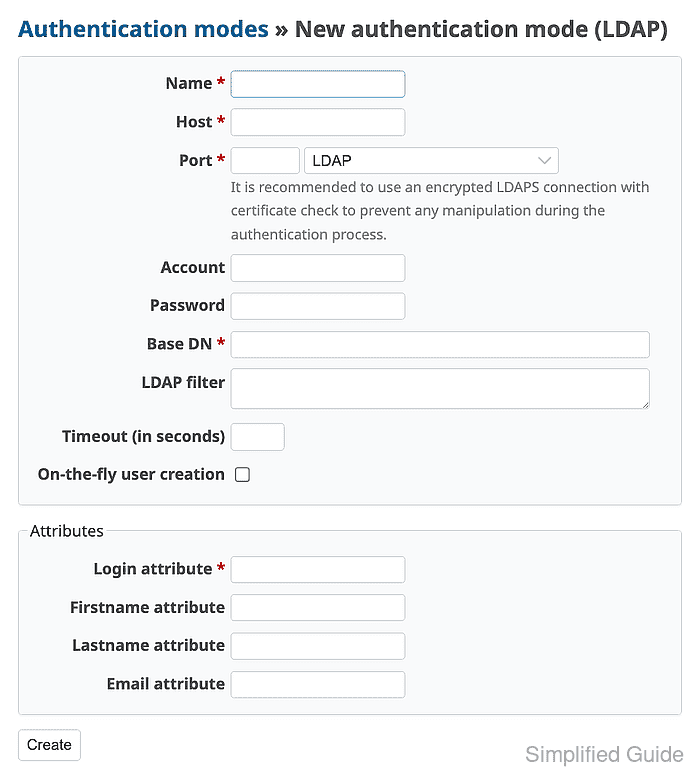
- Enter the directory connection values, enable On-the-fly user creation, and map the LDAP attributes.
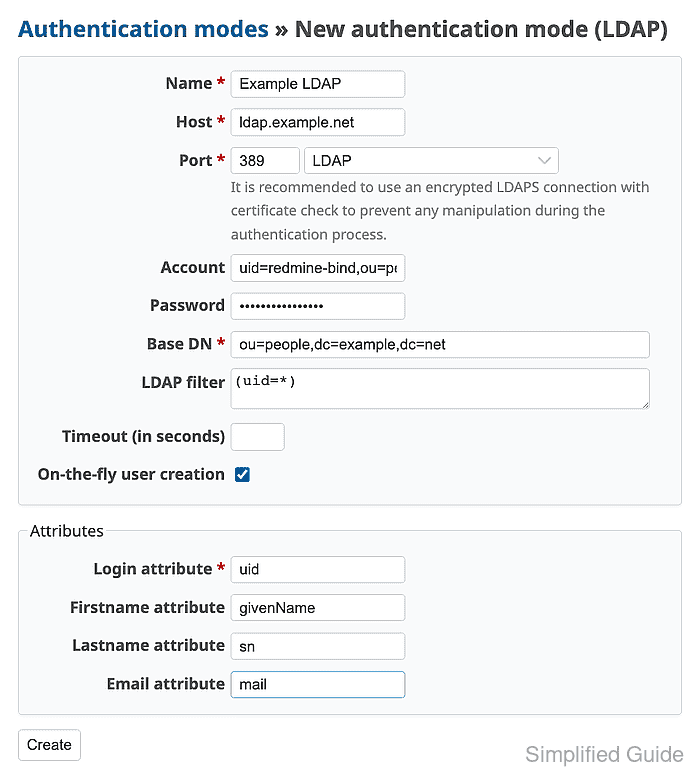
Use the directory's real host, bind DN, password, base DN, and filter. Select LDAPS on port 636 when Redmine trusts the directory certificate. Leave On-the-fly user creation disabled when administrators should create each Redmine user manually and select the LDAP source as the user's authentication mode.
Related: How to create a Redmine user - Click Create and confirm the authentication mode is saved.
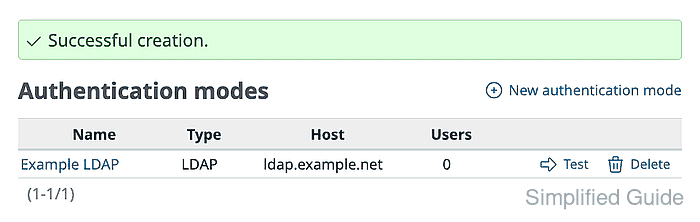
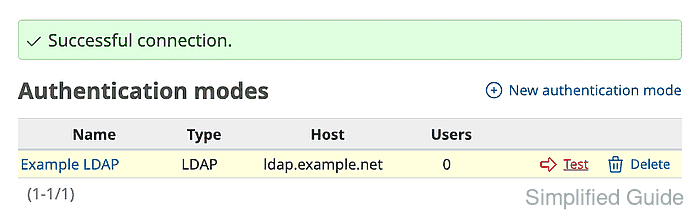
- Click Test and confirm Redmine reports Successful connection.
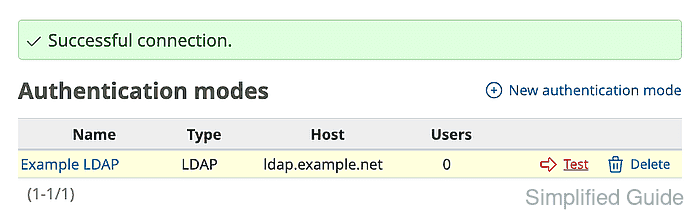
A successful test proves Redmine can bind to LDAP and search the configured base DN. It does not prove that an individual user can sign in until the login attribute and password are tested.
- Sign out of the administrator account.
- Sign in with the LDAP login attribute and directory password.
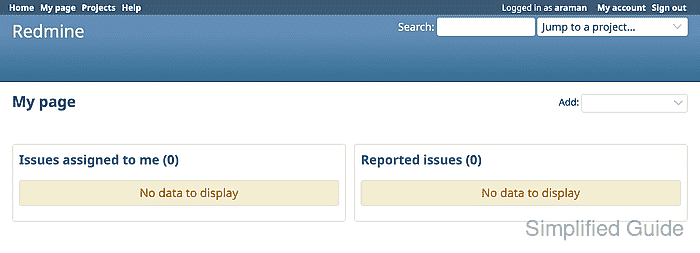
The page should show the user signed in with the LDAP login name. Assign project membership or group-based access after the account exists in Redmine.
Related: How to create a Redmine group
Related: How to add members to a Redmine project

Mohd Shakir Zakaria is a cloud architect with deep roots in software development and open-source advocacy. Certified in AWS, Red Hat, VMware, ITIL, and Linux, he specializes in designing and managing robust cloud and on-premises infrastructures.


