Containerized Redmine deployments still need a real database, persistent attachment storage, and a repeatable startup path. Docker Compose fits small team and lab installations because it keeps the Redmine web container, PostgreSQL database, published port, healthchecks, and named volumes in one project file.
The Compose project uses the official redmine:6.1 image with postgres:14, matching Redmine 6.1's PostgreSQL recommendation. Compose starts PostgreSQL first, waits for its healthcheck, then starts Redmine with a fixed SECRET_KEY_BASE so sessions remain valid across container recreation.
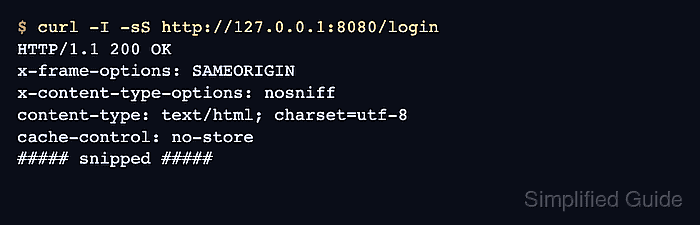
A completed installation should show both containers healthy, keep database and uploaded file data in named volumes, and return 200 OK from /login after a forced container recreate. Publish port 8080 only on a trusted host or place Redmine behind a reverse proxy and HTTPS before opening it to users.
Related: How to install Redmine on Ubuntu
Related: How to back up and restore Redmine
Steps to install Redmine with Docker Compose:
- Create a dedicated Redmine Compose directory.
$ sudo install -d -m 0750 -o "$USER" -g "$USER" /srv/redmine
- Change into the project directory.
$ cd /srv/redmine
- Create the Compose environment file with unique secret values.
COMPOSE_PROJECT_NAME=redmine
REDMINE_DB_PASSWORD=replace-with-a-long-random-password
SECRET_KEY_BASE=replace-with-output-from-openssl-rand-hex-64
Generate fresh values before saving this file. For example, use openssl rand -base64 24 for the database password and openssl rand -hex 64 for SECRET_KEY_BASE. Changing SECRET_KEY_BASE later invalidates existing browser sessions.
- Restrict the environment file to the local operator account.
$ chmod 600 .env
The file contains database and Rails session secrets. Do not commit it to a public repository or share it in support transcripts.
- Create the Compose file.
- /srv/redmine/compose.yaml
services:
  db:
    image: postgres:14
    restart: unless-stopped
    environment:
      POSTGRES_DB: redmine
      POSTGRES_USER: redmine
      POSTGRES_PASSWORD: "${REDMINE_DB_PASSWORD}"
    volumes:
      - postgres-data:/var/lib/postgresql/data
    healthcheck:
      test: ["CMD-SHELL", "pg_isready --username=$$POSTGRES_USER --dbname=$$POSTGRES_DB"]
      interval: 10s
      timeout: 5s
      retries: 5

  redmine:
    image: redmine:6.1
    restart: unless-stopped
    depends_on:
      db:
        condition: service_healthy
    environment:
      REDMINE_DB_POSTGRES: db
      REDMINE_DB_USERNAME: redmine
      REDMINE_DB_PASSWORD: "${REDMINE_DB_PASSWORD}"
      REDMINE_DB_DATABASE: redmine
      SECRET_KEY_BASE: "${SECRET_KEY_BASE}"
    ports:
      - "8080:3000"
    volumes:
      - redmine-files:/usr/src/redmine/files
    healthcheck:
      test: ["CMD", "wget", "--spider", "--quiet", "http://127.0.0.1:3000/login"]
      interval: 30s
      timeout: 10s
      retries: 10
      start_period: 90s

volumes:
  postgres-data:
  redmine-files:
redmine-files stores uploaded attachments under /usr/src/redmine/files, while postgres-data stores the database files.
Tool: Docker Compose Healthchecks Checker - Check that Compose can parse the services.
$ docker compose config --services
db
redmine
- Start the Redmine stack and wait for healthchecks.
$ docker compose up --detach --wait
 Network redmine_default Creating
 Network redmine_default Created
 Volume redmine_postgres-data Creating
 Volume redmine_postgres-data Created
 Volume redmine_redmine-files Creating
 Volume redmine_redmine-files Created
 Container redmine-db-1 Creating
 Container redmine-db-1 Created
 Container redmine-redmine-1 Creating
 Container redmine-redmine-1 Created
 Container redmine-db-1 Starting
 Container redmine-db-1 Started
 Container redmine-db-1 Waiting
 Container redmine-db-1 Healthy
 Container redmine-redmine-1 Starting
 Container redmine-redmine-1 Started
 Container redmine-redmine-1 Waiting
 Container redmine-redmine-1 Healthy
The --wait option returns only after services are running or healthy according to the Compose model.
- Check the container states.
$ docker compose ps
NAME                IMAGE         SERVICE   STATUS                    PORTS
redmine-db-1        postgres:14   db        Up 30 seconds (healthy)   5432/tcp
redmine-redmine-1   redmine:6.1   redmine   Up 19 seconds (healthy)   0.0.0.0:8080->3000/tcp
- Confirm the persistent volumes exist.
$ docker volume ls --filter name=redmine_
DRIVER    VOLUME NAME
local     redmine_postgres-data
local     redmine_redmine-files
- Recreate the containers once before handing the site to users.
$ docker compose up --detach --force-recreate --wait
 Container redmine-db-1 Recreate
 Container redmine-db-1 Recreated
 Container redmine-redmine-1 Recreate
 Container redmine-redmine-1 Recreated
 Container redmine-db-1 Starting
 Container redmine-db-1 Started
 Container redmine-db-1 Healthy
 Container redmine-redmine-1 Starting
 Container redmine-redmine-1 Started
 Container redmine-redmine-1 Healthy
This restart interrupts the new Redmine instance briefly. Run it before production users create issues or upload files.
- Request the Redmine login page.
$ curl -I -sS http://127.0.0.1:8080/login
HTTP/1.1 200 OK
x-frame-options: SAMEORIGIN
x-content-type-options: nosniff
content-type: text/html; charset=utf-8
cache-control: no-store
##### snipped #####
Open http://127.0.0.1:8080/login in a browser on the host, sign in with admin and the initial admin password only long enough to set a new password, and disable or firewall the port until HTTPS is in place.
Related: How to change the Redmine admin password after first login

Mohd Shakir Zakaria is a cloud architect with deep roots in software development and open-source advocacy. Certified in AWS, Red Hat, VMware, ITIL, and Linux, he specializes in designing and managing robust cloud and on-premises infrastructures.


