A new Redmine site starts with a built-in administrator account so the first operator can finish setup in the browser. The bootstrap account uses the public default password, so changing it before adding projects, users, or email settings prevents the default credential from remaining an administrator login.
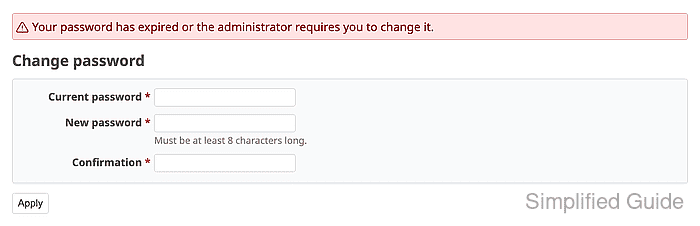
The current Redmine release redirects the default admin account to My account → Change password after the first successful sign-in. The form asks for the current password, the new password, and the confirmation, and Redmine enforces the configured minimum password length before accepting the change.
Built-in Redmine passwords can be changed in the web interface, while LDAP or other external authentication sources manage passwords outside Redmine. A completed change rejects admin as the old password and accepts only the new administrator password.
Steps to change the Redmine admin password after first login:
- Open the Redmine sign-in page.
https://redmine.example.net/login
Replace the hostname with the URL for your Redmine site.
- Enter admin in Login, enter admin in Password, and click Login.
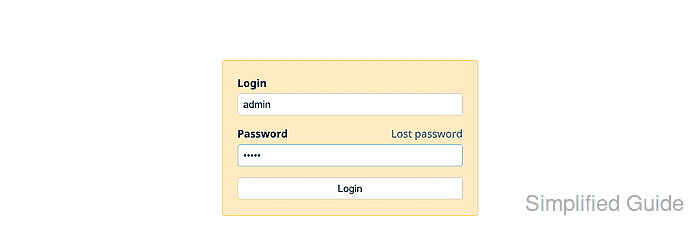
The default account has administrator access. Use the default password only long enough to replace it.
- Fill Current password with admin, then fill New password and Confirmation with the new administrator password.
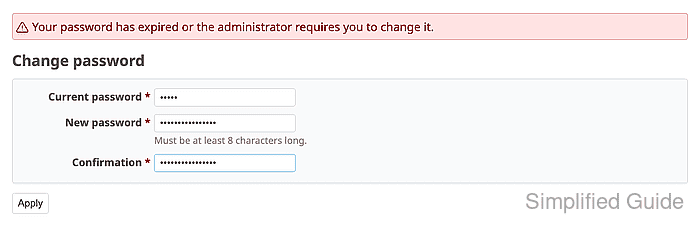
Redmine requires at least 8 characters unless the site administrator changed the minimum password length.
- Click Apply to save the new password.
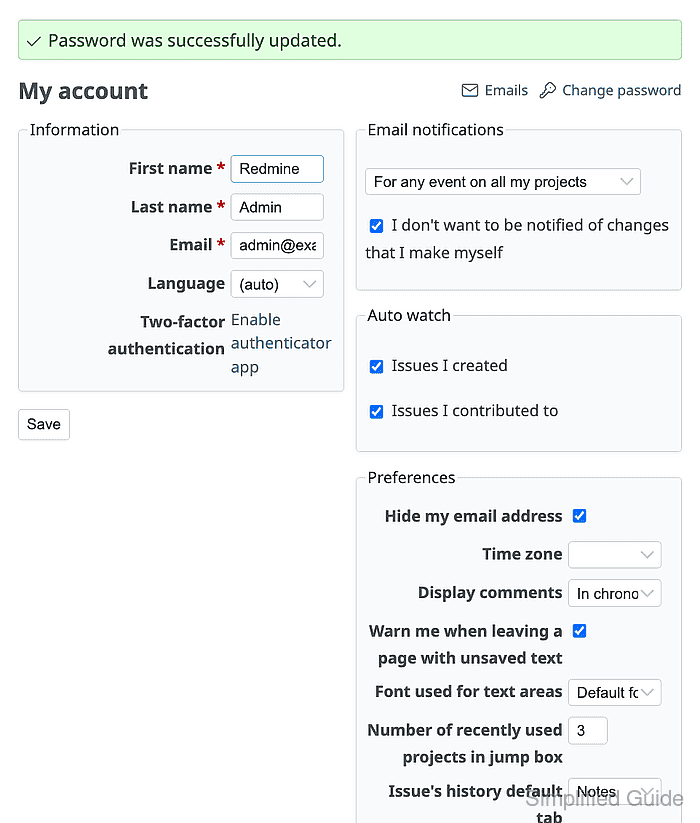
- Sign out and try to sign in again with admin as the password.
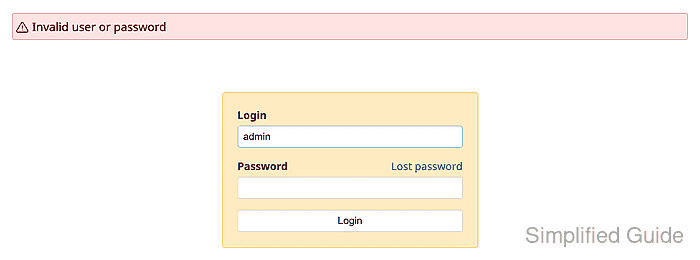
Invalid user or password confirms the default password no longer works for the administrator account.
- Sign in with the new administrator password.
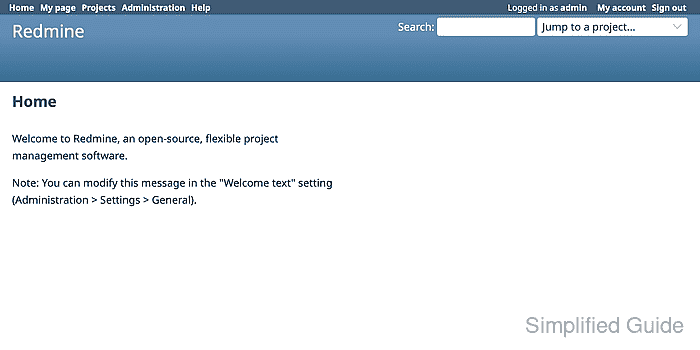
The top bar should show Logged in as admin.

Mohd Shakir Zakaria is a cloud architect with deep roots in software development and open-source advocacy. Certified in AWS, Red Hat, VMware, ITIL, and Linux, he specializes in designing and managing robust cloud and on-premises infrastructures.


