A training checkpoint can contain Python objects as well as model tensors. PyTorch reports a weights-only checkpoint loading error when its restricted loader rejects an object in the file; a reviewed allowlist can let a trusted checkpoint load while retaining the restriction.
Custom metadata can trigger this error even when the model parameters themselves are ordinary tensors. The checkpoint creator's Python definitions are needed to restore that metadata, while the model architecture is needed separately to use the saved parameters.
Checkpoint provenance and the code behind each allowed type both matter. Weights-only loading reduces the risk of code execution but does not guarantee protection against denial of service or memory corruption, so an unknown checkpoint remains unsafe to load.
Steps to fix a weights-only checkpoint loading error in PyTorch:
- Create restore_checkpoint.py in the failing checkpoint's directory, with checkpoint_path set to that file's name.
- restore_checkpoint.py
import torch

checkpoint_path = "checkpoint.pt"

rejected = torch.serialization.get_unsafe_globals_in_checkpoint(
    checkpoint_path
)
print(rejected)

checkpoint = torch.load(
    checkpoint_path, map_location="cpu", weights_only=True
)
The scan lists the types and functions that are not currently allowlisted. It is a static inspection, not a security verdict, and dynamically constructed types can be absent from the list. PyTorch 2.6 and later default to weights-only loading when no custom pickle module is supplied, so the explicit argument only makes the restriction visible. The CPU mapping avoids requiring the original GPU.
- Save restore_checkpoint.py.
- Run the script from that directory in the PyTorch environment that raised the error.
$ python restore_checkpoint.py
['checkpoint_types.TrainingInfo']
Traceback (most recent call last):
##### snipped #####
_pickle.UnpicklingError: Weights only load failed. This file can still be loaded, to do so you have two options, do those steps only if you trust the source of the checkpoint.
##### snipped #####
	WeightsUnpickler error: Unsupported global: GLOBAL checkpoint_types.TrainingInfo was not an allowed global by default. Please use `torch.serialization.add_safe_globals([checkpoint_types.TrainingInfo])` or the `torch.serialization.safe_globals([checkpoint_types.TrainingInfo])` context manager to allowlist this global if you trust this class/function.
##### snipped #####
Tested with PyTorch 2.15.0. An environment without NumPy also prints a harmless Failed to initialize NumPy warning. An older checkpoint in the non-zip format stops at the scan with a ValueError instead. If that happens, delete the scan lines and rerun the script, because the load error still names the first rejected type.
Never load a checkpoint from an untrusted source. Disabling the restriction with weights_only=False can execute arbitrary code; it is not a safe general fix for this error.
- Review the source of checkpoint_types.TrainingInfo, or each type your scan names, in the checkpoint creator's code.
- checkpoint_types.py
class TrainingInfo:
    def __init__(self, epoch):
        self.epoch = epoch
This metadata class only stores an epoch number. A class name alone does not establish trust; imported code and custom unpickling methods can have side effects. If the source or any requested type cannot be reviewed, stop and ask the checkpoint creator for a plain tensor state dictionary, which loads with no allowlist as shown in How to save and load a PyTorch model. Automatically allowlisting every name reported by the checkpoint defeats that review.
- Copy the reviewed module into the script's directory unless it already imports in this environment.
Python imports from the script's directory first, so the copied file keeps the module path saved in the checkpoint. A module inside a package keeps its package folder. Defining an unrelated class with the same short name does not recreate that module path or behavior.
Importing a script runs its top-level code, so a training script can retrain and overwrite this checkpoint. For a type reported as __main__.TrainingInfo, copy only the reviewed class into a small module of its own, such as training_info.py, and import it from there.
- Open restore_checkpoint.py in your text editor.
- Insert the following line below import torch, with the module and class your scan named.
from checkpoint_types import TrainingInfo
- Replace everything below the checkpoint_path line with the following scoped load, listing every type you reviewed.
with torch.serialization.safe_globals([TrainingInfo]):
    checkpoint = torch.load(
        checkpoint_path, map_location="cpu", weights_only=True
    )
print(sorted(checkpoint))
The entry lasts for the duration of the with block and is gone from the allowlist afterwards. For a type reported as __main__.TrainingInfo, list (TrainingInfo, "__main__.TrainingInfo") here so PyTorch accepts your imported class under that saved name. The PyTorch serialization documentation describes these restrictions.
- Add the following restore at the end of the file, with your checkpoint's own model, imported if needed, and state-dictionary key.
model = torch.nn.Linear(2, 1)
state_dict = checkpoint["model_state_dict"]
print(model.load_state_dict(state_dict))

parameters_match = all(
    torch.equal(value, state_dict[name])
    for name, value in model.state_dict().items()
)
print(parameters_match)
This checkpoint belongs to a two-input, one-output linear layer, and the printed dictionary keys show which key holds its state dictionary. Key or shape errors at this point indicate an architecture mismatch rather than an allowlist failure. A file saved with torch.save(model) loads as the model itself, so for that file delete the print(sorted(checkpoint)) line, skip this step, and start the next step's code with model = checkpoint, which leaves only the prediction in the final output.
- Add the following prediction at the end of the file, with an input whose expected result you know.
model.eval()
with torch.inference_mode():
    print(model(torch.tensor([[3.0, 1.0]])))
This checkpoint stores weights [2.0, -1.0] and bias 0.5, so the input above should give 3 × 2 + 1 × (-1) + 0.5 = 5.5. For another model, ask the checkpoint creator for a known input and its prediction.
- Save restore_checkpoint.py.
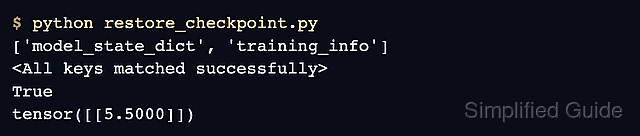
- Run the script to confirm that the restored model produces the expected prediction.
$ python restore_checkpoint.py
['model_state_dict', 'training_info']
<All keys matched successfully>
True
tensor([[5.5000]])
True means the restored tensors equal the saved ones, and the last line is the expected prediction. If the load rejects another type instead, that type needs its own source review before a retry.