Deploying a Grafana, Prometheus, and node exporter stack gives a Linux host a local monitoring path from host metrics to a dashboard. node exporter exposes CPU, memory, filesystem, network, and load metrics, Prometheus scrapes those time series, and Grafana displays the result in a panel before more hosts or alerts are added.
Docker Compose keeps the local stack in one project on one Linux host. The Compose project runs all three containers on a shared bridge network, stores Prometheus and Grafana state in named volumes, and provisions the Prometheus data source plus a small node exporter dashboard from local files.
The node exporter container mounts /proc, /sys, and the host root filesystem read-only so it can expose host metrics from inside Docker. The sample publishes ports 3000, 9090, and 9100 for local verification; restrict those ports and replace the sample Grafana password before using the stack on a shared or untrusted network.
Steps to deploy a Grafana, Prometheus, and node exporter monitoring stack with Docker Compose:
- Create the stack directory.
$ mkdir prometheus-node-stack
- Enter the stack directory.
$ cd prometheus-node-stack
- Create the Grafana provisioning directories.
$ mkdir -p grafana/provisioning/datasources \
  grafana/provisioning/dashboards \
  grafana/dashboards
- Create the Prometheus scrape configuration.
- prometheus.yml
global:
  scrape_interval: 15s

scrape_configs:
  - job_name: prometheus
    static_configs:
      - targets:
          - localhost:9090

  - job_name: node
    static_configs:
      - targets:
          - node-exporter:9100
The node job uses the Compose service name node-exporter. Prometheus uses /metrics as the default scrape path for this target.
Related: How to configure Prometheus to scrape node exporter - Create the Grafana data source provisioning file.
- prometheus-datasource.yml
apiVersion: 1

datasources:
  - name: Prometheus
    uid: prometheus
    type: prometheus
    access: proxy
    url: http://prometheus:9090
    isDefault: true
    editable: true
The URL uses the Prometheus service name on the Compose network. Do not use localhost:9090 inside a separate Grafana container unless Grafana and Prometheus share the same network namespace.
- Create the Grafana dashboard provider file.
- dashboard-provider.yml
apiVersion: 1

providers:
  - name: node-exporter
    orgId: 1
    folder: ''
    type: file
    disableDeletion: false
    allowUiUpdates: true
    options:
      path: /var/lib/grafana/dashboards
- Create a small node exporter dashboard.
- node-exporter.json
{
  "title": "Node exporter quick view",
  "uid": "node-exporter",
  "schemaVersion": 41,
  "refresh": "10s",
  "time": {
    "from": "now-15m",
    "to": "now"
  },
  "panels": [
    {
      "id": 1,
      "type": "stat",
      "title": "Node load average",
      "datasource": {
        "type": "prometheus",
        "uid": "prometheus"
      },
      "targets": [
        {
          "refId": "A",
          "datasource": {
            "type": "prometheus",
            "uid": "prometheus"
          },
          "expr": "node_load1{job=\"node\"}"
        }
      ],
      "gridPos": {
        "h": 8,
        "w": 12,
        "x": 0,
        "y": 0
      }
    }
  ]
}
The panel queries node_load1 through the provisioned Prometheus data source. Import a fuller community dashboard later only after the basic scrape and data source are proven.
- Create the Docker Compose file.
- compose.yaml
name: prometheus-node-monitoring

networks:
  monitoring:
    driver: bridge

volumes:
  grafana-data:
  prometheus-data:

services:
  node-exporter:
    image: prom/node-exporter:latest
    container_name: node-exporter
    command:
      - --path.procfs=/host/proc
      - --path.rootfs=/rootfs
      - --path.sysfs=/host/sys
      - --collector.filesystem.mount-points-exclude=^/(sys|proc|dev|host|etc)($$|/)
    ports:
      - 9100:9100
    networks:
      - monitoring
    restart: unless-stopped
    volumes:
      - /proc:/host/proc:ro
      - /sys:/host/sys:ro
      - /:/rootfs:ro

  prometheus:
    image: prom/prometheus:latest
    container_name: prometheus
    command:
      - --config.file=/etc/prometheus/prometheus.yml
      - --storage.tsdb.path=/prometheus
      - --web.enable-lifecycle
    ports:
      - 9090:9090
    networks:
      - monitoring
    restart: unless-stopped
    volumes:
      - ./prometheus.yml:/etc/prometheus/prometheus.yml:ro
      - prometheus-data:/prometheus

  grafana:
    image: grafana/grafana:latest
    container_name: grafana
    depends_on:
      - prometheus
    environment:
      GF_SECURITY_ADMIN_PASSWORD: admin
      GF_SECURITY_ADMIN_USER: admin
      GF_USERS_DEFAULT_THEME: light
    ports:
      - 3000:3000
    networks:
      - monitoring
    restart: unless-stopped
    volumes:
      - grafana-data:/var/lib/grafana
      - ./grafana/provisioning/datasources:/etc/grafana/provisioning/datasources:ro
      - ./grafana/provisioning/dashboards:/etc/grafana/provisioning/dashboards:ro
      - ./grafana/dashboards:/var/lib/grafana/dashboards:ro
The sample Grafana credentials are admin / admin for a local first run only. Set a private password and restrict published ports before exposing the host beyond a trusted admin network.
- Start the monitoring stack.
$ docker compose up --detach
Network prometheus-node-monitoring_monitoring Created
Volume prometheus-node-monitoring_prometheus-data Created
Volume prometheus-node-monitoring_grafana-data Created
Container node-exporter Started
Container prometheus Started
Container grafana Started
- Confirm the three services are running.
$ docker compose ps --services --filter status=running
grafana
node-exporter
prometheus
- Check the node exporter metrics endpoint.
$ curl --silent http://localhost:9100/metrics
# HELP go_gc_duration_seconds A summary of the wall-time pause duration in garbage collection cycles.
# TYPE go_gc_duration_seconds summary
##### snipped #####
# HELP node_load1 1m load average.
# TYPE node_load1 gauge
node_load1 2.61
##### snipped #####
A local 200 OK response and node_ metrics confirm that node exporter is serving host metrics to the stack.
- Check the Prometheus readiness endpoint.
$ curl --silent --include http://localhost:9090/-/ready
HTTP/1.1 200 OK
Content-Length: 28
Content-Type: text/plain; charset=utf-8

Prometheus Server is Ready.
- Confirm Prometheus marks the node exporter target up.
$ docker compose exec prometheus promtool query instant \
  http://localhost:9090 \
  'up{job="node"}'
up{instance="node-exporter:9100", job="node"} => 1 @[1781952503.886]
Value 1 means the latest scrape succeeded. Value 0 means the target exists but the latest scrape failed.
Related: How to check Prometheus targets - Query a node exporter metric from Prometheus.
$ docker compose exec prometheus promtool query instant \
  http://localhost:9090 \
  'node_load1{job="node"}'
node_load1{instance="node-exporter:9100", job="node"} => 1.3 @[1781952503.887]
The returned node_load1 series proves that Prometheus is storing host metrics, not only listing the scrape target.
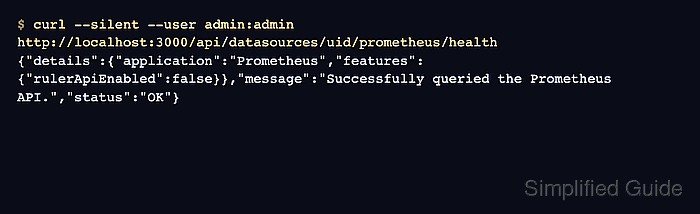
Related: How to run a PromQL query in Prometheus - Check that Grafana can query the provisioned Prometheus data source.
$ curl --silent --user admin:admin \ http://localhost:3000/api/datasources/uid/prometheus/health { "message": "Successfully queried the Prometheus API.", "status": "OK" } - Open the Grafana dashboard and confirm the Node load average panel shows a value.
http://localhost:3000/d/node-exporter/node-exporter-quick-view
Sign in with the sample admin / admin credentials only on a local lab stack, then change the password before keeping the deployment.

Mohd Shakir Zakaria is a cloud architect with deep roots in software development and open-source advocacy. Certified in AWS, Red Hat, VMware, ITIL, and Linux, he specializes in designing and managing robust cloud and on-premises infrastructures.


