Browser imports stop before phpMyAdmin can read an SQL dump when the PHP request ceiling is smaller than the uploaded file. The official phpMyAdmin Docker image exposes an UPLOAD_LIMIT environment variable that raises the container's upload allowance without editing its generated PHP configuration by hand.

The image's UPLOAD_LIMIT variable changes both upload_max_filesize and post_max_size for its Apache and PHP-FPM variants. A ceiling close to the largest approved dump avoids accepting unnecessarily large request bodies, and the setting does not fix an import that later exhausts memory or execution time.
A service-only recreation leaves the database container and its stored data in place. The higher value is active only after the replacement phpmyadmin container reports it, and an above-old-limit import must still finish against the intended database.
Steps to increase the phpMyAdmin upload limit in Docker Compose:
- Inspect the current PHP upload ceilings inside the running phpmyadmin service.
$ docker compose exec phpmyadmin php -r 'echo ini_get("upload_max_filesize"), "/", ini_get("post_max_size"), "\n";'
1M/1M
The first value is upload_max_filesize and the second is post_max_size. The official image defaults to 2048K when UPLOAD_LIMIT is unset, but an existing deployment can already have another value.
- Back up the current Compose file as a rollback copy.
$ cp compose.yaml compose.yaml.upload-limit.bak
The backup is the rollback path until the replacement phpMyAdmin container accepts an import above the former limit.
- Open compose.yaml in a text editor.
$ vi compose.yaml
- Add UPLOAD_LIMIT: 8M under the phpmyadmin service's environment mapping for a dump smaller than 8M.
services:
  phpmyadmin:
    image: phpmyadmin:5.2.3-apache
    environment:
      PMA_HOST: database
      UPLOAD_LIMIT: 8M
The official image accepts K, M, or G size suffixes and applies the value to both upload_max_filesize and post_max_size.
- Validate the edited Compose configuration.
$ docker compose config --quiet
A valid Compose file returns no output and exits with status 0.
- Recreate only the phpmyadmin service with the new environment value.
$ docker compose up --detach --force-recreate --no-deps phpmyadmin
The --no-deps option prevents Compose from recreating the database service while replacing the phpMyAdmin container.
- Confirm that the replacement container reports the new upload ceilings.
$ docker compose exec phpmyadmin php -r 'echo ini_get("upload_max_filesize"), "/", ini_get("post_max_size"), "\n";'
8M/8M
- Open the target database's Import tab after the phpMyAdmin container restarts.
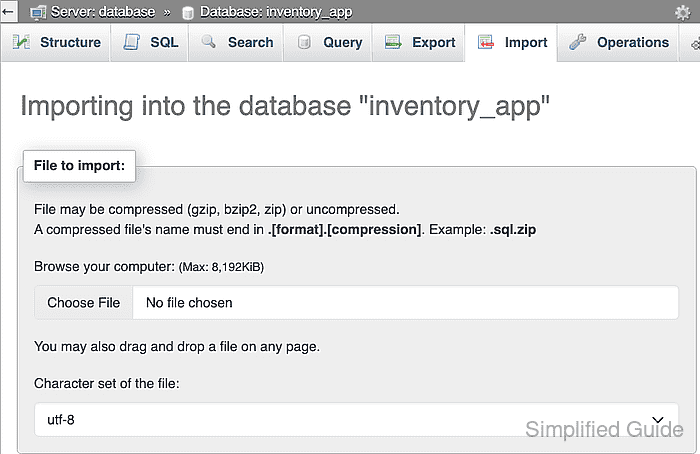
The File to import card should show the new maximum before a file is selected.
- Choose an SQL file that is larger than the former limit and smaller than the new limit.
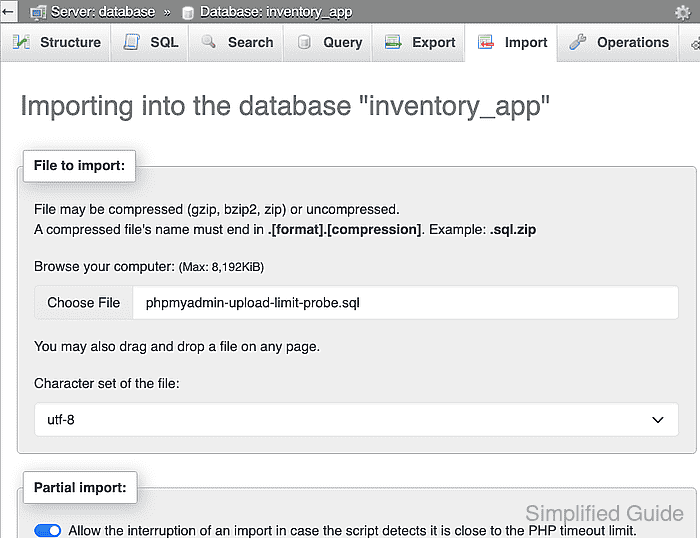
phpMyAdmin executes the selected dump against the database named in the breadcrumb, including any destructive DROP, ALTER, or DELETE statements it contains.
- Submit the selected SQL file with the Import button.
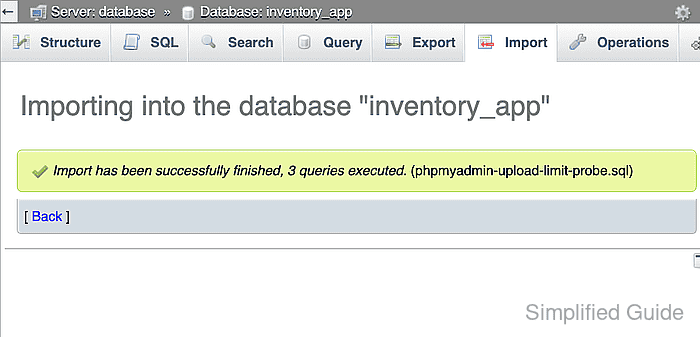
- Query an expected table from the imported dump through the database container.
$ docker compose exec database mariadb --user=guide_operator --password inventory_app --execute="SELECT COUNT(*) AS imported_rows, OCTET_LENGTH(payload) AS payload_bytes FROM upload_limit_probe GROUP BY payload_bytes;"
Enter password:
+---------------+---------------+
| imported_rows | payload_bytes |
+---------------+---------------+
|             1 |       2500000 |
+---------------+---------------+
The verified probe file was 2,500,169 bytes, exceeded the former 1M ceiling, and inserted one 2,500,000-byte payload. The service, database, user, table, and confirmation query depend on the deployed Compose project and the contents of the real dump.