Cookie authentication keeps database credentials out of phpMyAdmin's persistent configuration, but its default idle window can interrupt long administration tasks. Extending that window requires phpMyAdmin's login-cookie limit and PHP's session lifetime to agree.

The official Docker image loads persistent application overrides from /etc/phpmyadmin/config.user.inc.php and additional PHP settings from files under /usr/local/etc/php/conf.d. Read-only Compose mounts keep both changes outside the replaceable container filesystem.
The one-hour value below is 3600 seconds, longer than phpMyAdmin's default 24-minute login-cookie validity. Use the shortest interval that covers the work, because an unattended authenticated tab remains usable for the extended period.
Steps to increase the phpMyAdmin session timeout with Docker Compose:
- Open a terminal in the Docker Compose project directory containing compose.yaml.
- Create the local phpMyAdmin override directory.
$ mkdir -p phpmyadmin
- Create the phpMyAdmin user override file in an editor.
$ vi phpmyadmin/config.user.inc.php
- Set LoginCookieValidity to one hour in the phpMyAdmin override.
- phpmyadmin/config.user.inc.php
<?php
$cfg['LoginCookieValidity'] = 3600;
A longer login lifetime increases the exposure of an unattended authenticated browser. The endpoint should remain behind HTTPS and restricted network access, while the default session-only browser cookie avoids persistence beyond the browser session.
- Create the PHP session override file in an editor.
$ vi phpmyadmin/session-timeout.ini
- Set session.gc_maxlifetime to the same one-hour interval.
- phpmyadmin/session-timeout.ini
session.gc_maxlifetime = 3600
PHP can discard session data after this many inactive seconds, so a smaller value would invalidate the phpMyAdmin login before LoginCookieValidity is reached.
- Add both read-only source mounts from the project's phpmyadmin/ subdirectory to the existing phpmyadmin service.
- compose.yaml
services:
  phpmyadmin:
    volumes:
      - ./phpmyadmin/config.user.inc.php:/etc/phpmyadmin/config.user.inc.php:ro
      - ./phpmyadmin/session-timeout.ini:/usr/local/etc/php/conf.d/session-timeout.ini:ro
Existing service mounts remain alongside these entries.
- Validate the completed Compose configuration.
$ docker compose config --quiet
A valid configuration exits with status 0 and prints no output.
- Recreate the phpmyadmin service with the mounted timeout settings.
$ docker compose up --detach --force-recreate phpmyadmin
- Verify that phpMyAdmin and PHP both load the one-hour limits.
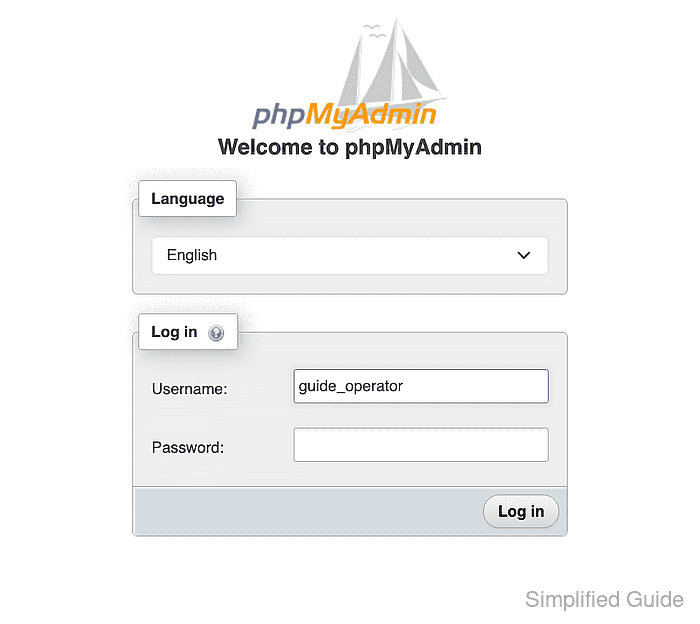
$ docker compose exec phpmyadmin php -r '$cfg = []; require "/etc/phpmyadmin/config.user.inc.php"; printf("LoginCookieValidity=%s\nsession.gc_maxlifetime=%s\n", $cfg["LoginCookieValidity"], ini_get("session.gc_maxlifetime"));' LoginCookieValidity=3600 session.gc_maxlifetime=3600 - Enter the username for a restricted database account on the phpMyAdmin login page.
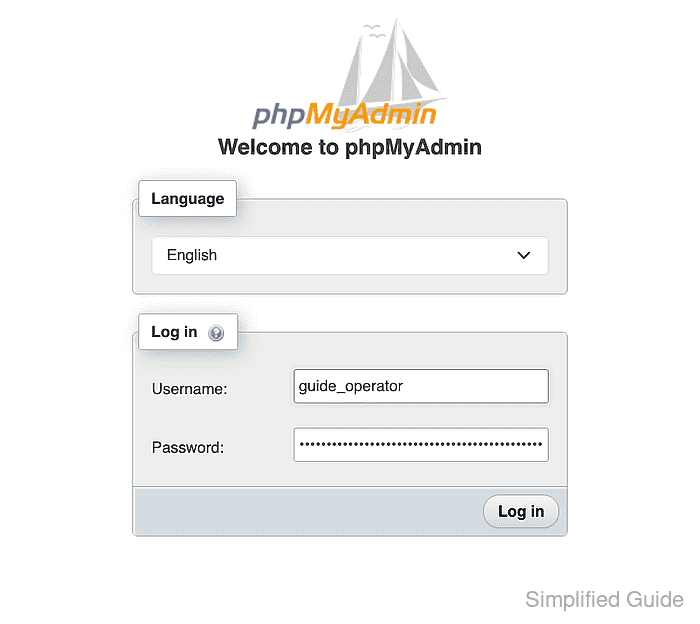
- Enter the restricted account password in the phpMyAdmin password field.
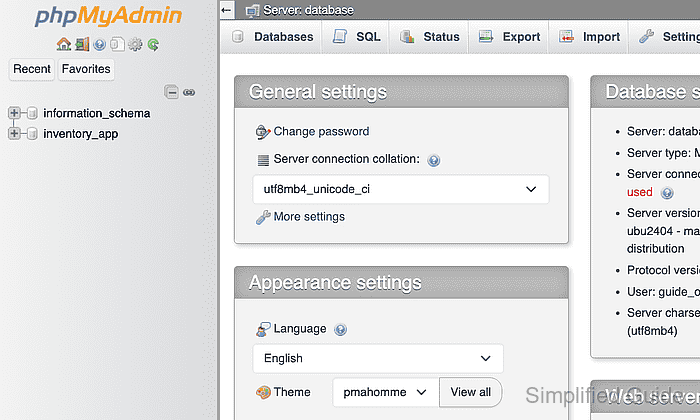
- Submit the phpMyAdmin login form under cookie authentication.
- Leave the authenticated browser tab idle until the previous timeout interval has passed.
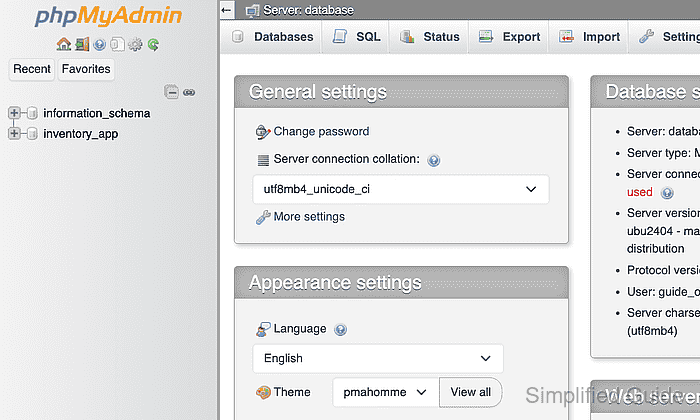
- Reload the phpMyAdmin page after the previous timeout interval has passed.
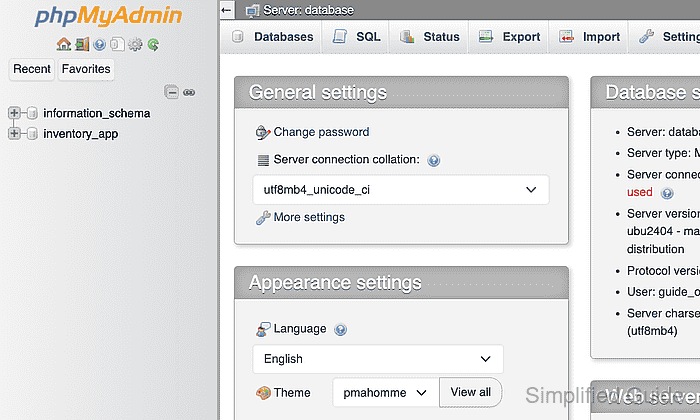
- Open a permitted database from the reloaded dashboard to confirm that the authenticated session remains usable after the former timeout boundary.