OpenNebula scheduling problems usually appear as a VM that stays in pend after instantiation or a rescheduled VM that never lands on another host. The rank scheduler filters hosts, system datastores, image datastores, and automatically selected networks before it can dispatch the VM, so one missing match can keep the instance waiting.
The fastest CLI path starts with the VM record and the rank scheduler log, then compares the rejected requirement against hosts, datastores, and virtual networks. onevm show exposes the VM state, placement requirements, disk inputs, and NIC inputs, while /var/log/one/rank_sched.log shows the most recent rank scheduler invocation.
A front-end shell as oneadmin or another administrator account can inspect the VM, host pool, datastores, and networks without changing placement. If the scheduler points to a disabled host, missing datastore, full system datastore, empty network lease pool, or restrictive SCHED_REQUIREMENTS expression, fix that exact resource before forcing deployment.
Steps to troubleshoot OpenNebula scheduler placement:
- Open a front-end shell as oneadmin.
$ sudo -iu oneadmin
- Find the VM that remains in pend or hold.
$ onevm list
  ID USER     GROUP    NAME   STAT CPU     MEM        HOSTNAME        TIME
  42 oneadmin oneadmin web-01 pend   0      0K                 00 00:06:41
pend means the VM is waiting for scheduler placement. hold means scheduling is paused until the VM is released.
- Inspect the VM state and placement inputs.
$ onevm show 42
VIRTUAL MACHINE 42 INFORMATION
ID                  : 42
NAME                : web-01
USER                : oneadmin
GROUP               : oneadmin
STATE               : PENDING
LCM_STATE           : LCM_INIT
START TIME          : 06/25 10:21:58
END TIME            : -

VIRTUAL MACHINE TEMPLATE
CPU="4"
MEMORY="8192"
AUTOMATIC_REQUIREMENTS="CLUSTER_ID = 100"
SCHED_REQUIREMENTS="HYPERVISOR = \"kvm\" & ID = 2"
DISK=[
  IMAGE="ubuntu-24.04",
  IMAGE_UNAME="oneadmin" ]
NIC=[
  NETWORK="prod-lan" ]
AUTOMATIC_REQUIREMENTS often comes from image, datastore, network, or cluster choices. SCHED_REQUIREMENTS comes from the VM or template placement policy and must match monitored host attributes.
- Release the VM only when it is held.
$ onevm release 42
Skip this step when onevm list already shows pend. Releasing a held VM makes it eligible for the next scheduler cycle.
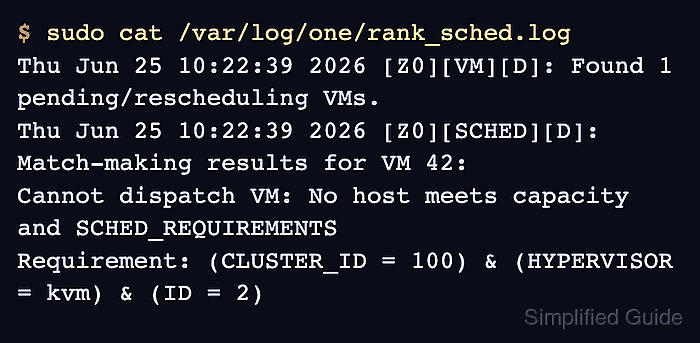
- Read the rank scheduler log after the next scheduler cycle.
$ sudo cat /var/log/one/rank_sched.log
Thu Jun 25 10:22:39 2026 [Z0][VM][D]: Found 1 pending/rescheduling VMs.
Thu Jun 25 10:22:39 2026 [Z0][SCHED][D]: Match-making results for VM 42:
Cannot dispatch VM: No host meets capacity and SCHED_REQUIREMENTS
Requirement: (CLUSTER_ID = 100) & (HYPERVISOR = kvm) & (ID = 2)
The rank scheduler log is truncated on each scheduler invocation, so capture it while the VM is still pending.
- Compare the host pool with the rejected host requirement.
$ onehost list
  ID NAME            CLUSTER      RVM      ALLOCATED_CPU      ALLOCATED_MEM STAT
   2 host02          production     0       0 / 800 (0%)      0K / 31.1G (0%) dsbl
   3 host03          production     2     200 / 800 (25%)     4G / 31.1G (13%) on
The scheduler cannot deploy new VMs to hosts in dsbl, off, or err state. A host can have enough CPU and memory and still be excluded by state, cluster, datastore, or template requirements.
- Inspect the matching host record.
$ onehost show host02
HOST 2 INFORMATION
ID                    : 2
NAME                  : host02
CLUSTER               : production
STATE                 : DISABLED
IM_MAD                : kvm
VM_MAD                : kvm

HOST SHARES
RUNNING VMS           : 0
MEMORY
  TOTAL               : 31.1G
  USED (ALLOCATED)    : 0K
CPU
  TOTAL               : 800
  USED (ALLOCATED)    : 0

HOST TEMPLATE
HYPERVISOR="kvm"
For hosts in err, fix the error shown in onehost show and /var/log/one/oned.log before forcing another scheduling attempt.
Related: How to add a host to OpenNebula - Check image and system datastore capacity for the VM cluster.
$ onedatastore list
  ID NAME                SIZE AVA CLUSTERS IMAGES TYPE DS      TM      STAT
   1 default              50G 86% 100           2 img  fs      local   on
   0 system                 - -   100           0 sys  -       local   on
The scheduler filters datastores that do not match SCHED_DS_REQUIREMENTS, do not belong to the required cluster, are disabled, or lack enough free space for the VM disk and system datastore use.
Related: How to monitor an OpenNebula datastore - Check the virtual network used by the VM NIC.
$ onevnet show prod-lan
VIRTUAL NETWORK 5 INFORMATION
ID             : 5
NAME           : prod-lan
CLUSTERS       : 100
STATE          : READY

VIRTUAL NETWORK TEMPLATE
VN_MAD="bridge"
BRIDGE="br0"

AR 0
IP                  : 192.0.2.100
SIZE                : 100
LEASES              : 18
For NICs with NETWORK_MODE=“auto”, compare the NIC's SCHED_REQUIREMENTS with labels in candidate virtual networks and confirm that matching networks still have free leases.
Related: How to create an OpenNebula virtual network - Enable the matching host after correcting the maintenance or monitoring reason.
$ onehost enable host02
Enable a host only after the underlying maintenance, SSH, probe, storage, or hypervisor issue is fixed; otherwise the VM can move from a scheduling problem into a boot, prolog, or transfer failure.
- Confirm that the host is eligible for scheduler placement.
$ onehost list
  ID NAME            CLUSTER      RVM      ALLOCATED_CPU      ALLOCATED_MEM STAT
   2 host02          production     0       0 / 800 (0%)      0K / 31.1G (0%) on
   3 host03          production     2     200 / 800 (25%)     4G / 31.1G (13%) on
- Verify that the VM left pending state after the next scheduler cycle.
$ onevm show 42
VIRTUAL MACHINE 42 INFORMATION
ID                  : 42
NAME                : web-01
STATE               : ACTIVE
LCM_STATE           : RUNNING
START TIME          : 06/25 10:21:58
END TIME            : -

VIRTUAL MACHINE HISTORY
 SEQ HOSTNAME ACTION           START        TIME       PTIME
   0 host02   none   06/25 10:24:12 00 00:02:31 00 00:00:18
If the VM remains pending after the resource fix, repeat the scheduler log and object checks before changing placement policy again.

Mohd Shakir Zakaria is a cloud architect with deep roots in software development and open-source advocacy. Certified in AWS, Red Hat, VMware, ITIL, and Linux, he specializes in designing and managing robust cloud and on-premises infrastructures.


