OpenNebula accounts decide who can sign in to Sunstone, call the XML-RPC API, and own cloud resources inside a tenant boundary. Cloud administrators create them when onboarding a tenant operator, group administrator, or service account that should not share the oneadmin identity.
The CLI path uses oneuser from the front-end, normally as oneadmin. A new account starts with a username, an authentication driver, and at least one group; the default users group fits ordinary users, while the oneadmin group grants full cloud administrator privileges.
For a local account, create a core user, move it into a tenant group, check the saved user record, and use a temporary ONE_AUTH file to confirm CLI authentication. For LDAP, SAML, SSH, or X.509 accounts, configure the authentication method first and replace the password value with the driver-specific identifier or key material required by OpenNebula.
Steps to create an OpenNebula user:
- Open a front-end shell as oneadmin.
$ sudo -iu oneadmin
- List groups to confirm the target tenant group.
$ onegroup list
  ID NAME
   0 oneadmin
   1 users
 100 accounting
Every OpenNebula user belongs to at least one group. Use a tenant group such as accounting for normal access isolation, and reserve oneadmin for cloud administrators.
- Create the local user with the core authentication driver.
$ oneuser create tenant01 'temporary-passphrase' --driver core
ID: 23
core checks the username and password stored by OpenNebula. Drivers such as ldap or saml can create users without a local password after the external authentication backend is configured.
- Move the user into the tenant group.
$ oneuser chgrp -v tenant01 accounting
USER 23: Group changed
Do not move routine tenant users into oneadmin unless they should administer every object in the cloud.
- Show the saved user record.
$ oneuser show tenant01
USER 23 INFORMATION
ID             : 23
NAME           : tenant01
GROUP          : 100
##### snipped #####
AUTH_DRIVER    : core
ENABLED        : Yes
The GROUP value should match the tenant group ID from onegroup list.
- List the tenant group to confirm membership.
$ onegroup show accounting
GROUP 100 INFORMATION
ID             : 100
NAME           : accounting

USERS
ID              NAME
23              tenant01
- Create an owner-only temporary auth file for the login check.
$ install -m 600 /dev/null /tmp/tenant01.one_auth
- Write the new user's session string to the temporary auth file.
$ printf 'tenant01:%s\n' 'temporary-passphrase' > /tmp/tenant01.one_auth
The file contains a password-based session string. Keep it owner-readable only, use a throwaway onboarding password for the check, and rotate the real user password through the normal account handoff process.
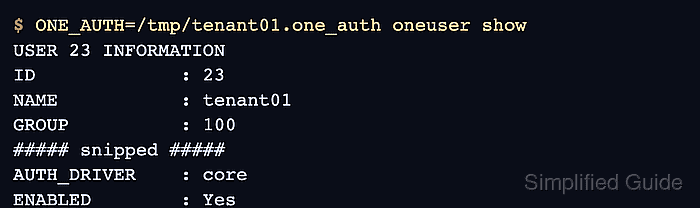
- Verify CLI authentication as the new user.
$ ONE_AUTH=/tmp/tenant01.one_auth oneuser show
USER 23 INFORMATION
ID             : 23
NAME           : tenant01
GROUP          : 100
##### snipped #####
AUTH_DRIVER    : core
ENABLED        : Yes
- Remove the temporary auth file.
$ rm /tmp/tenant01.one_auth

Mohd Shakir Zakaria is a cloud architect with deep roots in software development and open-source advocacy. Certified in AWS, Red Hat, VMware, ITIL, and Linux, he specializes in designing and managing robust cloud and on-premises infrastructures.


