OpenNebula group quotas limit the total resources consumed by every user in the same tenant group. They are useful when a cloud administrator wants one group to share a fixed VM, memory, datastore, network, or image allowance without editing each user separately.
From an OpenNebula front-end shell, onegroup quota can read a saved quota template file instead of opening an editor. Passing the file path keeps the change repeatable; running the command without a file opens an editor with the current quota template.
Group quota changes require ADMIN permission on the group, so the examples assume the oneadmin account or another administrator account with an ACL that allows group quota management. The values in the file are limits only; usage counters such as MEMORY_USED, SIZE_USED, and LEASES_USED are read-only values populated by OpenNebula.
Steps to set an OpenNebula group quota:
- List groups to confirm the target group name or ID.
$ onegroup list
  ID NAME
   0 oneadmin
   1 users
 100 accounting
- List datastores before adding datastore quota blocks.
$ onedatastore list
  ID NAME                SIZE AVA CLUSTERS IMAGES TYPE DS      TM      STAT
   2 files                50G 86% 0             0 fil  fs      local   on
   1 default             500G 92% 0             3 img  fs      shared  on
   0 system                 - -   0             0 sys  -       shared  on
The DATASTORE quota block uses the datastore ID, not the datastore name.
Related: How to monitor an OpenNebula datastore - List virtual networks before adding network lease limits.
$ onevnet list
  ID USER     GROUP    NAME            CLUSTERS BRIDGE     LEASES
 100 oneadmin oneadmin public-net      0        br0        2
The NETWORK quota block uses the virtual network ID and limits the number of leased IP addresses from that network.
- List images before adding image reuse limits.
$ oneimage list
  ID USER     GROUP    NAME            DATASTORE     SIZE TYPE PER STAT RVMS
   7 oneadmin oneadmin licensed-app    default       8G   OS   No rdy     1
Use an IMAGE quota when one image represents a limited software license or another consumable image-level resource.
- Create the quota template file.
- accounting-quota.txt
VM = [
  VMS              = "8",
  MEMORY           = "32768",
  CPU              = "16",
  RUNNING_VMS      = "6",
  SYSTEM_DISK_SIZE = "204800"
]

DATASTORE = [
  ID     = "1",
  IMAGES = "-2",
  SIZE   = "512000"
]

NETWORK = [
  ID     = "100",
  LEASES = "20"
]

IMAGE = [
  ID   = "7",
  RVMS = "4"
]
Quota sizes are in MB. Use -2 for unlimited and -1 to use the default quota where defaults apply. Add CLUSTER_IDS inside a VM block only when the compute quota should apply to specific cluster IDs.
- Apply the quota template to the group.
$ onegroup quota accounting accounting-quota.txt
GROUP 100: modified
The template replaces the editable quota definition for that group. Keep existing quota blocks in the file when they should remain active.
- Show the group quota sections after the change.
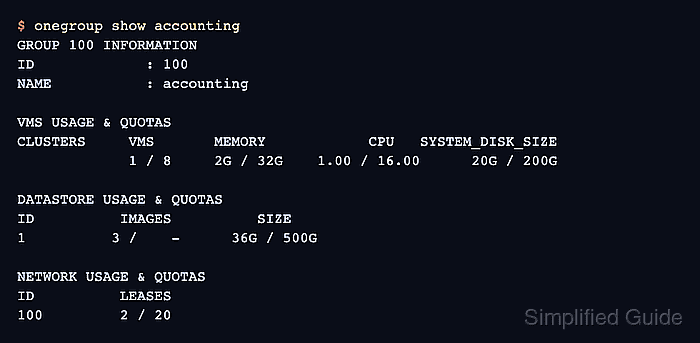
$ onegroup show accounting
GROUP 100 INFORMATION
ID             : 100
NAME           : accounting

USERS
ID
12
14

VMS USAGE & QUOTAS
CLUSTERS     VMS       MEMORY            CPU   PCI DEV   PCI NIC   SYSTEM_DISK_SIZE
             1 / 8     2G / 32G    1.00 / 16.00    0 /  -    0 /  -      20G / 200G

VMS USAGE & QUOTAS - RUNNING
CLUSTERS    RUN VMS     RUN MEMORY        RUN CPU    PCI DEV    PCI NIC
             1 / 6      2G /    -    1.00 /    -     0 /  -     0 /  -

DATASTORE USAGE & QUOTAS
ID          IMAGES          SIZE
1          3 /    -      36G / 500G

NETWORK USAGE & QUOTAS
ID          LEASES
100         2 / 20

IMAGE USAGE & QUOTAS
ID          RVMS
7           1 / 4
The left side of each value is current usage, and the right side is the saved quota limit.

Mohd Shakir Zakaria is a cloud architect with deep roots in software development and open-source advocacy. Certified in AWS, Red Hat, VMware, ITIL, and Linux, he specializes in designing and managing robust cloud and on-premises infrastructures.


