An unattended image update trades control over release timing for less routine maintenance. Watchtower can automate Open WebUI updates on a personal Docker host by checking for a changed image and replacing the running container without waiting for an administrator.
Watchtower follows the image tag used to create a container. A fixed v0.13.3 tag does not advance to the next release; the moving main tag does, including releases with breaking changes. The maintained nickfedor/watchtower fork supports current Docker engines, including Docker 29+, and is the fork named in Open WebUI's update documentation.
Automatic replacement interrupts active users and can migrate the database. An existing single-container installation needs persistent data, its original secret configuration, and recoverable backups before unattended updates are appropriate. Shared or critical installations are better served by reviewed manual updates with a pinned release.
Steps to automate Open WebUI updates with Watchtower:
- Check the image reference used by the existing open-webui container.
$ docker inspect --format '{{.Config.Image}}' open-webui
The container must already have an administrator account and persistent storage. How to run Open WebUI with Docker covers the loopback-bound installation used here, with the open-webui volume and a protected open-webui.env file. Compose-managed installations keep their settings in the Compose file.
- Back up the current data and matching secret configuration using How to back up and restore Open WebUI data.
A new release can change the database schema, so an older image alone cannot undo an update. A restore rehearsal must recover the existing account and a recognizable conversation before automatic replacement is enabled. Recurring updates also need recurring consistent backups; a one-time backup becomes stale as users add data.
- Recreate a version-pinned Open WebUI installation on main using the manual Docker update procedure.
This prerequisite applies only when the image reference ends in a version tag or digest. The target image is ghcr.io/open-webui/open-webui:main, with the same volume, port binding, host mappings, restart policy, and original environment file. An existing main container needs no tag change. The retained WEBUI_SECRET_KEY must stay identical; generating a replacement can break sessions and encrypted settings.
Related: How to set WEBUI_SECRET_KEY in Open WebUI - Record the current container image ID.
$ docker inspect --format '{{.Image}}' open-webui
The image ID identifies the actual running image even when main later moves. Keeping the value makes it possible to distinguish a replacement from a check that found no update.
- Run one update check scoped to open-webui.
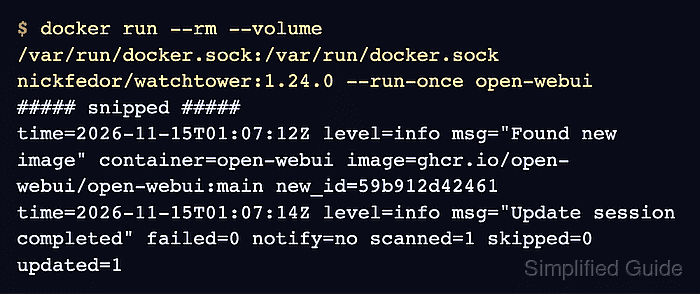
The Docker socket gives Watchtower root-equivalent control over the Docker host. The container-name filter limits normal update selection, not that privilege. An available update will stop and recreate Open WebUI immediately, so this first check belongs in a maintenance window after the backup.
$ docker run --rm \
  --volume /var/run/docker.sock:/var/run/docker.sock \
  nickfedor/watchtower:1.24.0 \
  --run-once open-webui
Example output:
##### snipped #####
Found new image container=open-webui image=ghcr.io/open-webui/open-webui:main
##### snipped #####
Update session completed failed=0 scanned=1 skipped=0 updated=1
The exact log formatting varies. scanned=1 shows one selected container; updated=1 means it was replaced. updated=0 with failed=0 is normal when main has not changed. Omitting open-webui would allow Watchtower to select other running containers.
- Compare the running image ID with the value recorded before the check.
$ docker inspect --format '{{.Image}}' open-webui
An update must produce a different ID; a no-update session should retain the same ID. A replacement log without the expected running image needs investigation.
- Confirm that Open WebUI still uses its original data volume.
$ docker inspect --format '{{range .Mounts}}{{.Type}} {{.Name}} -> {{.Destination}}{{end}}' open-webui
Example output:
volume open-webui -> /app/backend/data
A different installation must retain its own original mount. Watchtower recreates the container from its existing configuration; it does not create a backup.
- Request the Open WebUI health endpoint after startup.
$ curl --fail --silent --show-error http://127.0.0.1:3000/health
Example output:
{"status":true}Initial startup can take several minutes. A connection error, HTTP error, or migration failure is a reason to stop before enabling the schedule. If recovery is needed, docker stop watchtower suspends an already-running scheduler; restore the pre-update data with its matching image and secret rather than opening migrated data with an older image.
Related: How to view Open WebUI Docker logs - Confirm that a conversation saved before the update still contains its original messages.
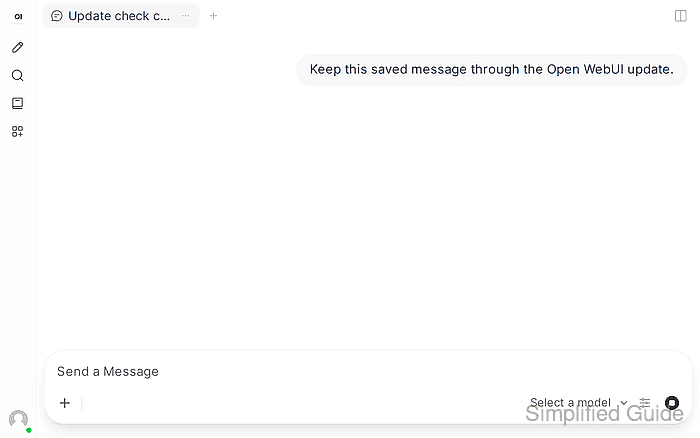
The conversation must belong to the existing account. A healthy endpoint or an empty new workspace does not establish that saved chats survived.
- Start a persistent Watchtower container for daily checks at 04:00 UTC.
$ docker run --detach \
  --name watchtower \
  --restart unless-stopped \
  --volume /var/run/docker.sock:/var/run/docker.sock \
  nickfedor/watchtower:1.24.0 \
  --schedule "0 0 4 * * *" open-webui
The six fields are second, minute, hour, day of month, month, and day of week. Watchtower defaults to UTC; a different timezone can be set with TZ when creating the container. The schedule cannot be combined with --interval. The unless-stopped restart policy brings Watchtower back with Docker unless it was explicitly stopped. Only the named Open WebUI container is selected; Watchtower itself remains on the chosen version. Watchtower's scheduling documentation describes other schedules.
- Check the next scheduled run in Watchtower's logs.
$ docker logs watchtowerThe startup log must show Next scheduled run at the intended UTC time. An invalid schedule or Docker connection failure needs correction before leaving it unattended.
- Confirm that Watchtower is running with the intended schedule and container selector.
$ docker inspect --format '{{.State.Running}} {{.HostConfig.RestartPolicy.Name}} {{json .Config.Cmd}}' watchtower
Example output:
true unless-stopped ["--schedule","0 0 4 * * *","open-webui"]
These arguments retain daily unattended checks for open-webui. Old images remain cached because --cleanup was not enabled; they still do not replace a pre-migration data backup.